Manage cookies that are used for advertising, such as ad personalization, remarketing, and ad effectiveness analysis.
8.6.8. RabbitMQ users
Users are managed in the "RabbitMQ" section on the "Users" tab: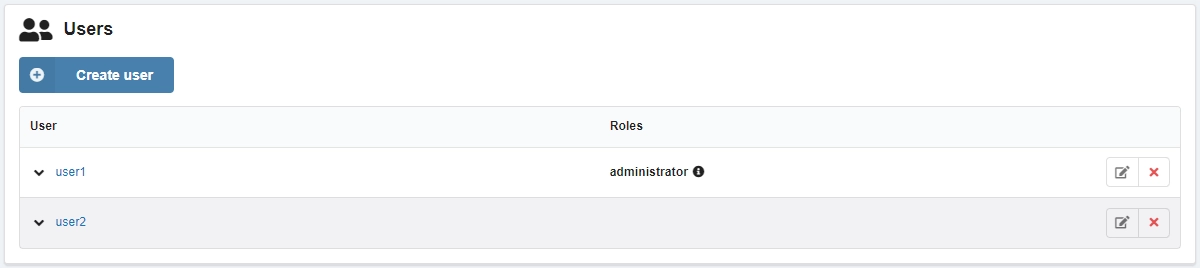
Roles
Set using tags (you can use more than one tag):
- (no tag) — a regular user with access to messaging protocols and no access to the Management UI.
- management — everything that a regular user can do, plus:
- Access to Management UI.
- View a list of virtual hosts that can be connected to via AMQP.
- View all queues, exchanges, and bindings in "their" virtual hosts.
- View and close their own channels and connections.
- View "global" statistics for all your virtual hosts, including the activity of other users on them.
- policymaker — everything that management can do, plus view, create, and delete policies and settings for virtual hosts that can be connected via AMQP.
- monitoring — everything that management can do, plus:
- View a list of all virtual hosts, including those that cannot be accessed using messaging protocols.
- View other users' connections and channels.
- View node-level data such as memory usage and clustering.
- View complete global statistics for all virtual hosts.
- administrator — everything that policymakers and monitoring can do, plus:
- Create and delete virtual hosts.
- View, create, and delete users.
- View, create, and delete privileges.
- Close other users' connections.
- impersonator — a special tag that allows the user to spoof the user ID. Not used by default. Cannot be used together with administrator.
Create
- On the "Users" tab, click "Create user".
- Enter login and password, role tags (if necessary), and click "Create".
Change password and roles
Attention!
User passwords are not stored publicly on the hosting. If you lose your password, you can only set a new one.- On the "Users" tab, click "Edit user" in the row with the user.
- Enter a new password or role tags and click "Save".
Delete
On the "Users" tab, in the user row, click ❌ and confirm the operation.