Manage cookies that are used for advertising, such as ad personalization, remarketing, and ad effectiveness analysis.
4.3.3.4. Change saved mailbox password in Thunderbird
Attention!
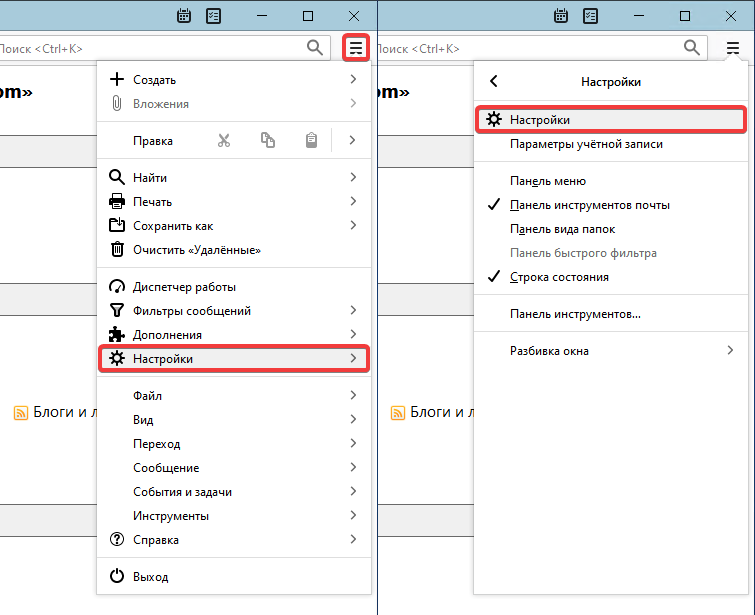
Article describes only how to change the password specified in your email client. To change the password directly for the mailbox itself, use instructions.- Open Thunderbird main menu and go to the "Settings → Settings" section:
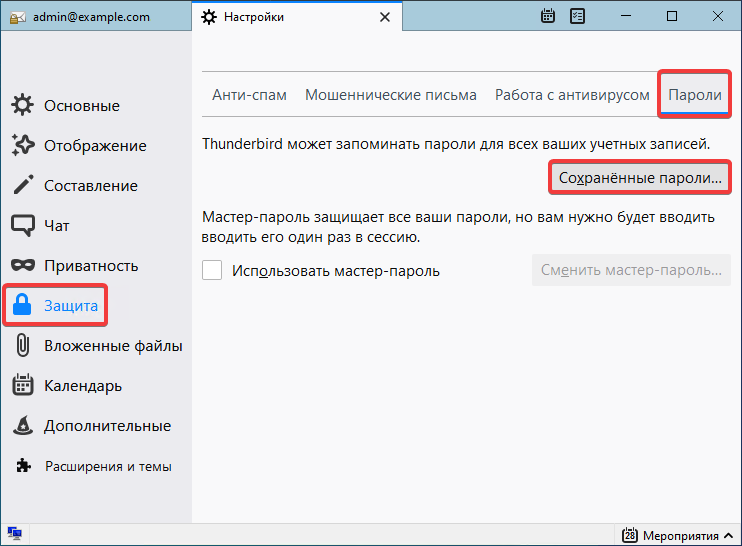
- In the "Protection" section on the "Passwords" tab click "Saved passwords":
- Click "Show passwords" and confirm the operation:
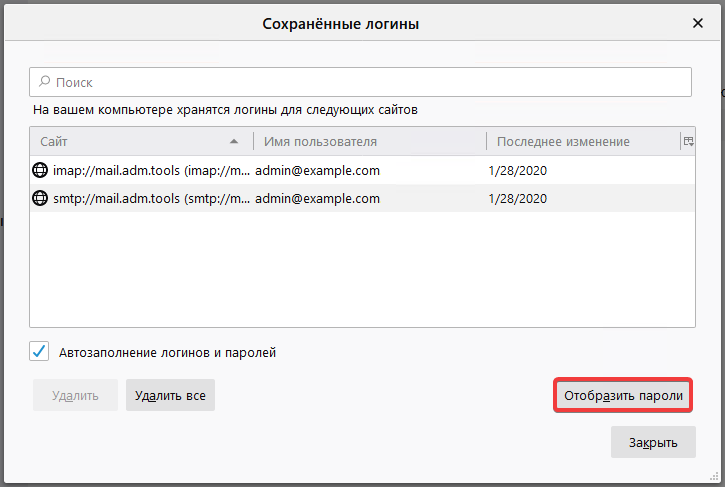
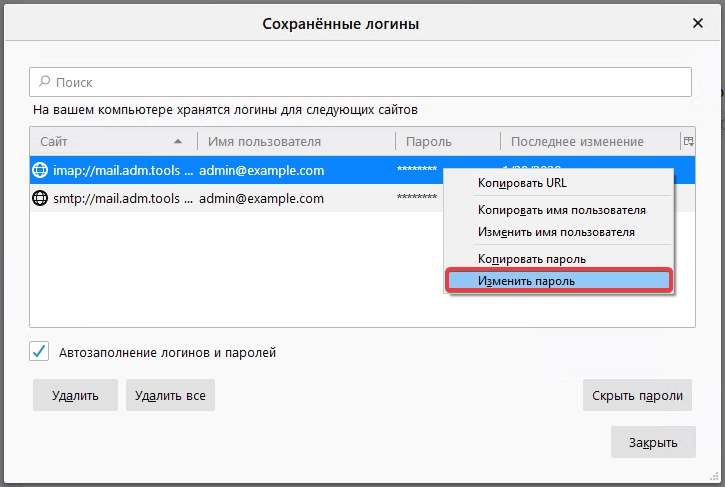
- Right-click the row with the address of the required mailbox, in the context menu select "Change password" and specify a new password (for each mailbox you must specify it in two rows — for IMAP or POP3 protocol and for SMTP protocol):
- Restart Thunderbird.
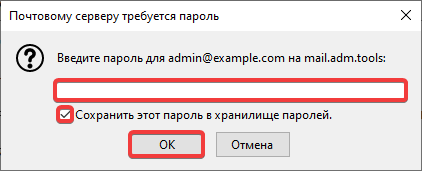
As an alternative, in the "Saved logins" window you can either select in list the row with required mailbox name and click "Remove", or, if you need to change password for all mailboxes added to Thunderbird, use the "Remove all" button: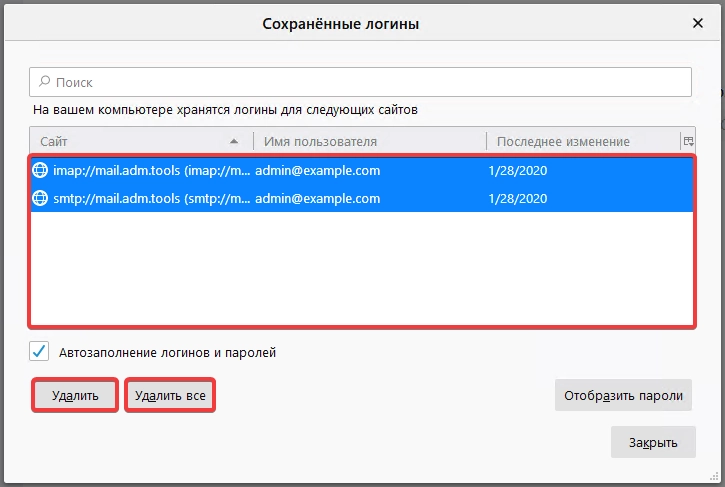 After you confirm the operation and restart Thunderbird, when the mail client first connects to the mail server, it will automatically request a new password: