Manage cookies that are used for advertising, such as ad personalization, remarketing, and ad effectiveness analysis.
4.3.4.2. Set up Outlook 2013-2024 mail client (Windows)
- Open Outlook settings — click ⚙️ in the upper right corner of the window:

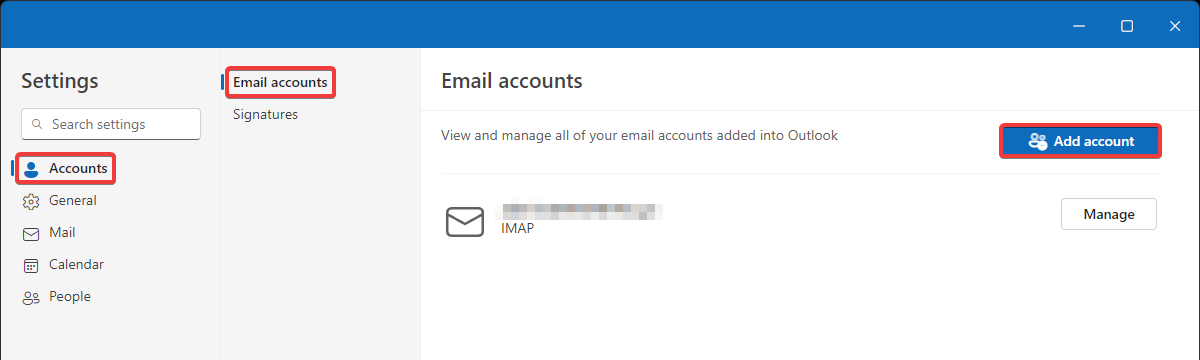
- On the "Accounts" tab, select "Email accounts" and click "Add account":
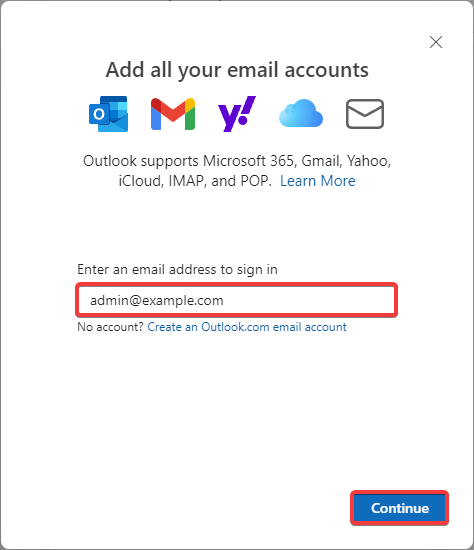
- Enter the name of the mailbox and click "Continue":
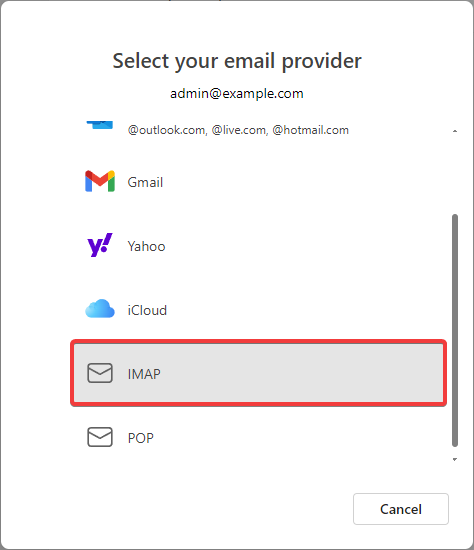
- Click "IMAP":
- Enter your mailbox password, enable "Show more", specify the connection settings, and click "Continue":
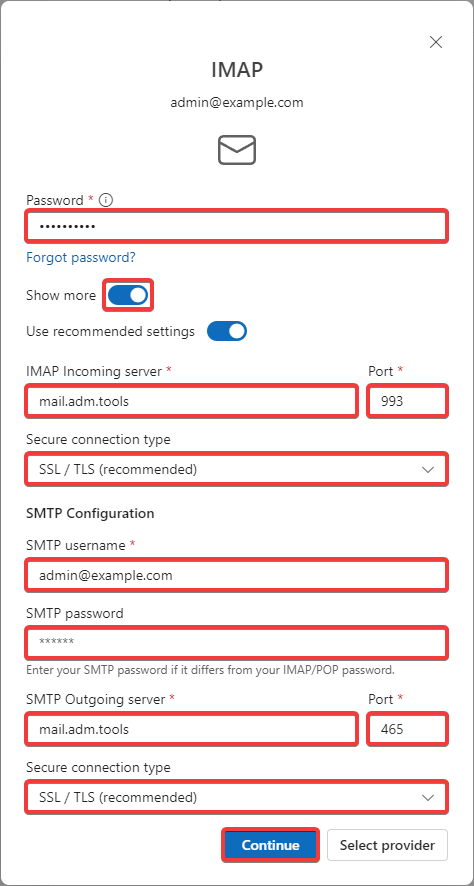
- "Use recommended settings" — not important.
- Incoming mail:
- "IMAP Incoming server" —
mail.adm.tools. - "Port" —
993. - "Secure connection type" — "SSL/TLS".
- Outgoing mail:
- "SMTP username" — the full name of the mailbox.
- "SMTP password" — your mailbox password.
- "SMTP Outgoing server" —
mail.adm.tools. - "Port" —
465. - "Secure connection type" — "SSL/TLS".
- In the remaining windows, simply click "Continue", "Next", etc.
- Check the mail operation.
- Open the "File" section:
- On the "Info" tab, click "Add Account":
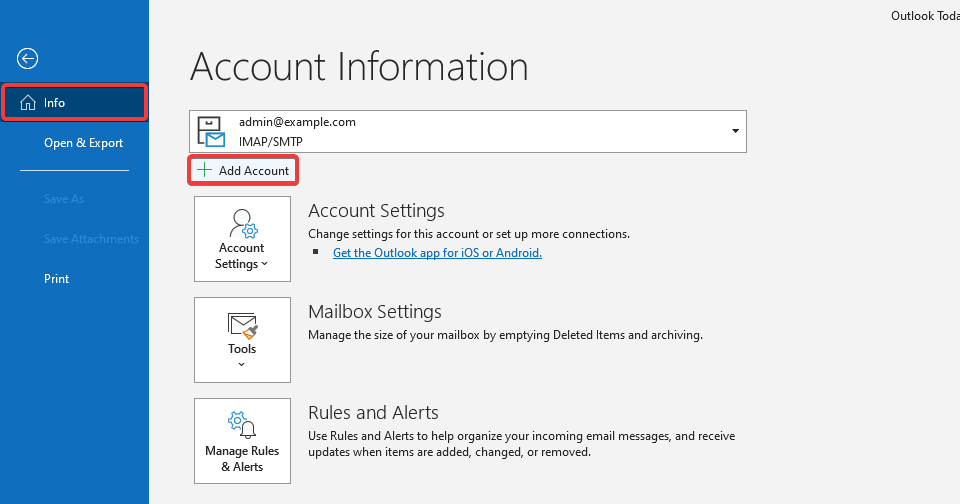
- Specify the name of the mailbox, expand the additional settings, enable "Let me set up my account manually" and click "Connect":
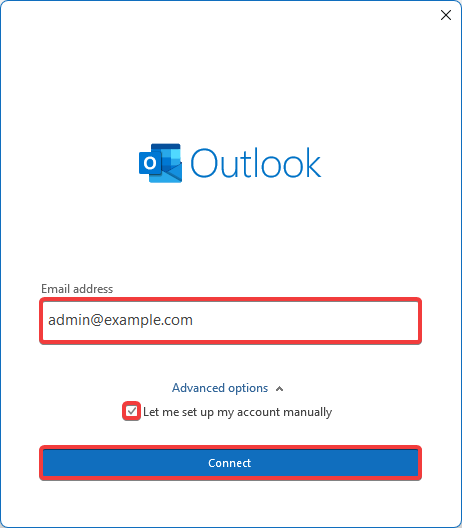
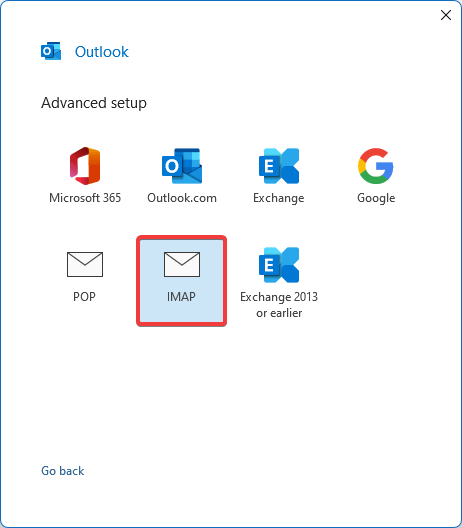
- Click "IMAP":
- Specify the connection settings and click "Continue":
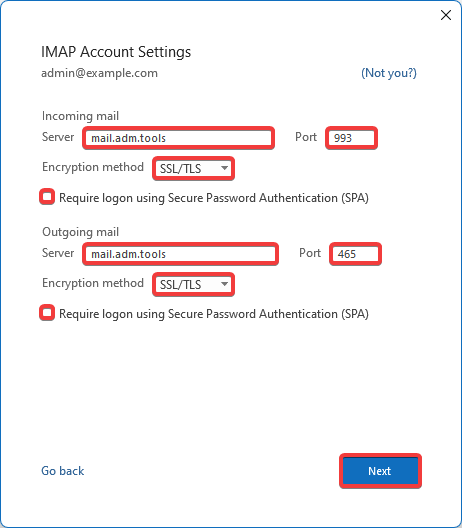
- Incoming mail:
- "Server" —
mail.adm.tools. - "Port" —
993. - "Encryption method" — "SSL/TLS".
- "Require logon using Secure Password Authentication (SPA)" — mandatory disabled.
- Outgoing mail:
- "Server" —
mail.adm.tools. - "Port" —
465. - "Encryption method" — "SSL/TLS".
- "Require logon using Secure Password Authentication (SPA)" — mandatory disabled.
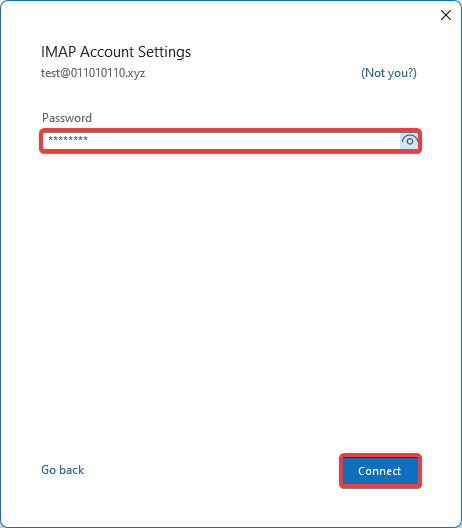
- Enter your mailbox password and click "Connect":
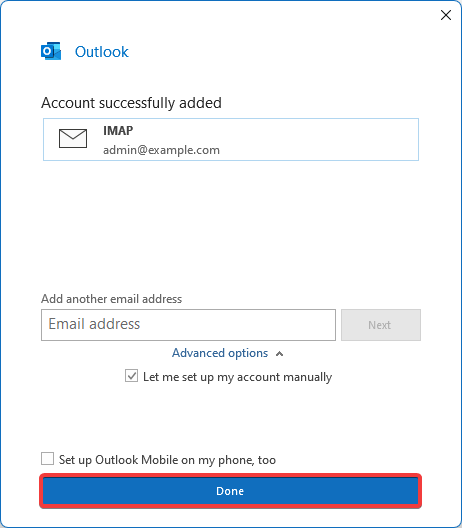
- Click "Done":
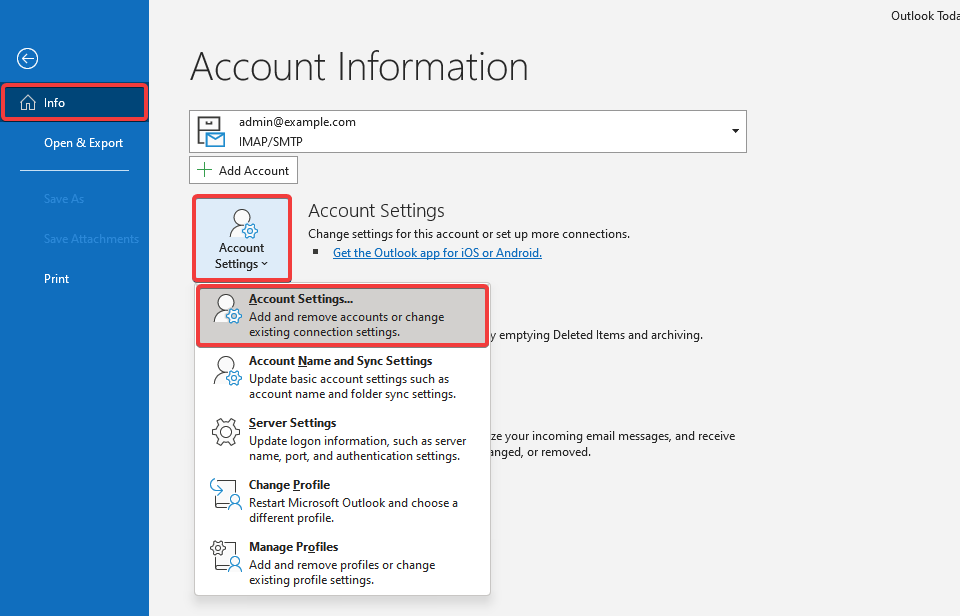
- Open the "File" section:
- On the "Info" tab, click "Account Settings":
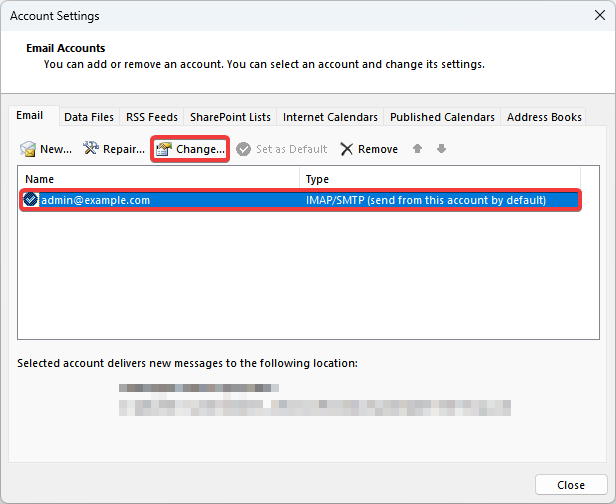
- Select the account you created and click "Change":
- In the "Root folder path" field, enter
INBOX.(with a dot) and click "Next":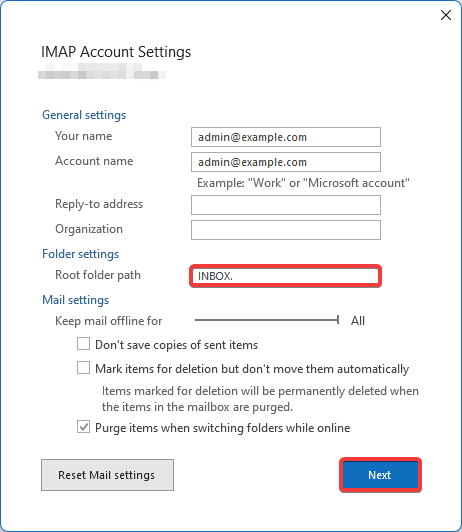
- Check the mail operation.
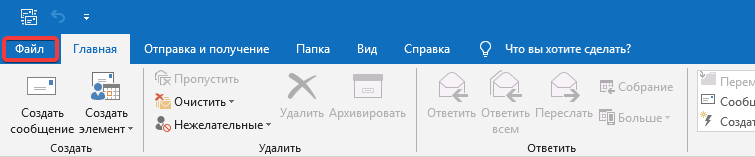
- Open the "File" section:
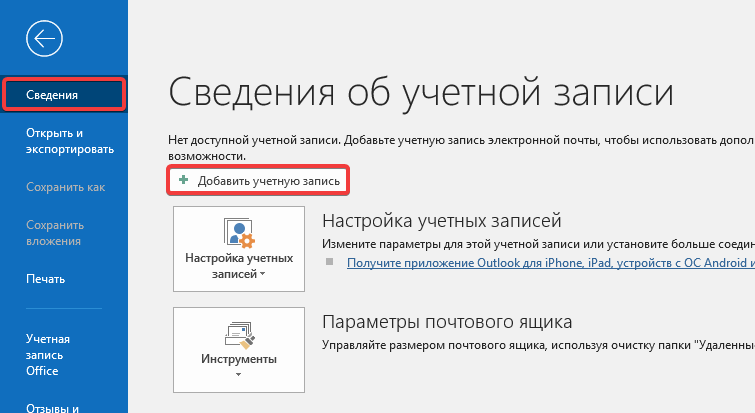
- On the "Info" tab, click "Add Account":
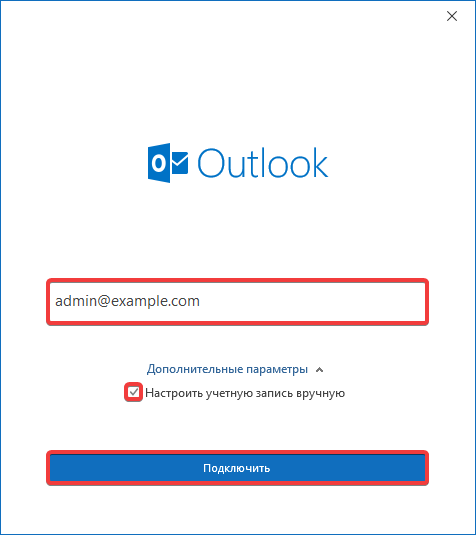
- Specify the name of the mailbox, expand the additional settings, enable "Let me set up my account manually" and click "Connect":
- Click "IMAP":
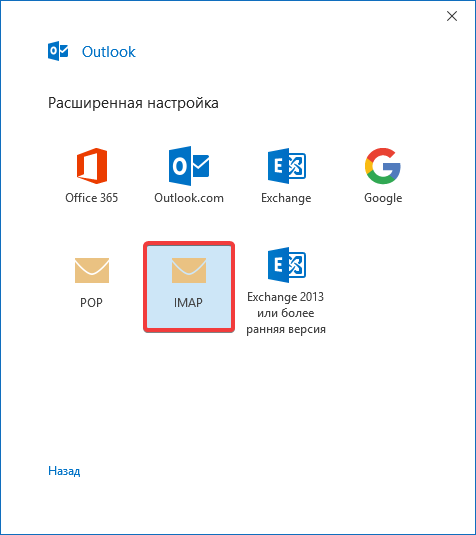
- Specify the connection settings and click "Continue":
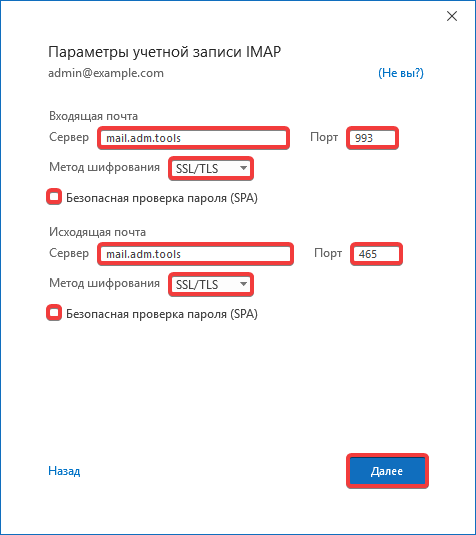
- Incoming mail:
- "Server" —
mail.adm.tools. - "Port" —
993. - "Encryption method" — "SSL/TLS".
- "Require logon using Secure Password Authentication (SPA)" — mandatory disabled.
- Outgoing mail:
- "Server" —
mail.adm.tools. - "Port" —
465. - "Encryption method" — "SSL/TLS".
- "Require logon using Secure Password Authentication (SPA)" — mandatory disabled.
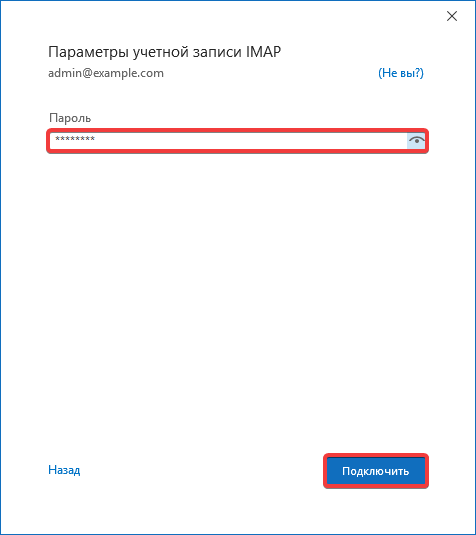
- Enter your mailbox password and click "Connect":
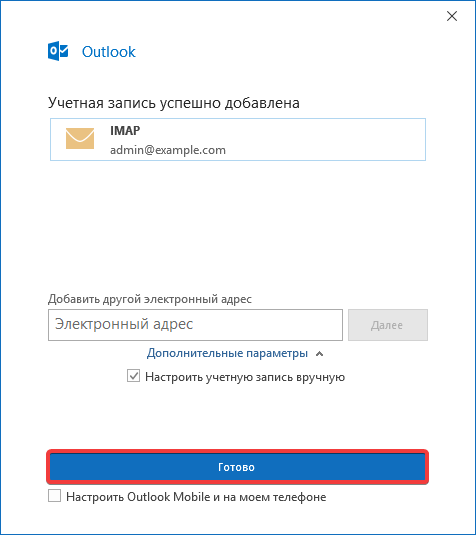
- Click "Done":
- Open the "File" section:
- On the "Info" tab, click "Account Settings":
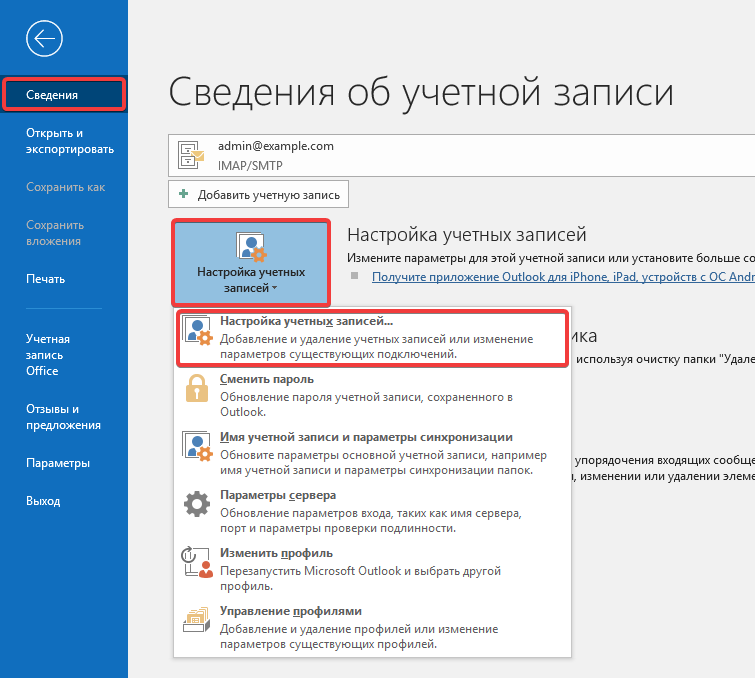
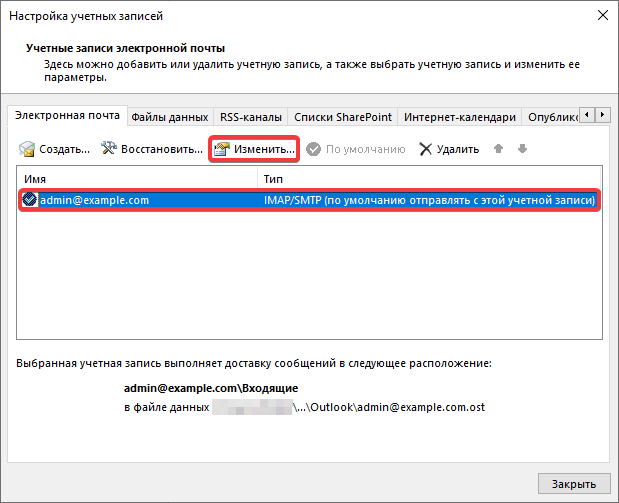
- Select the account you created and click "Change":
- In the "Root folder path" field, enter
INBOX.(with a dot) and click "Next":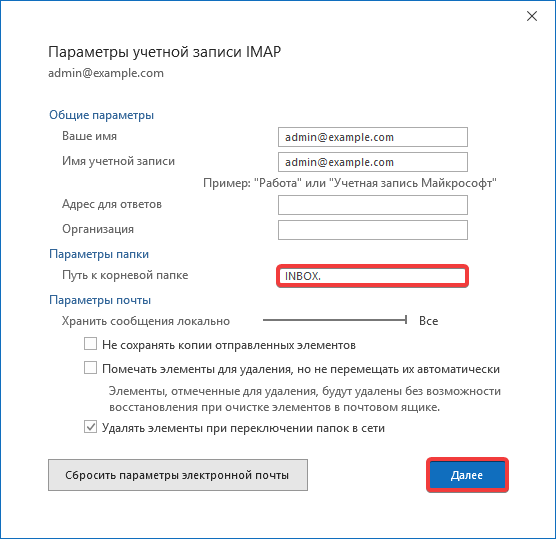
- Check the mail operation.
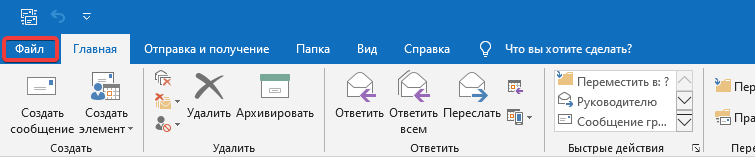
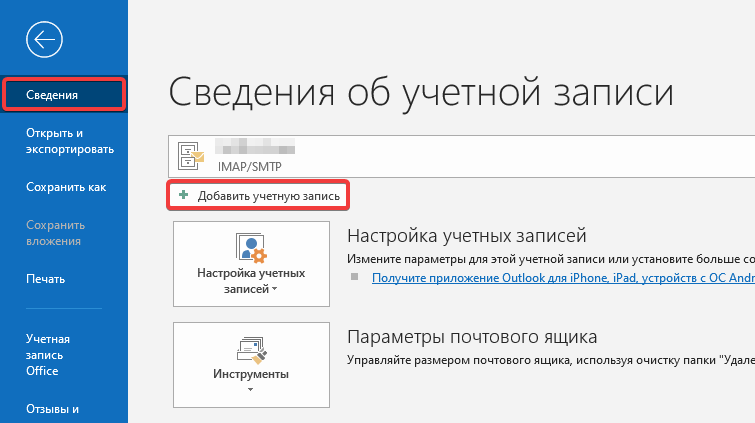
- Open the "File" section:
- On the "Info" tab, click "Add Account":
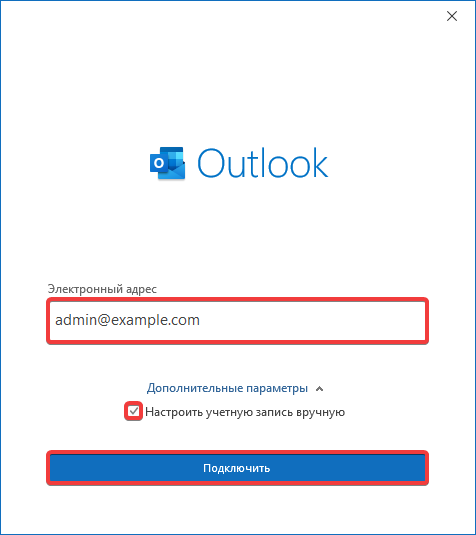
- Specify the name of the mailbox, expand the additional settings, enable "Let me set up my account manually" and click "Connect":
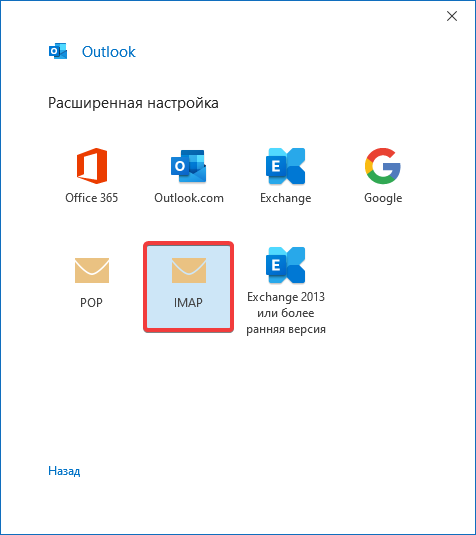
- Click "IMAP":
- Specify the connection settings and click "Continue":
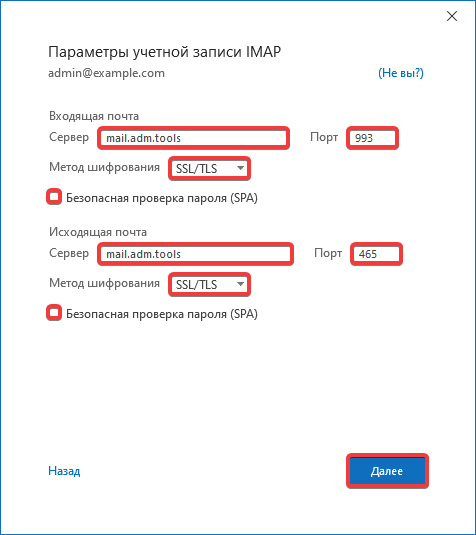
- Incoming mail:
- "Server" —
mail.adm.tools. - "Port" —
993. - "Encryption method" — "SSL/TLS".
- "Require logon using Secure Password Authentication (SPA)" — mandatory disabled.
- Outgoing mail:
- "Server" —
mail.adm.tools. - "Port" —
465. - "Encryption method" — "SSL/TLS".
- "Require logon using Secure Password Authentication (SPA)" — mandatory disabled.
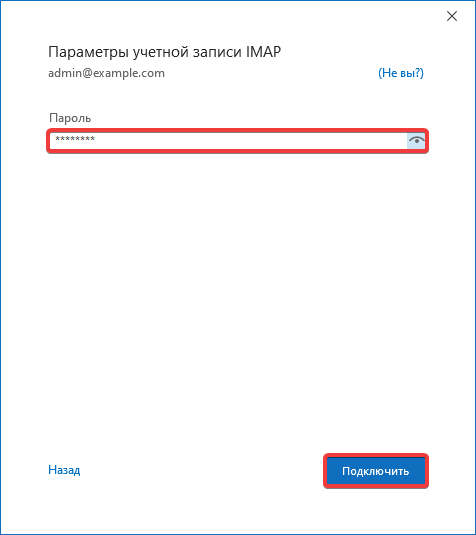
- Enter your mailbox password and click "Connect":
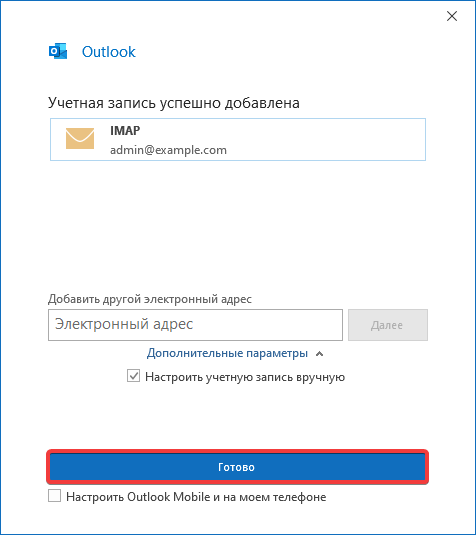
- Click "Done":
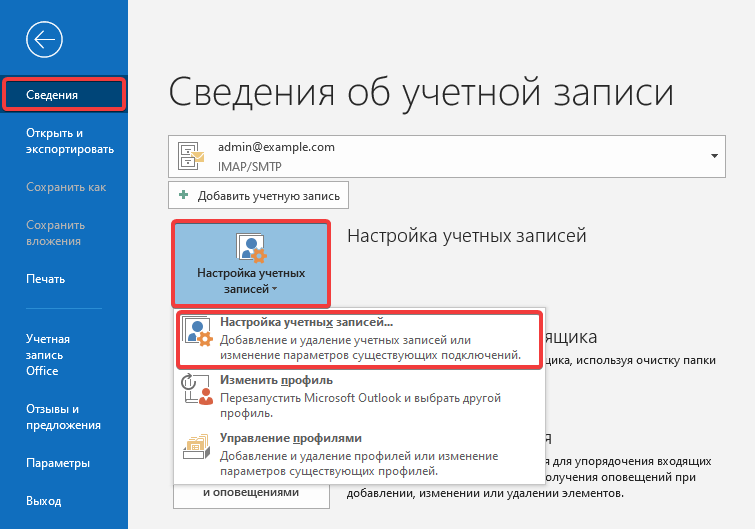
- Open the "File" section:
- On the "Info" tab, click "Account Settings":
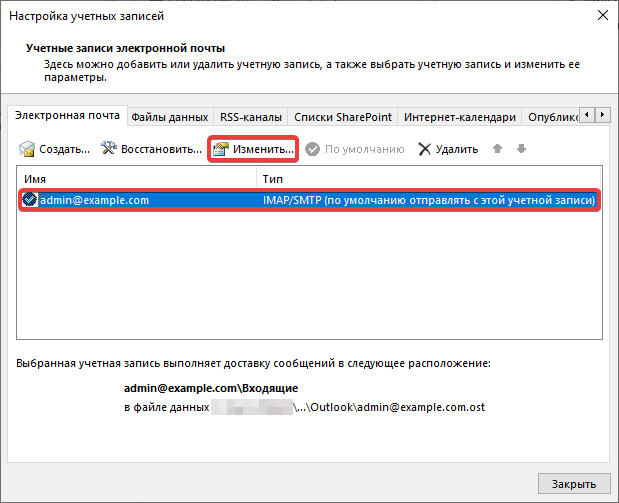
- Select the account you created and click "Change":
- In the "Root folder path" field, enter
INBOX.(with a dot) and click "Next":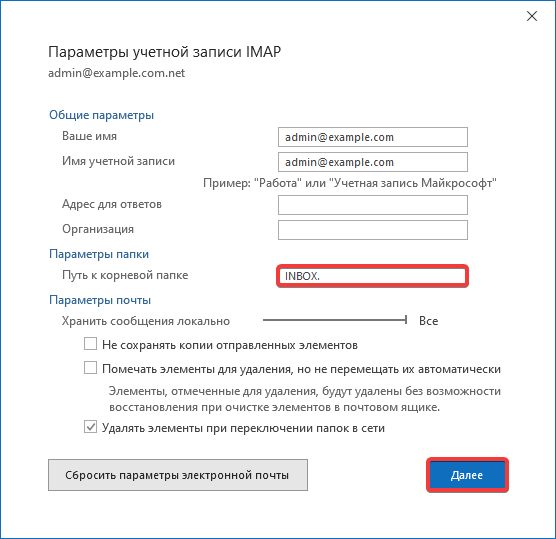
- Check the mail operation.
- Open the "File" section:

- On the "Info" tab, click "Add Account":
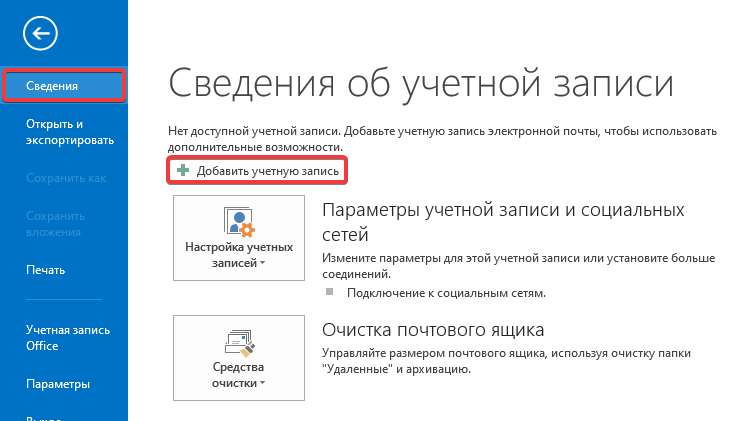
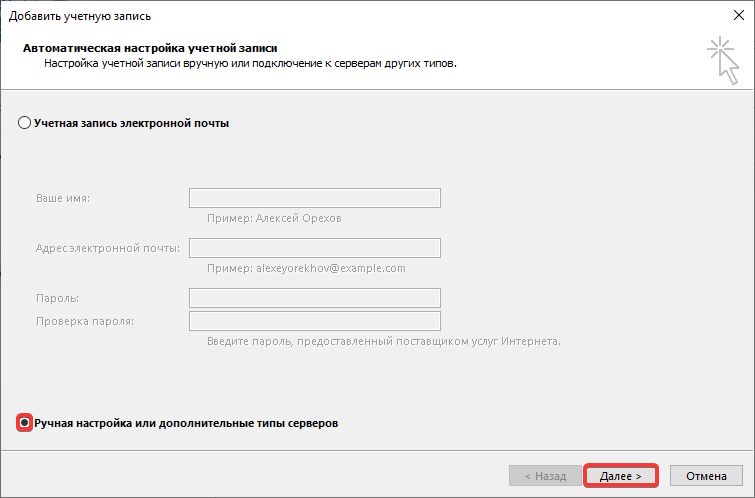
- Select "Manual setup or additional server types" and click "Next":
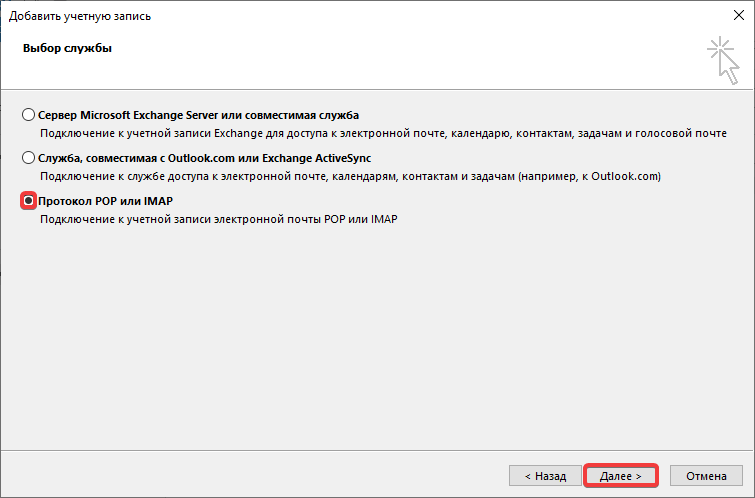
- Select "POP or IMAP" and click "Next":
- Specify the connection settings and click "More Settings":
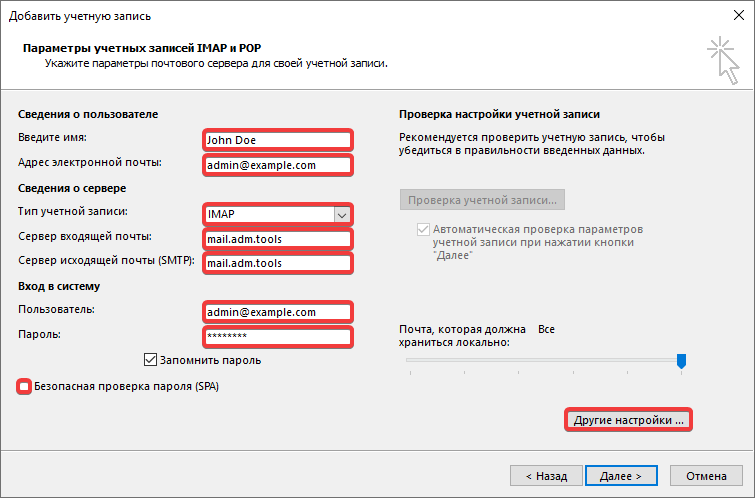
- User information:
- "Your name" — your name in any form.
- "Email Address" — name of the mailbox.
- Server information:
- "Account Type" — "IMAP".
- "Incoming mail server" —
mail.adm.tools. - "Outgoing mail server (SMTP)" —
mail.adm.tools.
- Logon information:
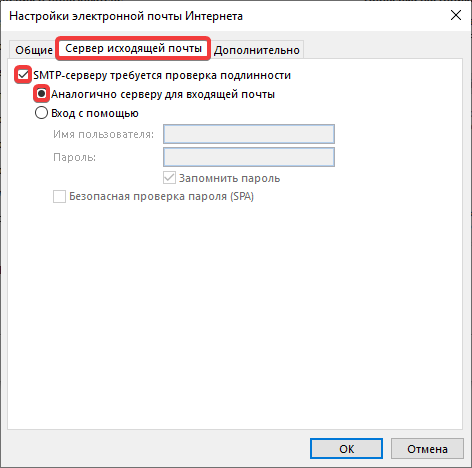
- On the "Outgoing mail server" tab, enable "My outgoing server (SMTP) requires authentication" and select "Use same settings as my incoming mail server":
- On the "Advanced" tab, specify additional settings and click "OK":
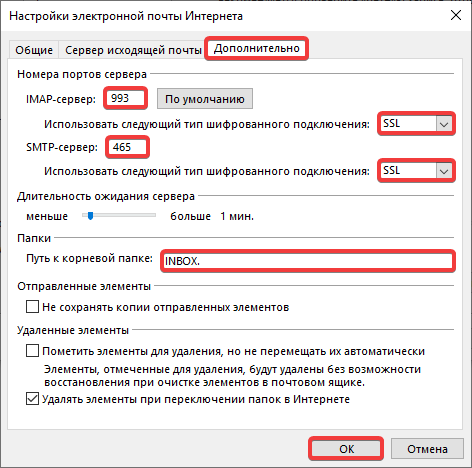
- Server port numbers:
- "Incoming server (IMAP)" —
993. - "Use the following type of encrypted connection" — "SSL".
- "Outgoing server (SMTP)" —
465 - "Use the following type of encrypted connection" — "SSL".
- Folders:
- "Root folder path" —
INBOX.(with a dot).
- Wait until the account settings check is complete and click "Close":
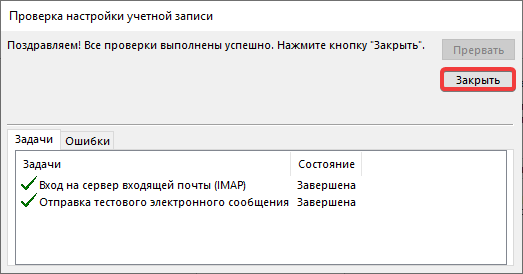
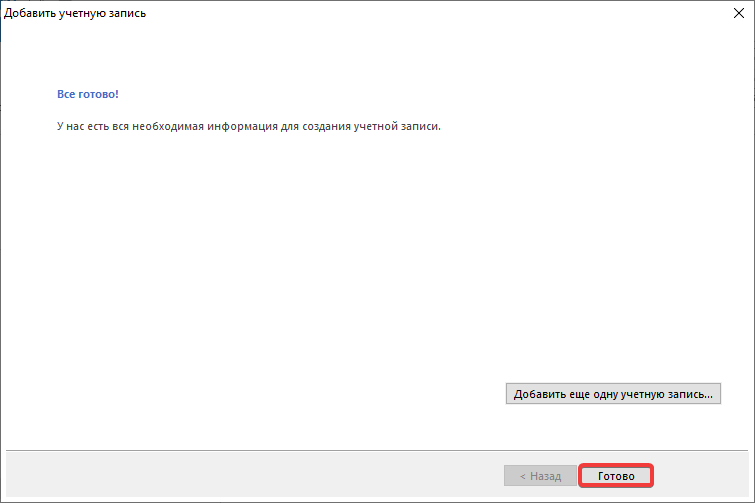
- Click "Done":
- Check the mail operation.
(3)