Manage cookies that are used for advertising, such as ad personalization, remarketing, and ad effectiveness analysis.
2.19.4.1. Clear cache in browsers
Attention!
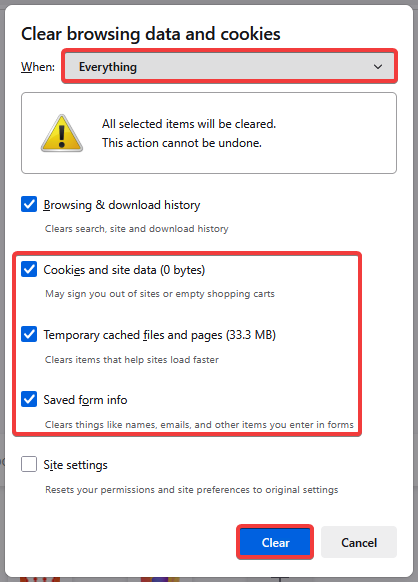
Before deleting cached data, pay attention to the items that are selected during deletion, as autofill form data, authorization in various services, etc. may be deleted.Browser cache is a site's files (images, audio, video, etc.) that are stored on your device to speed up page loading when you revisit the site. In some cases, when you change pages, cached data may cause old information to be displayed and you will need to delete the cache manually to refresh it.
Chrome
You can clear cache on Android and iOS by following the instructions "How to clear cache and delete cookies" from Google Help.
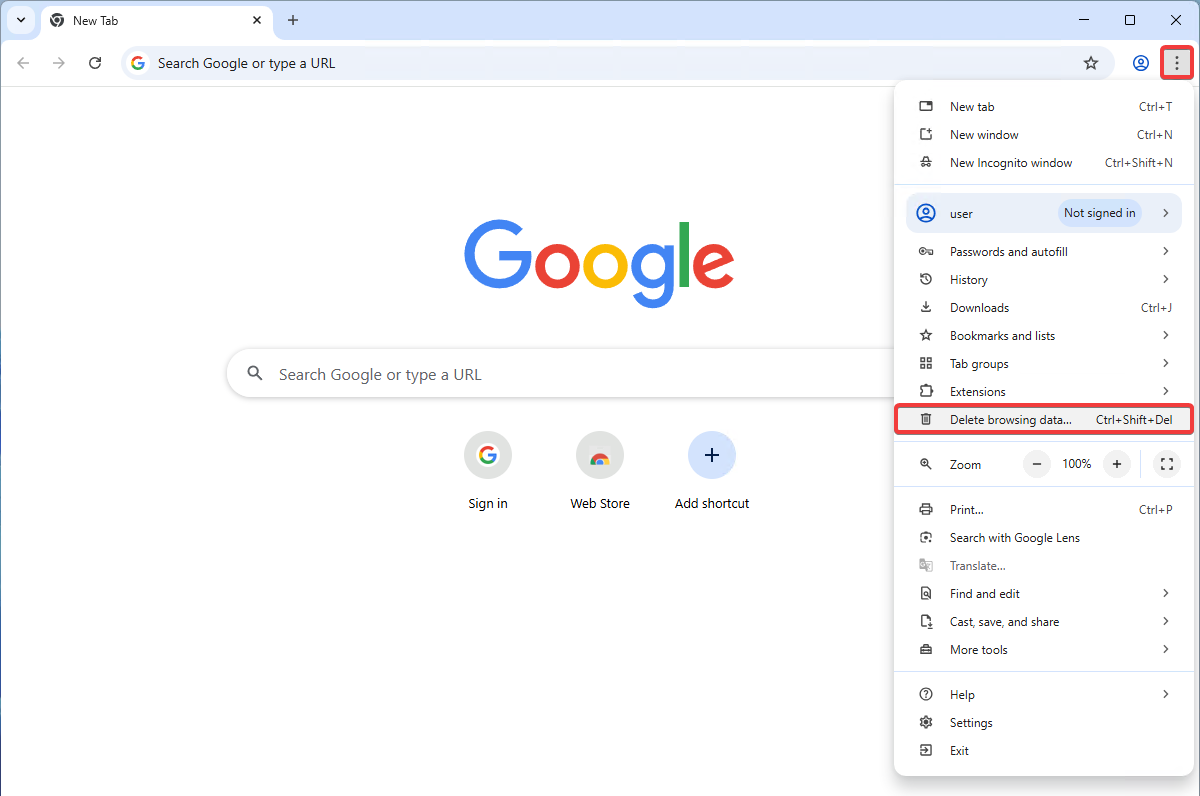
- In the main browser menu, select "Delete browsing data" (or press Ctrl+Shift+Del):
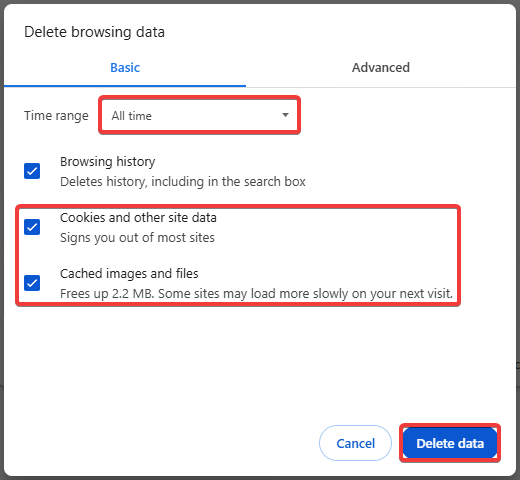
- Select a time range, select the items to delete and click "Delete data":
Edge
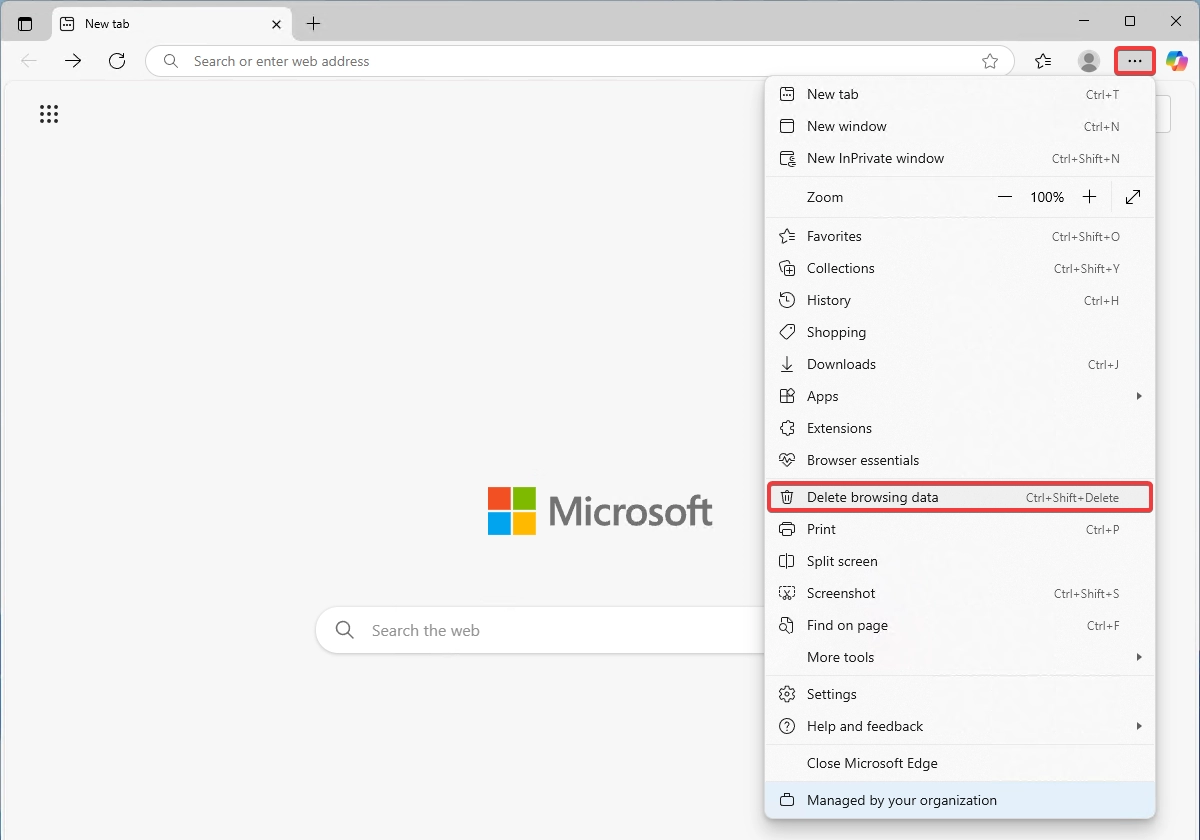
- In the main browser menu, select "Delete browsing data" (or press Ctrl+Shift+Del):
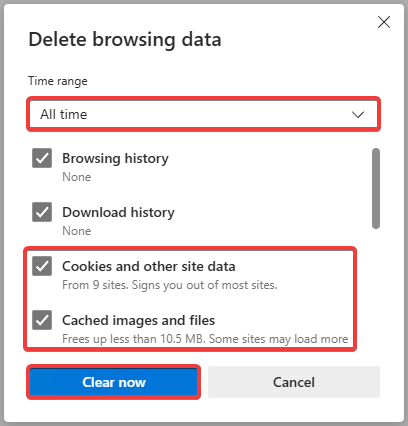
- Select a time range, select the items to delete and click "Clear now":
Safari
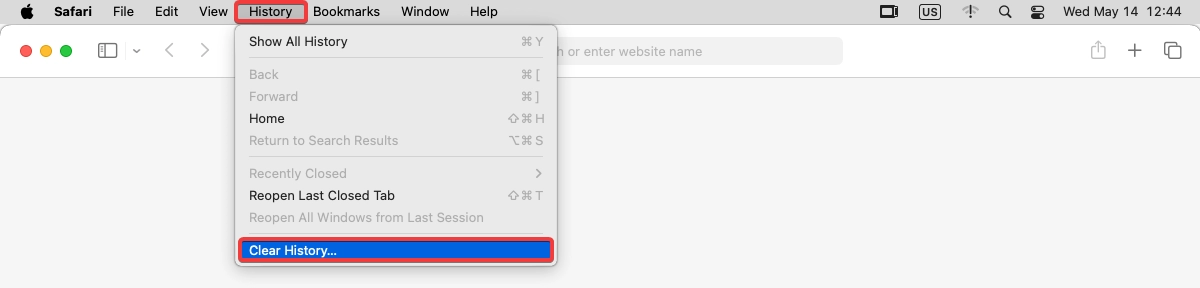
- In the top menu, select "History → Clear History":
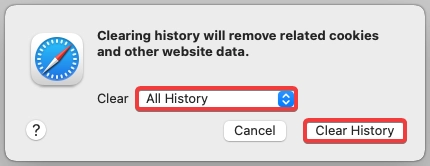
- Select a time range and click "Clear History":
Firefox
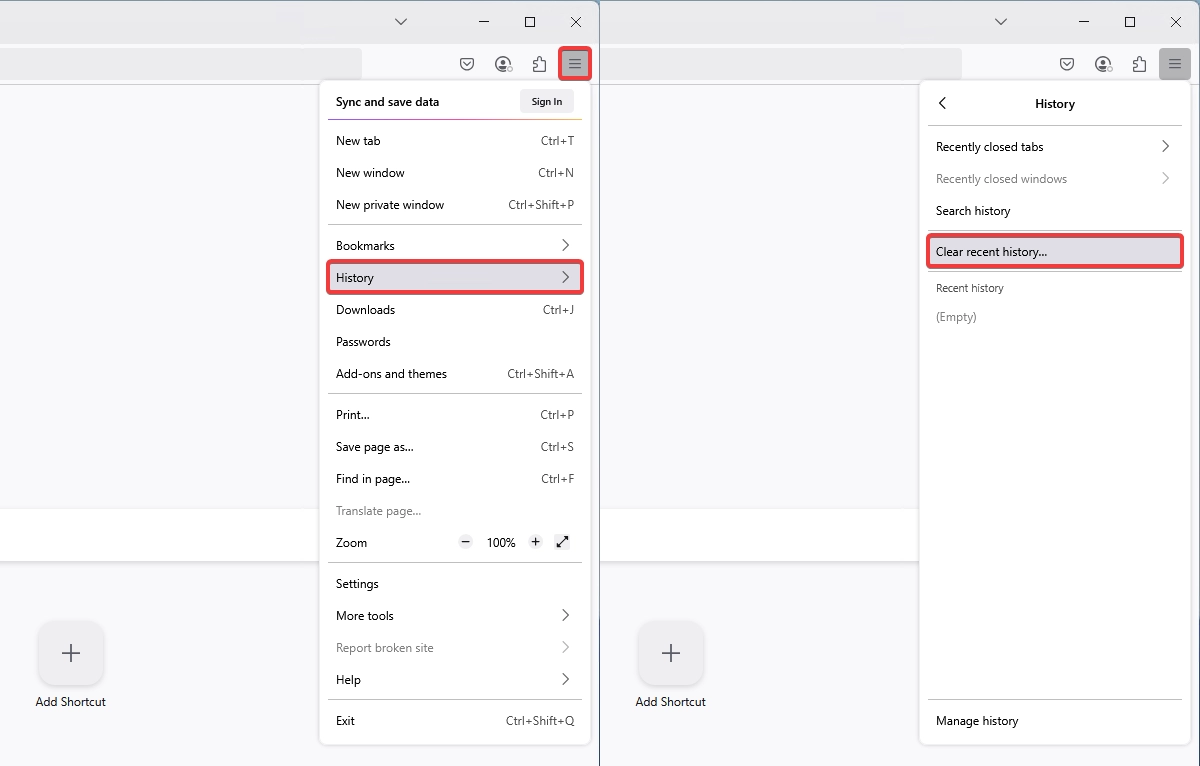
- In the main browser menu, select "History → Clear recent history":
- Select a time range, select the items to delete and click "Clear":
Opera
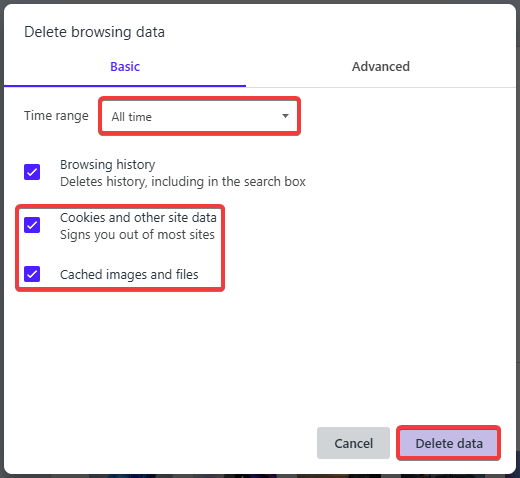
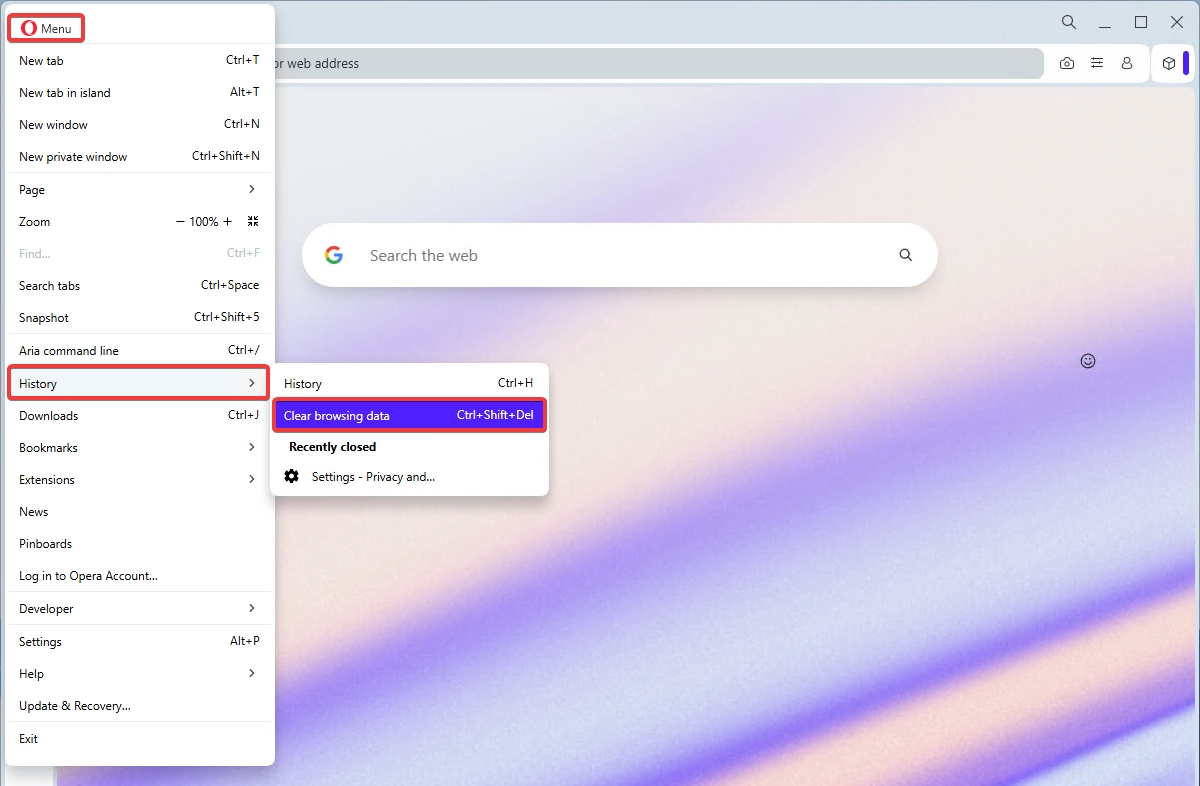
- In the main browser menu, select "History → Clear browsing data" (or press Ctrl+Shift+Del):
- Select a time range, select the items to delete and click "Delete data":