Manage cookies that are used for advertising, such as ad personalization, remarketing, and ad effectiveness analysis.
4.3.1.1.3. Import and export contacts in WebMail.Online
flowchart LR
subgraph "📥 Import"
vcf1@{ shape: rounded, label: "📄 vCard" }
wmc@{ shape: rounded, label: "📧 WebMail classic" }
end
wmo@{ shape: circle, label: "📧 WebMail.Online" }
subgraph "📤 Export"
vcf2@{ shape: rounded, label: "📄 vCard" }
csv@{ shape: rounded, label: "📄 CSV" }
end
vcf1 & wmc-->wmo
wmo-->vcf2 & csv
Formats
vCard
The vCard format is used for import and export contacts. The files in this format are plain text files with the extension .vcf, which contain individual vCard-type entries with information for each contact — name, email, phone numbers, address, and more. The format is suitable for importing into Gmail, other mail clients (except Outlook, where additional tools may be required for import) and back into WebMail.Online.
CSV
CSV format in WebMail.Online is used only for export contacts. Unlike vCard, the data is stored as a table of comma-separated values. The format is suitable for importing into Gmail and other mail clients (when importing into Outlook it is more suitable than vCard, but the result depends on the work of a particular version of Outlook itself).
Import
From file
- Open the "Contacts" section.
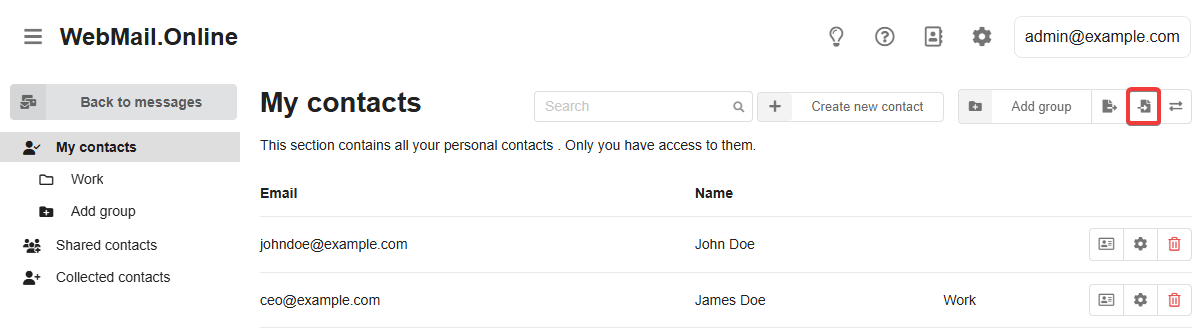
- Select the desired contacts section (within the "My contacts" section you can additionally select a group) and click "Import contacts from file":
- Select a contacts file in vCard format and click "Import contacts from file":
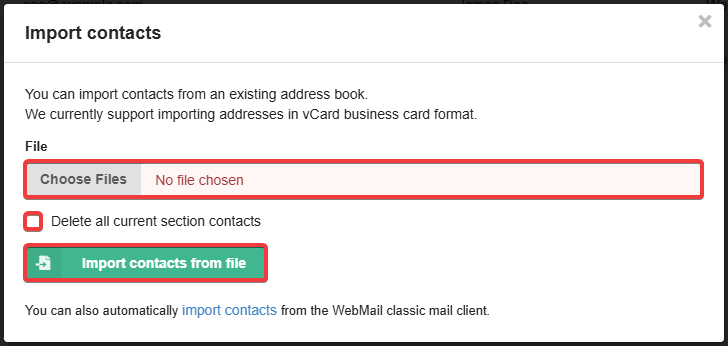 Option "Delete all current section contacts" — if enabled, all contacts in the selected section will be deleted before import.
From WebMail classic
Only contacts created for the same mailbox via the WebMail classic interface can be imported.
- Open the "Contacts" section.
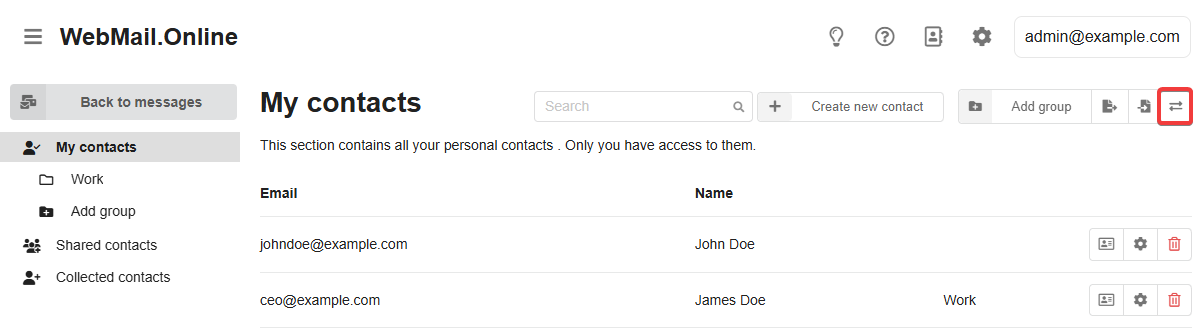
- Select the desired contacts section (within the "My contacts" section you can additionally select a group) and click "Import contacts from WebMail classic":
- Select the import option and click "Import X contacts from the WebMail classic mail client":
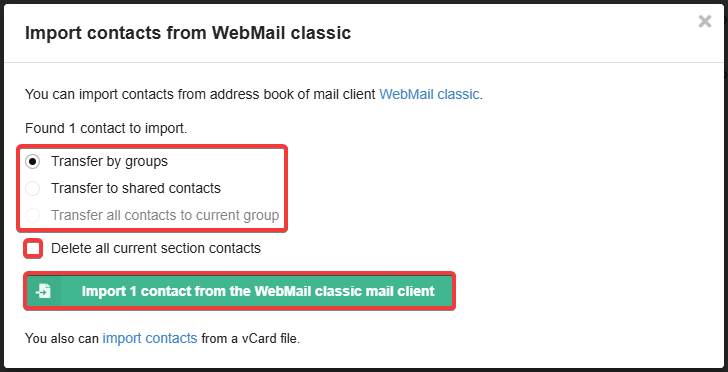
- Import options:
- "Transfer by groups" — all contacts are transferred to the "My contacts" section in the same groups they were in in WebMail classic.
- "Transfer to shared contacts" — all contacts are transferred to the "Shared contacts" section, the source groups are not saved.
- "Transfer all contacts to current group" — all contacts are transferred to the selected group in the "My contacts" section, the source groups are not saved.
- Option "Delete all current section contacts" — if enabled, all contacts in the selected section will be deleted before import.
Export
- Open the "Contacts" section.
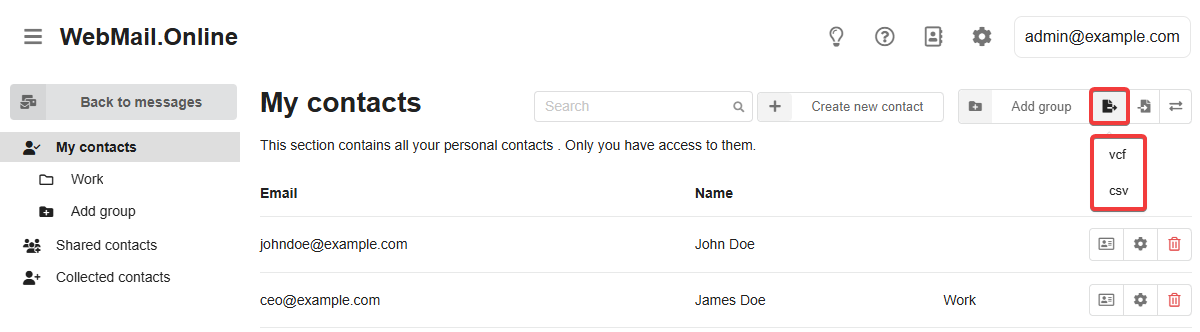
- Select the desired contacts section (within the "My contacts" section you can additionally select a group), click "Export all contacts of this section" and select the desired format: