Manage cookies that are used for advertising, such as ad personalization, remarketing, and ad effectiveness analysis.
8.7.8. Manticore Search tables
Important points:
- Type of tables created is always Real-time (RT).
- In RT tables, data is immediately added to the index. To add new data, use the query
INSERT INTO, to change existing data —REPLACE INTO.
Article about working with Manticore Search in our blog — Instant search on the site.
Search data is stored in tables. Each row of the table contains a field with a unique ID and additional fields that are used for searching. All created tables are displayed in the "Manticore Search" section on the "Tables" tab: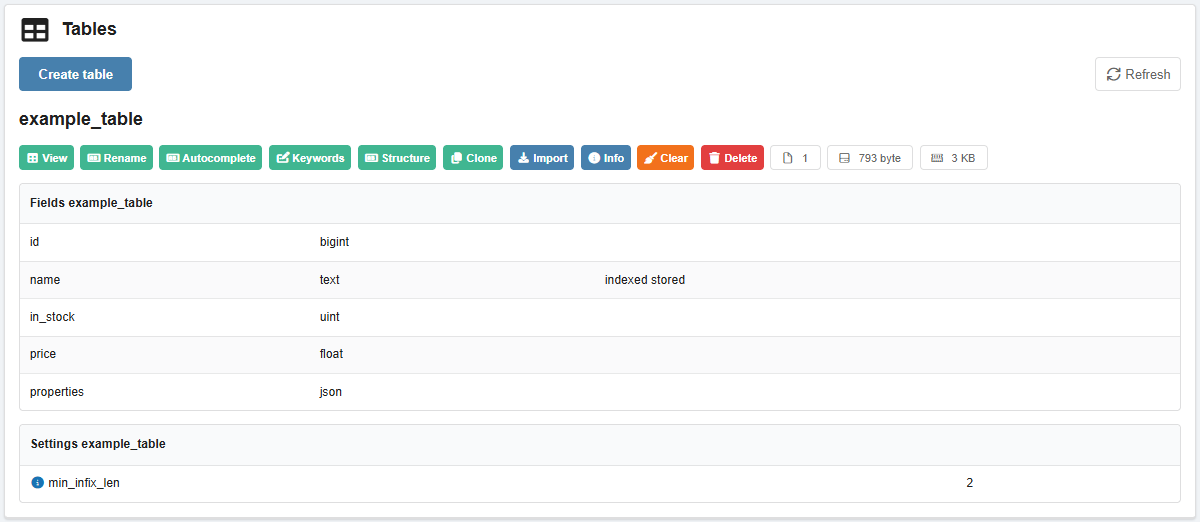
Create
- Click "Create table".
- Specify the table name, fields, settings for morphology, index, tokenizer, and save the changes:
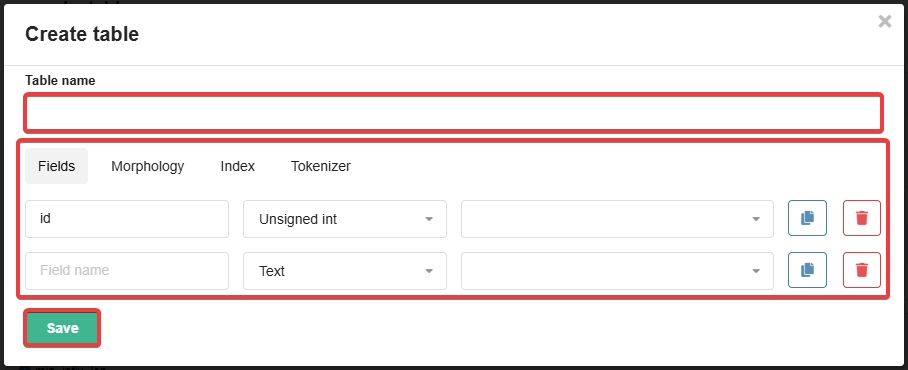
- "Fields" — field settings (name, type, storage model).
- The "id" field is a primary key, so there is no need to select a storage model for it (it will be cleared when saved).
- The "indexed" storage model creates a full-text index with full-text search capability, but the original text is not stored. To store the original document with full-text search capability, use "indexed stored".
- The "stored" storage model (also known as "row-wise") is used by default. If "columnar" is explicitly specified, "columnar" will be used instead of "stored". For a comparison of storage models, see the official documentation.
- "Morphology" — settings for index_exact_words and morphology for different languages (lemmatize, stem), connection of dictionaries.
- "Index" — settings for html_strip, expand_keywords, min_word_len, min_prefix_len, min_infix_len.
- "Tokenizer" — settings for charset_table, ignore_chars, Blend chars, Blend mode.
Manage
View. Execute the query to view the table contents.
Rename (only for RT tables). Rename the table.
Autocomplete. Checking autocomplete functionality.
Keywords. Checking the tokenizer operation.
Structure (only for RT tables). Settings for fields, morphology, connecting dictionaries, settings for the index and tokenizer (as when creating).
Clone (only for RT tables). Create a copy of the table.
Import. Setting up a query to import data into the table (selecting the data source, SQL query), launch schedule, and forced launch button.
Info. View table information:
- "Status" and "Statistics" — data from the result of the query
SHOW TABLE table STATUS. - "Structure" (only for RT tables) — request to create a table with the same structure.
- "Indexes" (only for RT tables) — data from the result of the query
SHOW TABLE table INDEXES.
Clear (only for RT tables). Clears the table contents (confirmed by clicking the button).
Delete (only for RT tables). Delete table (confirmed by clicking the button).
Additionally displayed:
- Number of indexed documents (rows in the table).
- Index size on disk.
- Amount of RAM used.
The list of fields and current table settings are displayed below.
Work with tables
Connect
Notes:
- We recommend using the MySQL interface — it has familiar syntax and offers greater capabilities thanks to its support for sessions (for example, you can set the flag
SET profiling = 1, then execute a query in the same connection and get statistics). - If access restrictions are enabled for the instance, to connect from the hosting, the direct IPv4 of the hosting account must be added to the allowed list.
Connecting from the console via MySQL (use your own data in the command, specify the port without a space after -P):
mysql -h example.manticore.tools -P10000Connecting and sending an SQL query from the console via cURL:
curl https://example.manticore.tools/cli -d "SHOW TABLES"Queries
Creating a table (data types will be selected automatically):
CREATE TABLE TABLE_NAME;Creating a table with manual specification of the structure (recommended, since data types cannot always be selected correctly in automatic mode):
CREATE TABLE TABLE_NAME (name text, in_stock INT, price FLOAT, properties json);Copying a table structure:
CREATE TABLE table_name2 LIKE table_name1;Viewing a list of tables:
SHOW TABLES;Viewing a table structure:
DESC TABLE_NAME;Inserting data into a table (if the table does not exist, it will be created automatically):
INSERT INTO TABLE_NAME (name, in_stock, price, properties) VALUES ('nice bag', 177, 1.15, '{"color": "red"}');Selecting data from a table:
SELECT * FROM TABLE_NAME;Changing data in a table:
REPLACE INTO TABLE_NAME SET name='other nice bag', in_stock=123 WHERE id = id_number;Deleting a table:
DROP TABLE IF EXISTS TABLE_NAME;