Manage cookies that are used for advertising, such as ad personalization, remarketing, and ad effectiveness analysis.
2.14.6.3. Change administrator password in OkayCMS
Notes:
- It is technically impossible to find out the current administrator password, as it is not stored on the site in plain text — only its hash is stored. Only a password reset to a new one is possible.
- The easiest way to set the required password is to use default CMS tools, because it is hashed with the Apr1-MD5 algorithm. For this reason, changing a lost password involves two steps: setting a known password in the database and then changing the password to the required one in the site admin panel.
Set known password
- In the site configuration file, check the name of the database it connects to.
- Open database in phpMyAdmin.
- Execute the following SQL query (use your data in the query):
UPDATE `ok_managers` SET `password` = '$apr1$60po2n9a$DbvsIREAnZBn1J0pidcW/' WHERE `email` = 'admin@example.com';- Instead of
ok_, specify your table prefix if it differs from the default. - Instead of
admin@example.com, specify the administrator account email for which you are changing the password.
- Check sign-in to site admin panel using
passwordas password.
Change password
- Sign in to site admin panel.
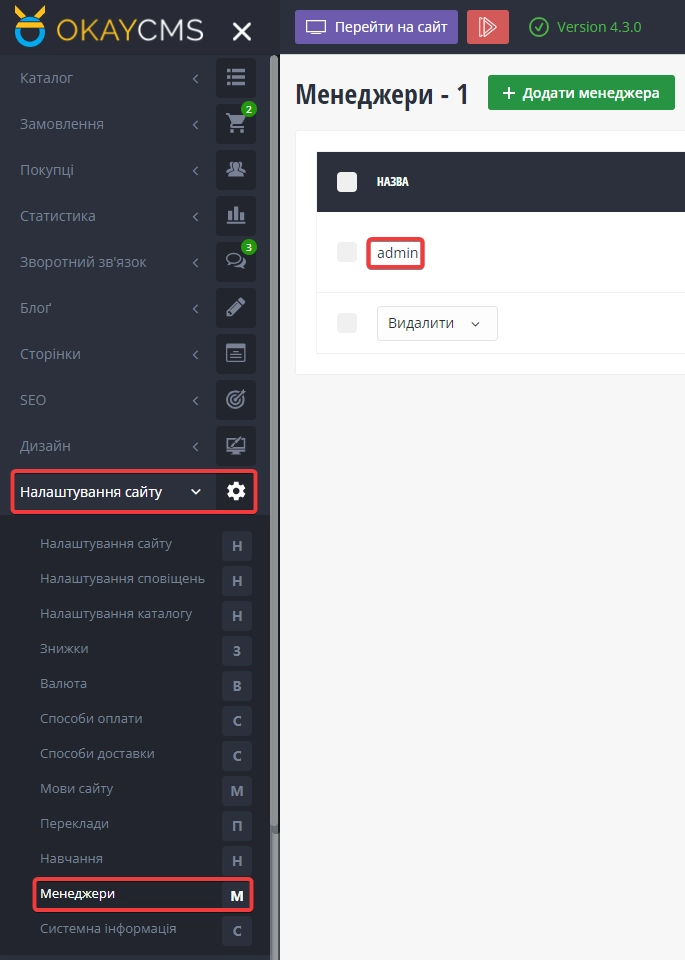
- Go to "Site settings → Managers" and click the required administrator name:
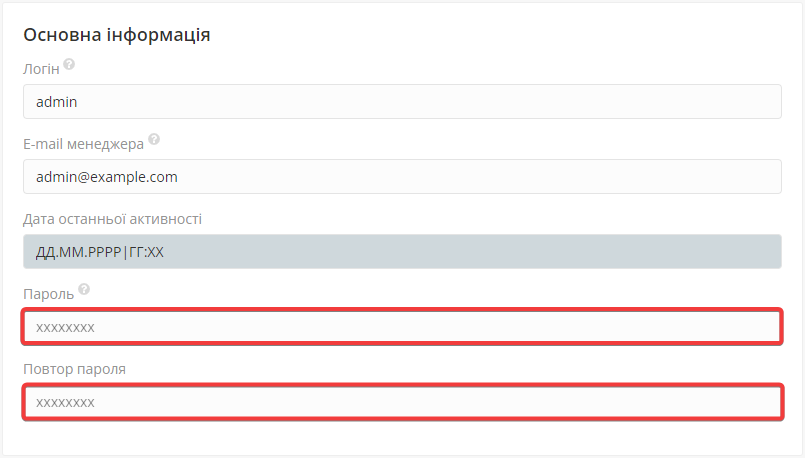
- Set a new password, repeat it in the second field, and in the pop-up message at the bottom of the page click "Save":
- Check sign-in to site admin panel with the new password.