Manage cookies that are used for advertising, such as ad personalization, remarketing, and ad effectiveness analysis.
2.12.2. Add cron task
Important points:
- cron does not use the
PATHvariable, so use full file paths not only when adding a task, but also in the scripts you run. - Use wget to run scripts that are triggered only when accessed via a browser.
- If there is a
cdcommand in the task, add apwdcommand before it (for example,pwd; cd /path/to/dir/), otherwise the error "nice: ‘cd’: No such file or directory" will appear. - When using the
$character in a command as a simple character (not a special character), add a backslash\before it. - Double quotation marks
"are automatically escaped with a backslash\. It does not affect the command and is not visible in the list of added tasks, but will be visible in the console when the task is test run and in the subject of the report email when it is launched on a schedule. - The task must be no more than 240 characters long and must not consist of more than 15 space-separated parts (e.g.
sleep 30is 2 parts). To run long commands, put them in a Bash script and run it via cron.
Add
Automatic command change when saving a task
When a command is specified:- As an absolute path to a file:
- With the
.phpextension in the directory of one of the added sites — adds the path to the PHP interpreter of the same version as on the site, and the path to that site's PHP configuration file. For example, the task/home/example/example.com/www/script.phpwhen added site www.example.com with PHP 8.4 installed will turn into/usr/local/php84/bin/php -c /home/example/.system/php/www.example.com.ini /home/example/example.com/www/script.php. - With the
.pyextension — adds the path to the latest available version of the Python interpreter of the form/usr/bin/python3.12. - With the
.shextension — adds the path to the Bash interpreter/usr/bin/sh. - With the
.plextension — adds the path to the Perl interpreter/usr/bin/perl.
- As an URL — generates a standard wget command of the form
/usr/bin/wget -O - -q -t 1 'URL'.
In other cases, the command is added as specified.
- Open the "Task schedule (cron)" section.
- Click "Add task".
- Fill out the form and click "Save":
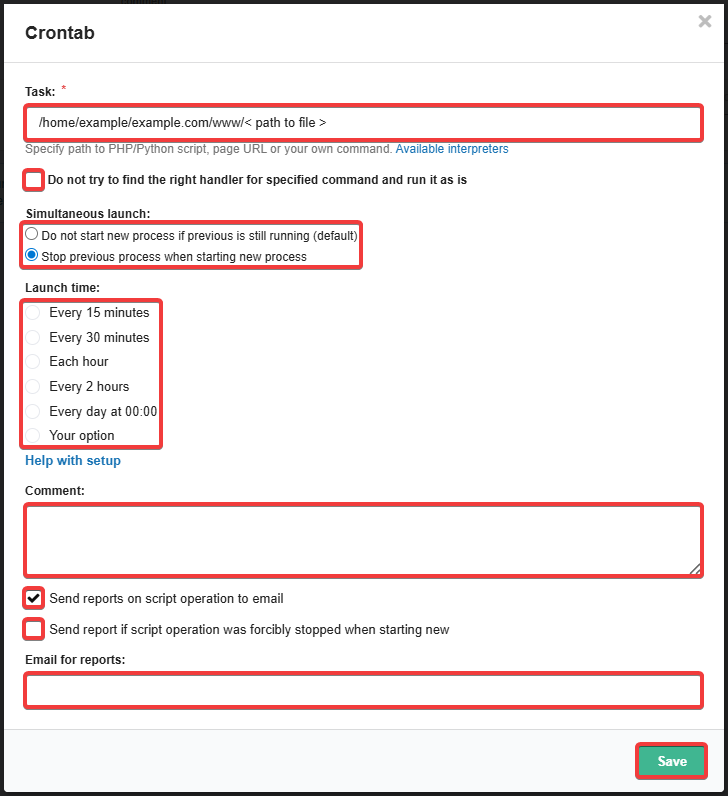
- "Task" — command, which should be run on a schedule. After adding it, it is recommended to run it manually to make sure it works as intended.
- "Do not try to find the required handler for the specified command and run as is" — disables automatic change of the command when saving (see note above).
- "Simultaneous launch" — what to do if a previously started process does not finish before the new one starts:
- "Do not start new process if previous is still running (default)" — running process will continue to run, new process will not be started.
- "Stop previous process when starting new process" — running processes will be stopped and new processes will start.
- "Launch time" — task launch time. Use one of the ready-made presets or specify your own option. Note For convenience, use our Cron calculator (the "Help with setup" button) or third-party services like crontab guru.
- "Comment" — arbitrary comment to the task. It is used for convenience when many tasks are added.
- "Send reports on script operation to email" — if enabled, reports on cron task execution will be sent to the specified email address.
- "Send report if script operation was forcibly stopped when starting new" — if enabled, reports about stopped processes will be sent to the specified email address (available when "Stop previous process when starting new process" is selected). ⚠️ Reports are sent no more than once per day for each task.
- "Email for reports" — mailbox for receiving reports (available when report sending is enabled).
- Wait approximately 30-60 minutes for the changes to take effect.
Launch time syntax
A special syntax is used to specify the launch time in cron. Syntax elements can be combined with each other by separating them with a comma, for example: */30, 1-10, 53 — the task will be launched at: 00, 01 and all numbers up to 10, 30, 53.
*/X— launch the task at a time multiple of the time specified in X.*/20for minutes is to launch at 00, 20, and 40 minutes.1,2,3— specific values separated by commas. For hours, this is a launch at 1, 2 and 3 o'clock.1-10— value interval. For hours, this is a launch every hour from 1 to 10.*— any value. For minutes, this is a launch every minute.
List of added tasks
All added tasks are displayed in the list:
- "Schedule" — the task launch schedule in standard cron format, displayed in a human-readable form in the tooltip.
- "Task" — consists of several lines:
- Full text of the command.
- Comment on the task (if specified).
- In the last line:
- Email address for receiving execution reports (if specified).
- Date and time of the last scheduled launch (updated with a delay of several minutes).
- Duration of the last execution (if less than 2 seconds, it is displayed with milliseconds).
- Command exit code:
- For code
0— "OK", in other cases — "Error" and the error code. - Information about what a particular error code means should be found in the documentation for the command being executed, and when running your own script, look at the logic of that script, as it may return its own codes.
- By clicking on the button with the error code, you can view the last 50 lines or 2.5 KB of command output.
- "Control" — task control buttons:
- ✏️ — change task settings (similar to adding).
- ▶️/⏸️ — enable/disable scheduled task launch.
- ⚡️ — launch task manually. Can be used to check the command's operation or launch it early before the scheduled time. After starting, a console window will appear on the page, where the command output will be displayed in real time during execution and the result of its execution (in Python, buffering is used by default and data is output in 8 KB blocks or after the command has finished executing; for real-time output, use the
-ukey in the command, for examplepython3.10 -u file.py). Does not update the date and time of the last launch in the task list. - ❌ — delete task.
(6)