Manage cookies that are used for advertising, such as ad personalization, remarketing, and ad effectiveness analysis.
4.3.9.6. Set up Mail client (Windows)
Synchronization problems may occur!
The Mail app for Windows has a number of long-standing issues with synchronizing folders with the server. Therefore, we recommend using it only for viewing incoming mail when there is no need to save and synchronize sent, draft, and deleted emails between devices. For full mail functionality, it is better to use another mail client, such as Thunderbird, which does not have these issues.Attention!
If the domain name contains characters from a national alphabet (e.g., Cyrillic), it must be converted to Punycode using the converter.Mail (Microsoft Store) is Microsoft's standard mail client for devices with the Windows operating system. It is usually installed by default.
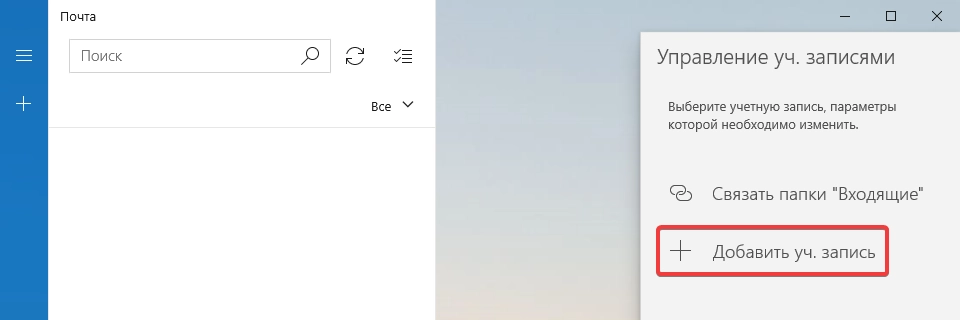
- In the app's main menu, select "Accounts":

- Click "Add account":
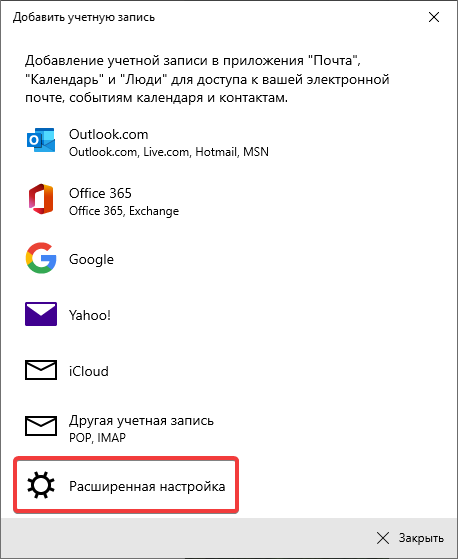
- Click "Advanced settings":
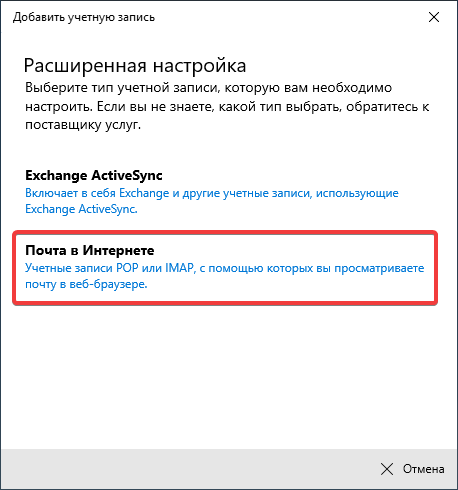
- Click "Internet Mail":
- Specify the connection settings and click "Login":
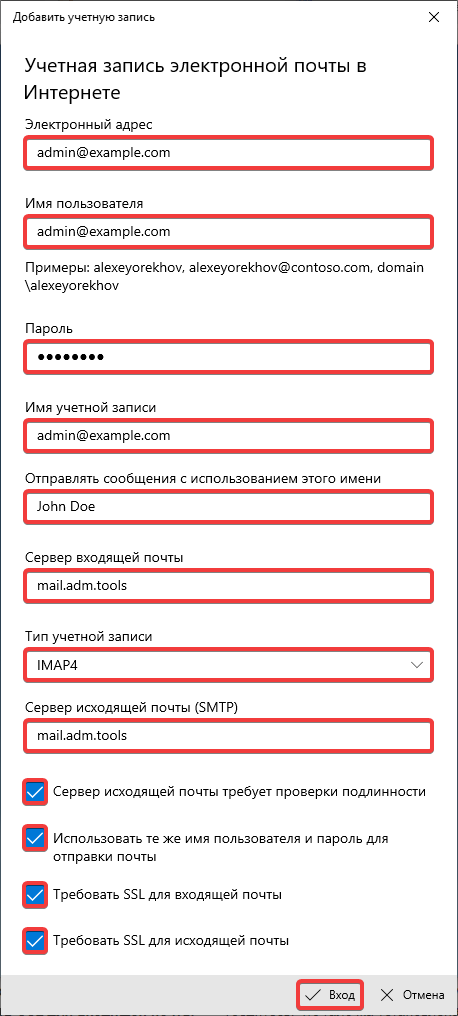
- "Email address" — mailbox name.
- "Username" — mailbox name.
- "Password" — mailbox password.
- "Account name" — account name in any format (for example, mailbox name or part of it before
@). - "Send messages using this name" — your name.
- "Incoming Mail Server" —
mail.adm.tools. - "Account type" — "IMAP4".
- "Outgoing mail server (SMTP)" —
mail.adm.tools. - "Outgoing mail server requires authentication" — enabled.
- "Use the same username and password to send mail" — enabled.
- "Require SSL for incoming mail" — enabled.
- "Require SSL for outgoing mail" — enabled.
- Click "Done":
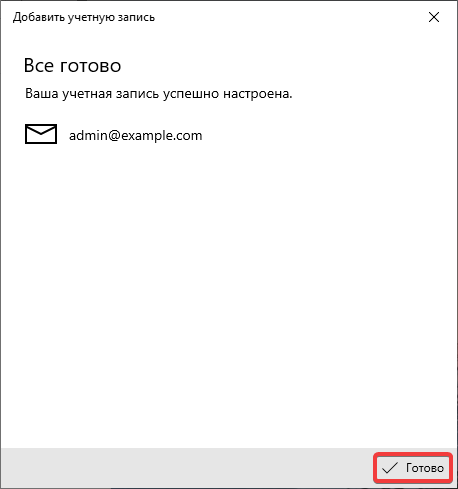
- Check the mail operation.