Manage cookies that are used for advertising, such as ad personalization, remarketing, and ad effectiveness analysis.
4.3.9.2. Set up Mailbird mail client
Mailbird is a paid mail client for devices with Windows operating system.
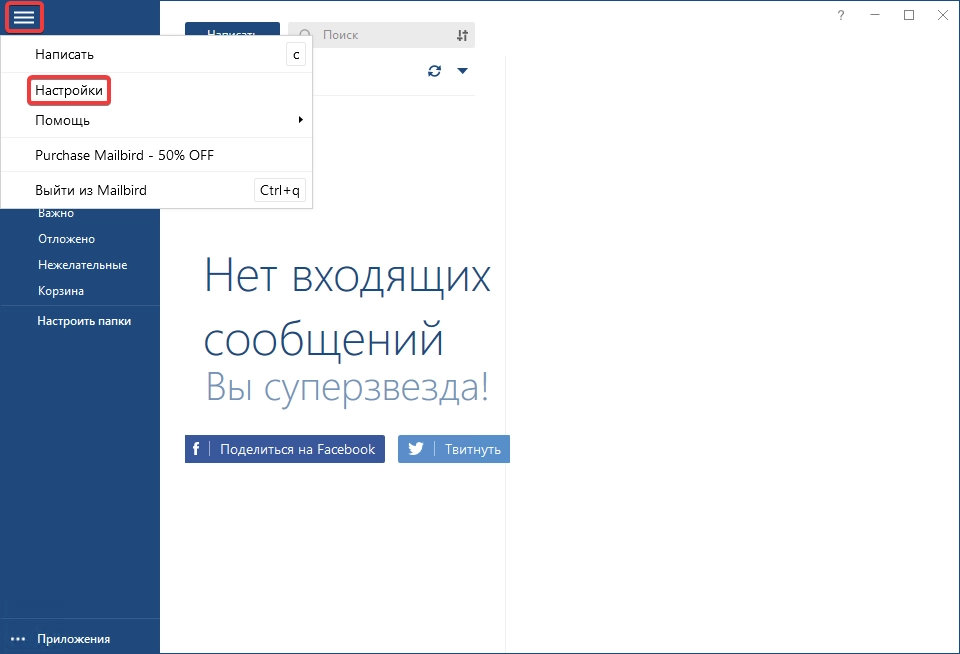
- In the app's main menu, select "Settings":
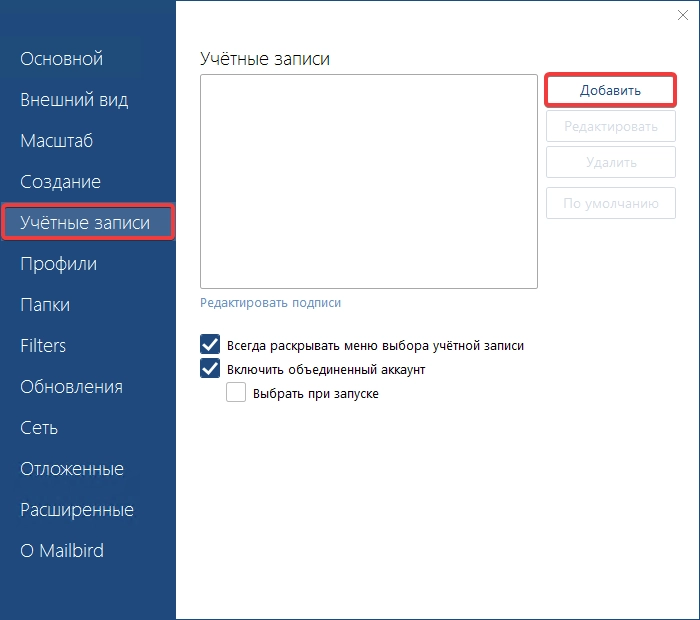
- In the "Accounts" section, click "Add":
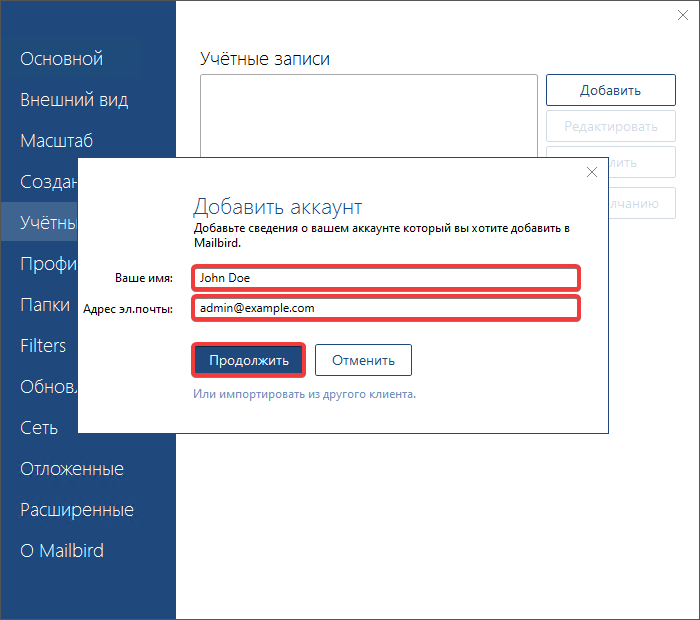
- Enter your name, mailbox name and click "Continue":
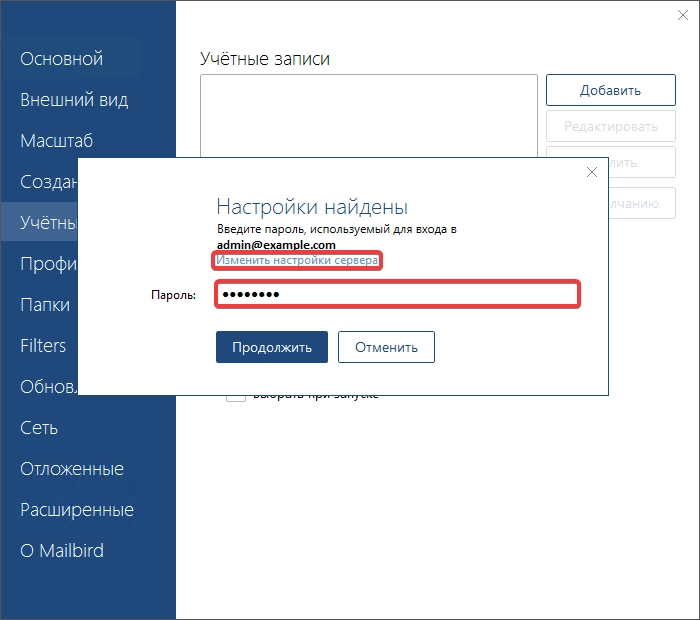
- Enter your mailbox password and click "Change server settings":
- Specify the connection settings and click "Continue":
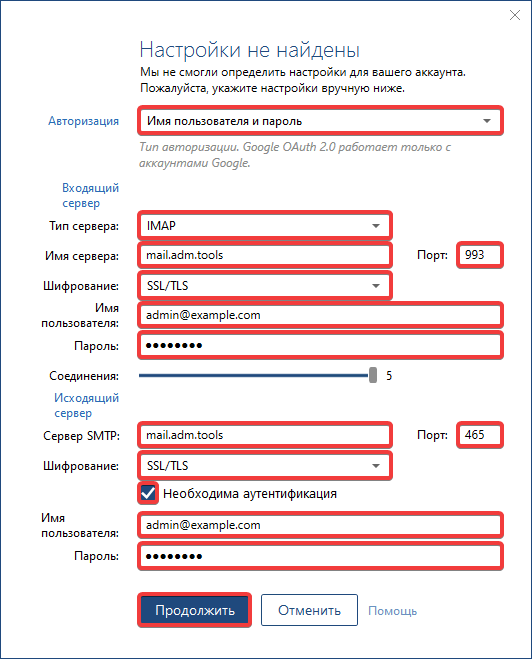
- "Authorization" — "Username and password".
- Incoming server:
- "Server type" — "IMAP".
- "Server name" —
mail.adm.tools. - "Port" —
993. - "Encryption" — "SSL/TLS".
- "Username" — mailbox name.
- "Password" — mailbox password.
- Outgoing server:
- "SMTP server" —
mail.adm.tools. - "Port" —
465. - "Encryption" — "SSL/TLS".
- "Authentication required" — enabled.
- "Username" — mailbox name.
- "Password" — mailbox password.
- Check the mail operation.