Manage cookies that are used for advertising, such as ad personalization, remarketing, and ad effectiveness analysis.
4.5.1. Space for mail
Available space
Attention!
If the available space is exceeded, incoming mail will be blocked.Information about the space used for corporate mail and hosting account mail is updated 1-2 times per day.
Information about used and available space is displayed in the "Mailboxes" section in the "Space for mail" block: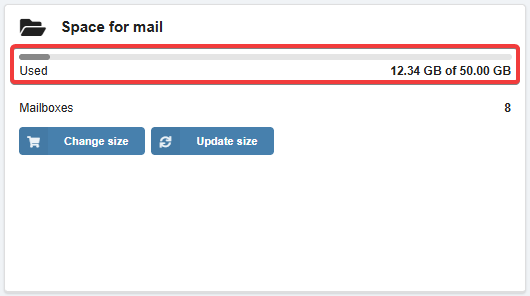
Corporate mail — available space depends on the selected plan (disk space).
Hosting account mail — available space is equal to disk space in the current hosting account plan, this space is common to all mail domains of this hosting account.
Increase space
flowchart LR
d@{ shape: rounded, label: "✉️ Corporate
mail" } h@{ shape: rounded, label: "✉️ Hosting account
mail" } du@{ shape: rect, label: "↗️ Increasing space" } df@{ shape: rounded, label: "✉️ Corporate mail
(50–5000 GB)" } hs@{ shape: rect, label: "🔁 Switching
to corporate mail" } hu@{ shape: rect, label: "🔀 Changing
hosting account plan" } hfs@{ shape: rounded, label: "☁️ Shared hosting
(10–30 GB)" } hfb@{ shape: rounded, label: "☁️ Business hosting
(16–144 GB)" } d-->du du-->df h-->hs hs-->df h-->hu hu-->hfs hu-->hfb
mail" } h@{ shape: rounded, label: "✉️ Hosting account
mail" } du@{ shape: rect, label: "↗️ Increasing space" } df@{ shape: rounded, label: "✉️ Corporate mail
(50–5000 GB)" } hs@{ shape: rect, label: "🔁 Switching
to corporate mail" } hu@{ shape: rect, label: "🔀 Changing
hosting account plan" } hfs@{ shape: rounded, label: "☁️ Shared hosting
(10–30 GB)" } hfb@{ shape: rounded, label: "☁️ Business hosting
(16–144 GB)" } d-->du du-->df h-->hs hs-->df h-->hu hu-->hfs hu-->hfb
Corporate mail — you can only increase the available space by changing the plan.
Hosting account mail — two methods are available:
- Switching to corporate mail.
- Changing the plan of hosting account to one where more disk space is available.
Freeing up space
Ways to free up used space:
Exceeding space
When incoming mail is blocked:
- Messages are not delivered to mailboxes, senders are returned with the error "5.2.2 The email account that you tried to reach is over quota" (but not more often than once an hour).
- If a message has multiple recipients and incoming mail is blocked for only some of them, the message will be delivered to those who are not blocked.
- You can see information about undelivered messages in rejected emails log.
For hosting account mail
Incoming mail can be temporarily unblocked for 1 day in the "Mailboxes" section in the "Space for mail" block. The button appears 1 hour before the start of blocking, you can use it any number of times, but only within the first 10 days from the moment of sending the notification about exceeding.
flowchart LR
d@{ shape: rounded, label: "✉️ Corporate
mail" } h@{ shape: rounded, label: "✉️ Hosting account
mail" } c@{ shape: rect, label: "🔎 Checking
space" } d-->|1-2 times
per day|c h-->|1-2 times
per day|c n@{ shape: rect, label: "🔔 Notification" } c-->|Exceeding|n b@{ shape: rect, label: "🚫 Blocking
incoming mail" } n-->|After 1 day|b n-->|After 3 workdays
at 12:00 PM|b subgraph Corporate mail du@{ shape: rect, label: "↗️ Increasing space" } dd@{ shape: rect, label: "🧹 Freeing up space" } end subgraph Hosting account mail hs@{ shape: rect, label: "🔁 Switching
to corporate mail" } hu@{ shape: rect, label: "↗️ Upgrading
hosting account plan" } hd@{ shape: rect, label: "🧹 Freeing up space" } end r@{ shape: rect, label: "✅ Unblocking
incoming mail" } b-->du-->|5 minutes|r b-->dd-->|10-20 minutes|r b-->hs-->|5 minutes|r b-->hu-->|5 minutes|r b-->hd-->|1-2 times per day
or by request|r
mail" } h@{ shape: rounded, label: "✉️ Hosting account
mail" } c@{ shape: rect, label: "🔎 Checking
space" } d-->|1-2 times
per day|c h-->|1-2 times
per day|c n@{ shape: rect, label: "🔔 Notification" } c-->|Exceeding|n b@{ shape: rect, label: "🚫 Blocking
incoming mail" } n-->|After 1 day|b n-->|After 3 workdays
at 12:00 PM|b subgraph Corporate mail du@{ shape: rect, label: "↗️ Increasing space" } dd@{ shape: rect, label: "🧹 Freeing up space" } end subgraph Hosting account mail hs@{ shape: rect, label: "🔁 Switching
to corporate mail" } hu@{ shape: rect, label: "↗️ Upgrading
hosting account plan" } hd@{ shape: rect, label: "🧹 Freeing up space" } end r@{ shape: rect, label: "✅ Unblocking
incoming mail" } b-->du-->|5 minutes|r b-->dd-->|10-20 minutes|r b-->hs-->|5 minutes|r b-->hu-->|5 minutes|r b-->hd-->|1-2 times per day
or by request|r
Corporate mail:
- Space is checked 1-2 times per day.
- If an exceeding is detected, a notification is sent warning that incoming mail will be blocked.
- After 1 day from the date the notification was sent, if the exceeding problem has not been solved, incoming mail is blocked for mail domain.
- To unblocking you need to:
- When used space becomes less than available space, incoming mail is unblocked:
- When increasing space — within 5 minutes.
- When freeing up space — within 10-20 minutes.
Hosting account mail:
- Space is checked 1-2 times per day.
- If an exceeding is detected, a notification is sent warning that incoming mail will be blocked.
- After 3 business days at 12:00 PM, if the exceeding problem has not been solved, incoming mail is blocked for all mail domains of the hosting account.
- To unblocking you need to:
- Either switch to corporate mail.
- Either change the plan of hosting account to one where more disk space is available.
- Either free up used space.
- When used space becomes less than available space, incoming mail is unblocked:
- When switching to corporate mail or upgrading plan — within 5 minutes.
- When freeing up space — upon checking 1-2 times per day or by request.
Limit for mailbox
Notes:
- Limit for mailbox does not allow you to store more mail than the total limit allows.
- When the limit is reached, the mailbox will stop receiving new messages — they will be returned to the sender with the error "5.2.2 The email account that you tried to reach is over quota".
The limit is set in mailbox settings in the "Capacity limit, MB" field:
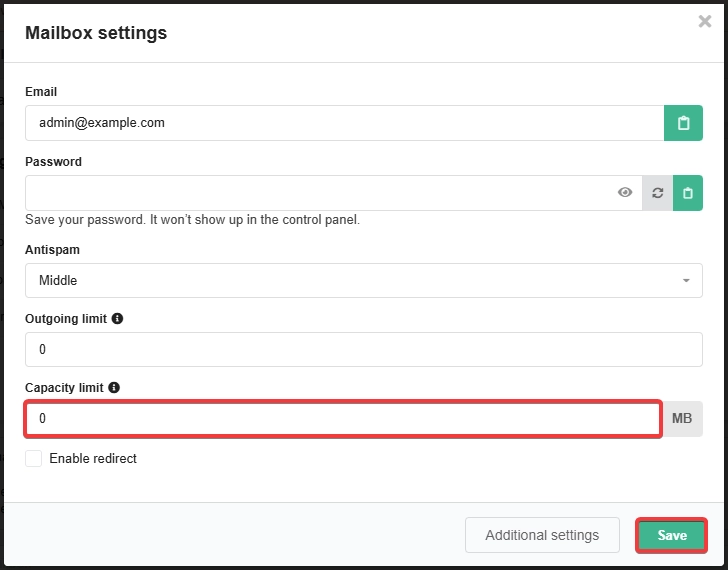
0— no limit (messages will be delivered to the mailbox until the total limit is reached).- Any value greater than
0— limits the amount of mail that can be received in this mailbox.