Manage cookies that are used for advertising, such as ad personalization, remarketing, and ad effectiveness analysis.
7.15. Storage settings
Storage settings are managed on the "Settings" tab.
Logo

Uploaded logo will be displayed instead of the default one in the web interface of the storage.
View when opening
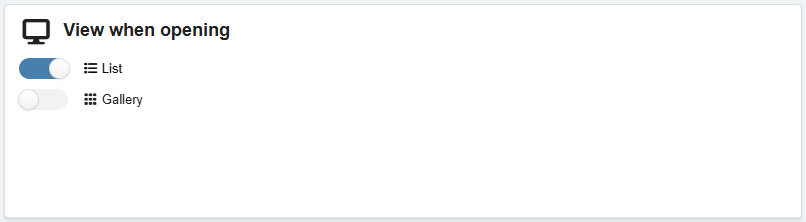
The mode of operation of the web interface when first opened via a browser:
- List — files are displayed as a list, clicking on a file downloads it.
- Gallery — media files are displayed as thumbnails; clicking on a media file opens it in a browser or downloads it.
Gallery mode is enabled automatically if the directory contains 85% or more media files. If you manually switch to list mode in the web interface, gallery mode will no longer be enabled automatically.
Supported file formats for thumbnails in gallery mode are listed in the table.
| Supported | Not supported | |
|---|---|---|
| Images | AVIF, BMP, GIF, HEIC, JPG/JPEG, PNG, SVG, WEBP | TIFF |
| Audio | — | MP3, WAV, OGG |
| Video | MP4, WEBM | OGV |
When using gallery mode for media files, thumbnails are created and stored in the /.thumbs directory.
HTTPS redirect
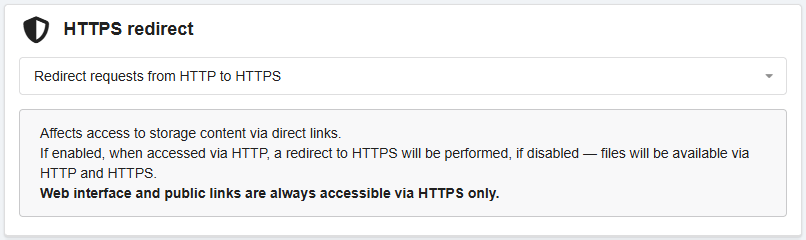
Managing redirection when files in the storage are accessed via HTTP — make files available via both HTTP and HTTPS, or redirect HTTP requests to HTTPS.
Caching settings
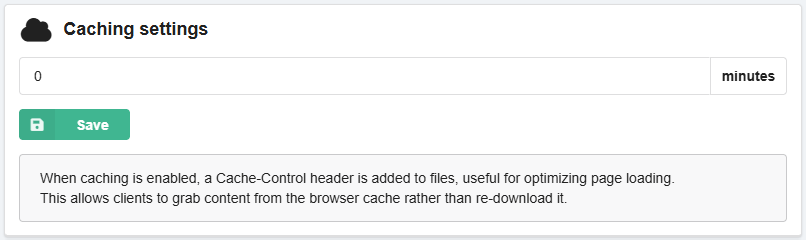
Adding Cache-Control header to files. Allows you to use browser caching mechanism — when you access a file again, the browser will take it from the cache if less time has passed since the previous download of the file from the server than specified in the caching settings.
Indexing by search bots
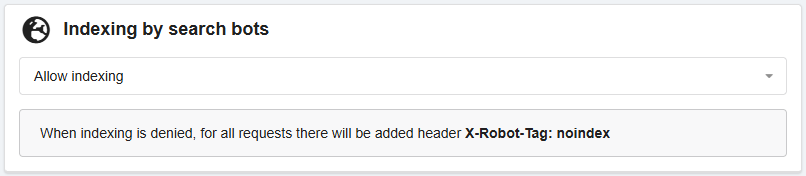
Indexing is enabled by default. When indexing is disabled, the header X-Robots-Tag: noindex is added to all files, public links, and storage pages.
Comments