Manage cookies that are used for advertising, such as ad personalization, remarketing, and ad effectiveness analysis.
2.5.2.2.4. Connect via FTP using Windows
Explorer
Attention!
In Explorer, it is not possible to enable the forced use of UTF-8 encoding for file and directory names. To avoid potential encoding issues with names, we recommend using a specialized FTP client, such as FileZilla or WinSCP.- Open Explorer via "This PC" or by using the Win+E shortcut.
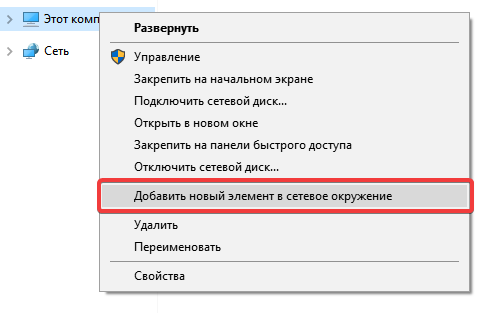
- In the left pane of Explorer, right-click on "This PC", select "Add a new item to the network environment" and click "Next":
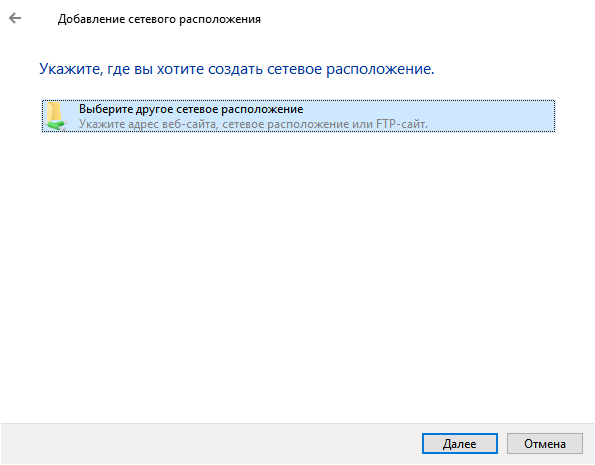
- Select "Choose a different network location" and click "Next":
- In the "Network address or Internet address" field, specify the server address as
ftp://example.ftp.tools, where instead ofexample.ftp.toolsuse the host from the FTP connection data), and click "Next":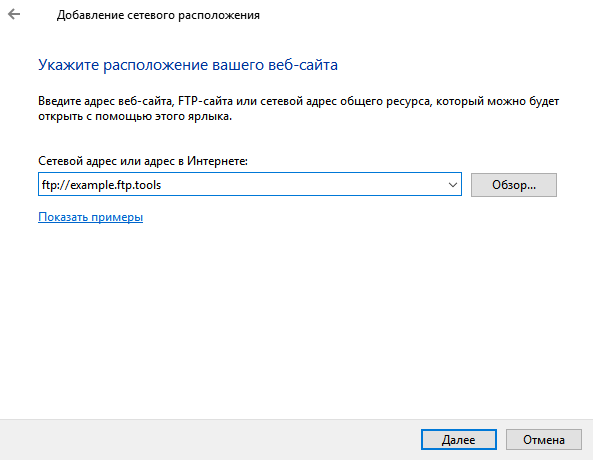
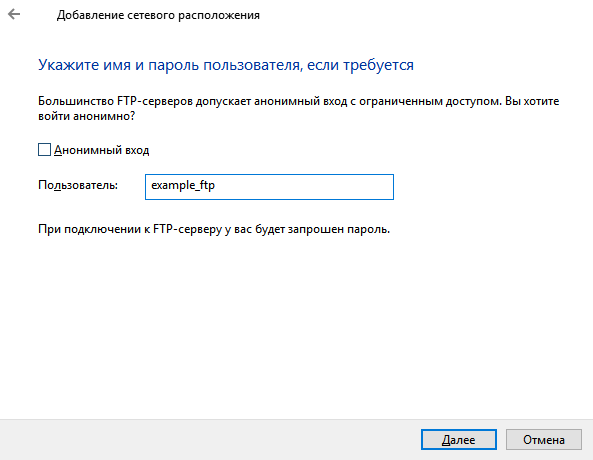
- Uncheck the box next to "Anonymous login", enter the FTP user login in the "User" field, and click "Next":
- Specify an arbitrary connection name and click "Next".
- Complete the setup. When opening the added resource, enter the FTP user password upon password request.
Command line
Attention!
The ftp program in Windows can only operate in active connection mode (when the server sends requests to the client), therefore FTP connection from the command line is available only for devices with a public IP address and a configured or disabled firewall, to allow receiving requests on the ports used during FTP connection.- Open the command line: press the Win+R shortcut, in the window that appears, enter
cmdand press Enter or "OK". - Execute the command:
ftp - Open a new connection by executing the command:
open example.ftp.toolsInstead of
example.ftp.tools, specify the host from the FTP connection data. - When prompted for the username and password, enter the FTP user's login and password.