Manage cookies that are used for advertising, such as ad personalization, remarketing, and ad effectiveness analysis.
4.2.8. Mailbox aliases
General information
flowchart LR
incoming@{ shape: stadium, label: "📨 Incoming mail" }
subgraph Recipient's address
primary_i@{ shape: lean-r, label: "📧 Primary address" }
alias_i@{ shape: lean-r, label: "📧 Additional addresses
(if added)" } p_alias_i@{ shape: lean-r, label: "📧 +Aliases" } end mailbox@{ shape: rect, label: "📬 Mailbox
(primary address)" } subgraph Sender's address primary_o@{ shape: lean-l, label: "📧 Primary address" } alias_o@{ shape: lean-l, label: "📧 Additional addresses
(if added)" } p_alias_o@{ shape: lean-l, label: "📧 +Aliases" } end outgoing@{ shape: stadium, label: "📨 Outgoing mail" } incoming-->primary_i incoming-->alias_i incoming-->p_alias_i primary_i-->mailbox alias_i-->mailbox p_alias_i-->mailbox mailbox-->primary_o mailbox-->alias_o mailbox-->p_alias_o primary_o-->outgoing alias_o-->outgoing p_alias_o-->outgoing
(if added)" } p_alias_i@{ shape: lean-r, label: "📧 +Aliases" } end mailbox@{ shape: rect, label: "📬 Mailbox
(primary address)" } subgraph Sender's address primary_o@{ shape: lean-l, label: "📧 Primary address" } alias_o@{ shape: lean-l, label: "📧 Additional addresses
(if added)" } p_alias_o@{ shape: lean-l, label: "📧 +Aliases" } end outgoing@{ shape: stadium, label: "📨 Outgoing mail" } incoming-->primary_i incoming-->alias_i incoming-->p_alias_i primary_i-->mailbox alias_i-->mailbox p_alias_i-->mailbox mailbox-->primary_o mailbox-->alias_o mailbox-->p_alias_o primary_o-->outgoing alias_o-->outgoing p_alias_o-->outgoing
Aliases are additional addresses for existing mailboxes.
Advantages
- You can use a single mailbox to receive and send mail from multiple addresses — from your primary address and aliases.
- Primary address can be used for trusted contacts, and aliases for less trusted ones — subscriptions, site registrations, etc.
- You can create aliases by platform, for example
facebook@example.com,instagram@example.com, etc., which will make it easier to search for messages and allow you to use filters to organize automatic sorting of incoming mail — add tags and categorize them into folders, and quickly identify the source of data leakage (if it happens). - Can be used as a disposable email — add an alias with a random name, receive an email with a code or link to it, then delete it.
- In case of a large amount of junk mail to an alias address, you can delete it and create a new one with a different name.
Types and differences
Two types of aliases are supported:
The main differences are summarized in the table below.
| Additional addresses | +Aliases | |
|---|---|---|
| Available in services | Only corporate mail | Any mail |
| Add | Manually | Not required (available by default) |
| Delete | Can be deleted | Cannot be deleted (only stop working when deleting a mailbox with a primary address) |
| Primary address visibility | Not visible | Visible (always present in the alias address before the + character) |
| Support in WebMail.Online and WebMail classic | Profiles are created automatically | Profiles need to be created manually |
| Possibility to link to another mailbox | Yes (you can delete and add to another mailbox) | No |
Additional addresses
Attention!
For corporate mail only.Notes:
- Work with additional addresses is performed only via the mailbox with the primary address.
- The status of the sending messages with other users specified setting does not affect the operation of added additional addresses.
Add
- Open the "Mailboxes" section.
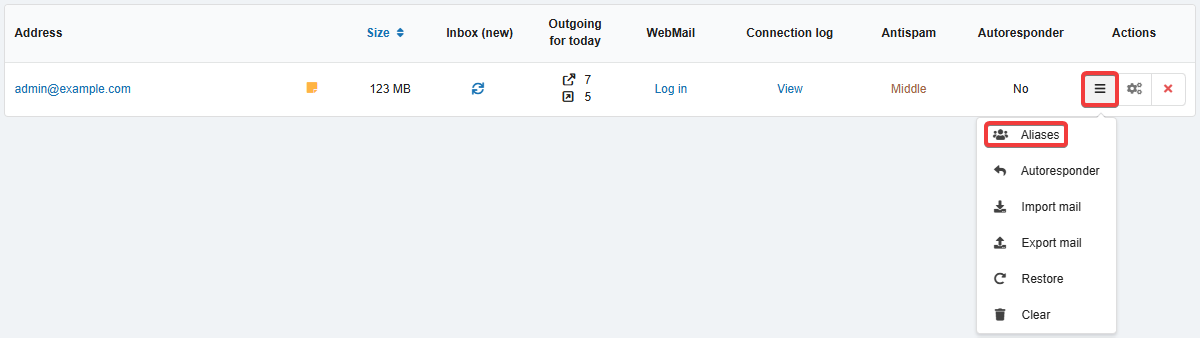
- In the mailbox menu, click "Aliases":
- Enter part of alias address up to
@and click "Add":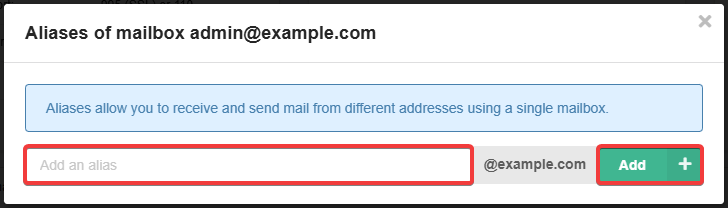
All added aliases are displayed in the mailbox list under the primary address:
Use
Incoming mail. All messages that are sent to additional addresses go to the mailbox to which these addresses are linked. For example, you have a mailbox admin@example.com and you have added an additional address ceo@example.com for it. In this case, all messages sent to admin@example.com and ceo@example.com will go to the admin@example.com mailbox.
WebMail.Online and WebMail classic. The WebMail.Online and WebMail classic mail clients have built-in support for additional addresses. When you add an alias, a corresponding profile is automatically created in these mail clients and when you send a message from a mailbox with a primary address, you can choose the sender's primary or additional address.
Third-party mail clients. Third-party mail clients usually also have support for additional addresses, but you have to add them manually. The procedure depends directly on the mail client used, usually additional profiles are added. At the same time in the settings of connection to the server for incoming and outgoing mail must be used the primary address (not additional) of mailbox and its password.
Sending using scripts. To send from additional addresses, scripts should connect via SMTP to the primary address (see Checking outgoing mail via SMTP), but use the additional address instead of the primary address in the From, Reply-To headers and the MAIL FROM command.
Outgoing mail. Recipients of mail that was sent from additional addresses will not be able to see the primary address.
Delete
Notes:
- After deleting an additional address:
- New incoming mail to this address will be handled according to configuration of incoming mail handling for nonexistent addresses: deleted or delivered to the selected mailbox.
- Sending outgoing messages from this address will depend on the sending messages with other users specified setting: if enabled — messages will be sent, if disabled — the error "Sender address rejected: not owned by user" will occur when sending.
- The deleted additional address can be added to any mailbox again.
- Open the "Mailboxes" section.
- In the mailbox menu, click "Aliases":
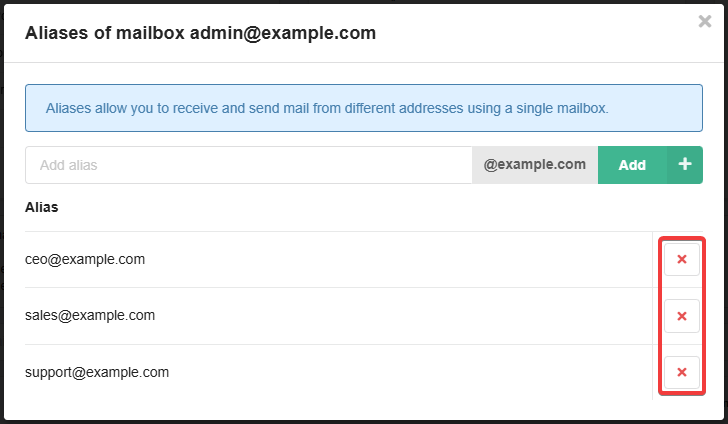
- In the row with the alias, click ❌:
+Aliases
For each mailbox, virtual addresses are available by default as a part of the main address up to @, to which arbitrary text is added via +. The mail server detects such aliases automatically, you do not need to add them manually. As a result, all messages sent to the primary address and to the addresses of such aliases get to the mailbox with the primary address.
For example, all messages sent to the address admin@example.com and its aliases admin+alias1@example.com, admin+alias2@example.com, etc. (instead of alias1, alias2, it can be any text) will be delivered to the mailbox alias2@example.com.
This can be convenient when you do not hide your primary address and do not want to specify the same mail in different services, but want to work with all mail from these services in one mailbox.
(3)