Manage cookies that are used for advertising, such as ad personalization, remarketing, and ad effectiveness analysis.
3.13. Flush DNS cache
DNS caching provides fast access to any domain and reduces the load on the DNS server by reducing the number of requests to it. However, caching also has disadvantages — the applying of changes to DNS records of the domain is performed with a delay, due to which in case of IP address change the site may be unavailable for some time.
You may need to flush the DNS cache to keep information from the DNS system up to date. Information can be cached either locally or on public DNS servers (for example, Cloudflare or Google).
Local cache
A local cache is a cache that is stored directly on the device you are using.
Windows
Notes:
- If the command returns "The requested operation requires elevation", run the command prompt as administrator.
- The "Could not flush the DNS Resolver Cache: Function failed during execution" error means that the DNS client service is disabled and the DNS cache does not need to be flushed because it is not being used.
- Open command prompt.
- Execute the command:
ipconfig /flushdns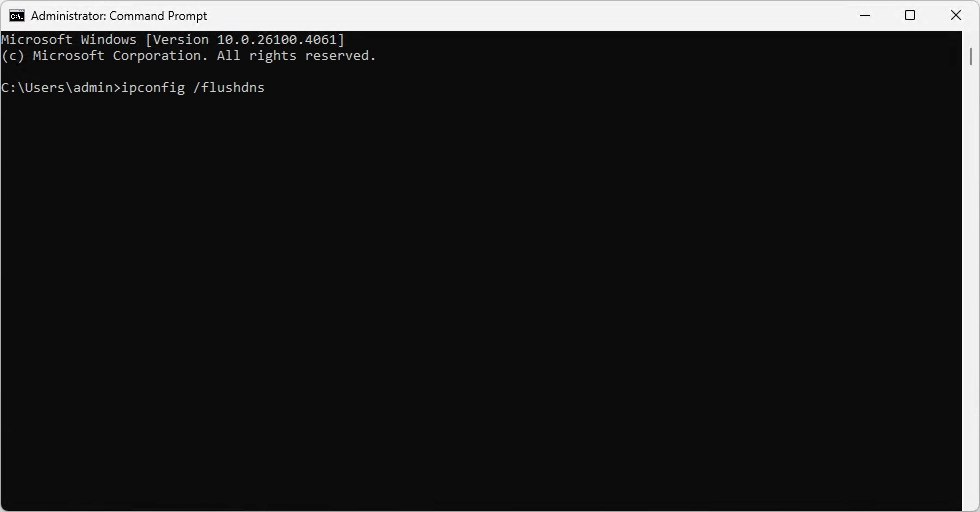
macOS
- Open terminal.
- Execute the command:
sudo dscacheutil -flushcache; sudo killall -HUP mDNSResponder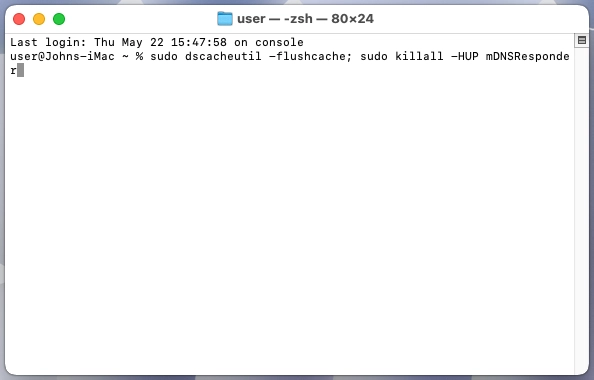
Linux
Generally, Linux does not cache DNS queries. But if you are using a local DNS server, it is enough to restart it. Depending on the DNS server you are using (usually BIND or nscd), you need to execute one of the commands:
- BIND:
/etc/init.d/named restart - nscd:
/etc/init.d/nscd restart
Public DNS cache
The public DNS cache is a cache that is stored on the DNS servers used by your device. Flushing the public DNS cache affects only those who use them. If your device does not use public DNS but, for example, your ISP's DNS servers, flushing the public DNS cache will not affect the information that your ISP's DNS servers provide. To correct the situation and update your domain data faster, set up public DNS.
Cloudflare
- Open the Cloudflare cache purging page.
- Fill out the fields and click "Purge Cache":
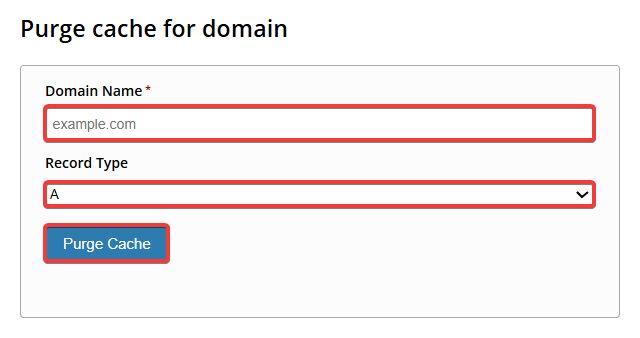
- "Domain Name" — name of the domain for which you want to flush the cache.
- "Record Type" — type of DNS record to remove from the cache.
- Repeat the operation for each record for which you want to refresh the information.
- Open the Google cache flushing page.
- Fill out the fields and click "Flush Cache":
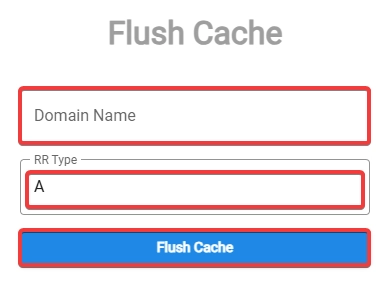
- "Domain name" — name of the domain for which you want to flush the cache.
- "RR type" — type of DNS record to remove from the cache.
- Repeat the operation for each record for which you want to refresh the information.
OpenDNS
- Open the OpenDNS cache refreshing page.
- In the "Enter a domain name to check" field, enter the domain name and click "Check this domain":

- At the bottom of the page, click "Refresh the cache":