Manage cookies that are used for advertising, such as ad personalization, remarketing, and ad effectiveness analysis.
2.5.2.2.1.5. Upload files to server using FileZilla
To upload files to the server, you need to connect to the server. After connecting, the standard FileZilla window will appear: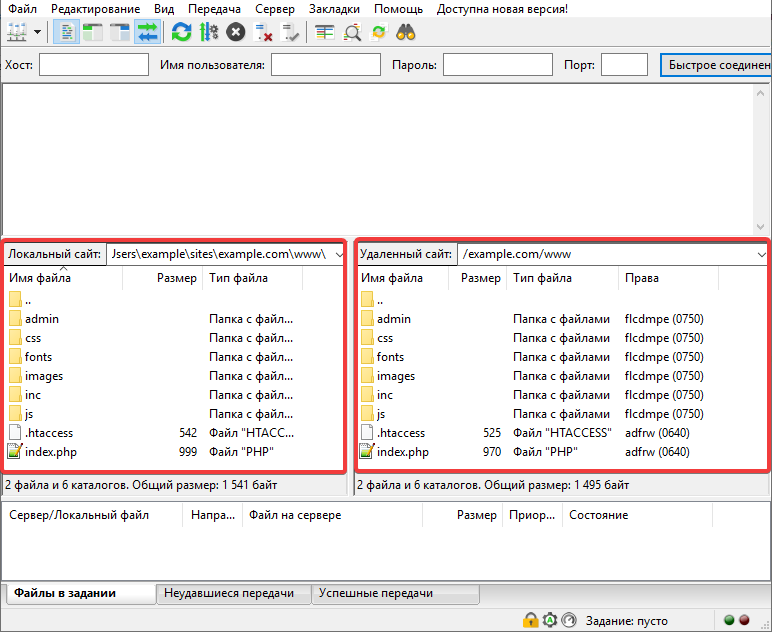
- "Local site" — files located on your local computer.
- "Remote site" — files hosted on the server.
To upload a file to the server, simply drag it with the mouse from the left panel to the right: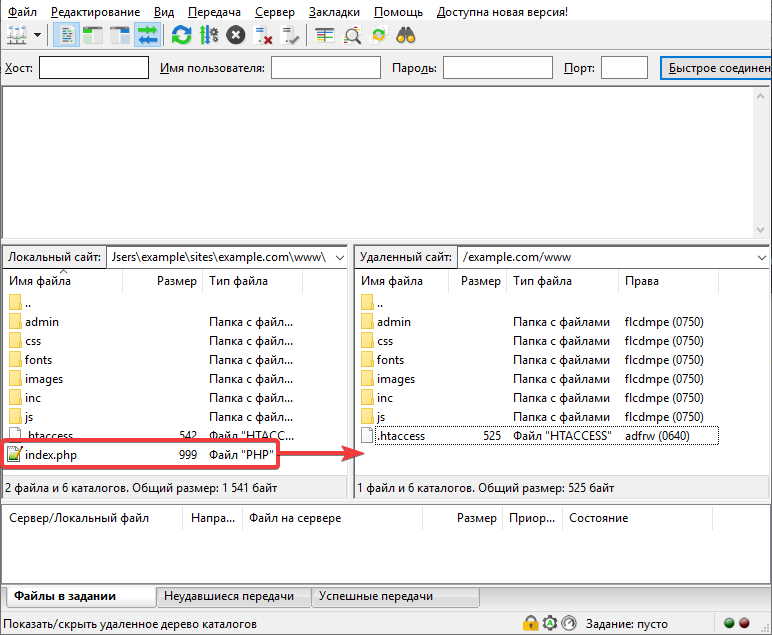 The file upload will be added to the task and will be displayed:
- In the connection log:
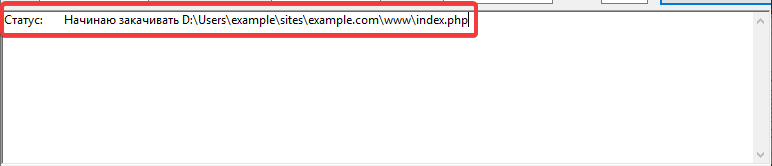
- On the tab "Files in the assignment":

After uploading, the relevant tab will display information about the results. Upon successful upload, the information will be displayed:
- In the connection log:
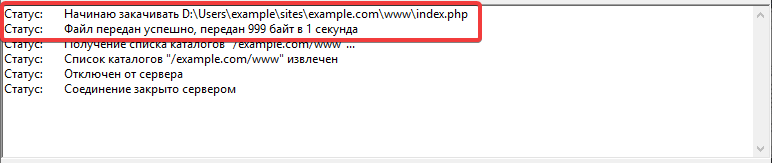
- On the tab "Successful Transfers":
