Manage cookies that are used for advertising, such as ad personalization, remarketing, and ad effectiveness analysis.
2.5.2.2.1.3. Configure FTP and SFTP connection in FileZilla
Before connecting via FTP, check the FTP security settings — the IP address from which the connection will be made should be added to the allowed list, or access restrictions should be disabled.
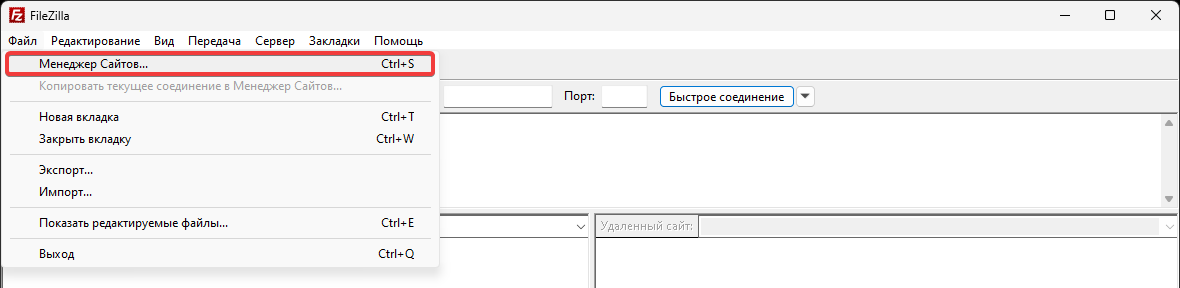
- In the main menu, select "File → Site Manager":
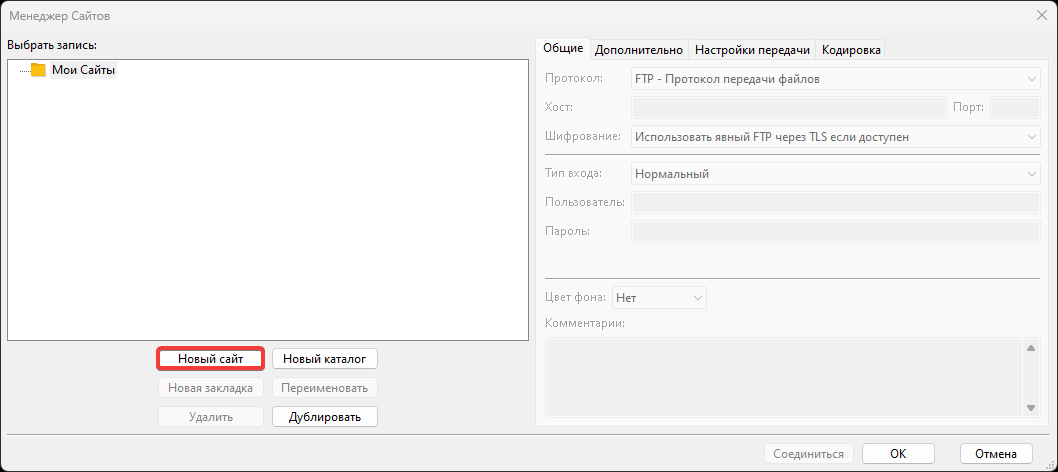
- Click "New Site":
- On the "General" tab, specify the connection settings:
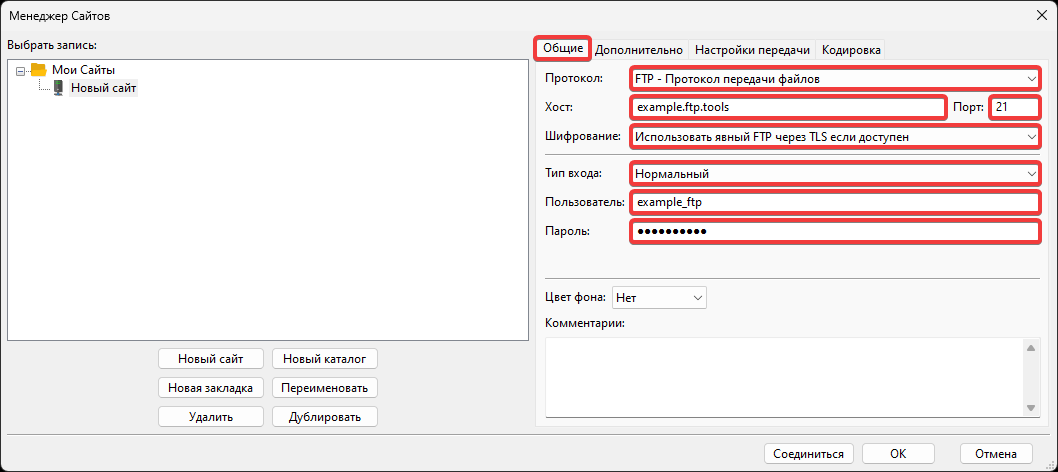
- "Protocol" — "FTP - File Transfer Protocol".
- "Host" — FTP host.
- "Port" —
21. - "Encryption" — type of encryption:
- "Use explicit FTP over TLS if available" — by default.
- "Require FTP over TLS (explicit)".
- "Require FTP over TLS (implicit)".
- "Use regular FTP (insecure)" — use in case of issues with TLS.
- "Logon Type" — "Normal".
- "User" — FTP user login.
- "Password" — FTP user password.
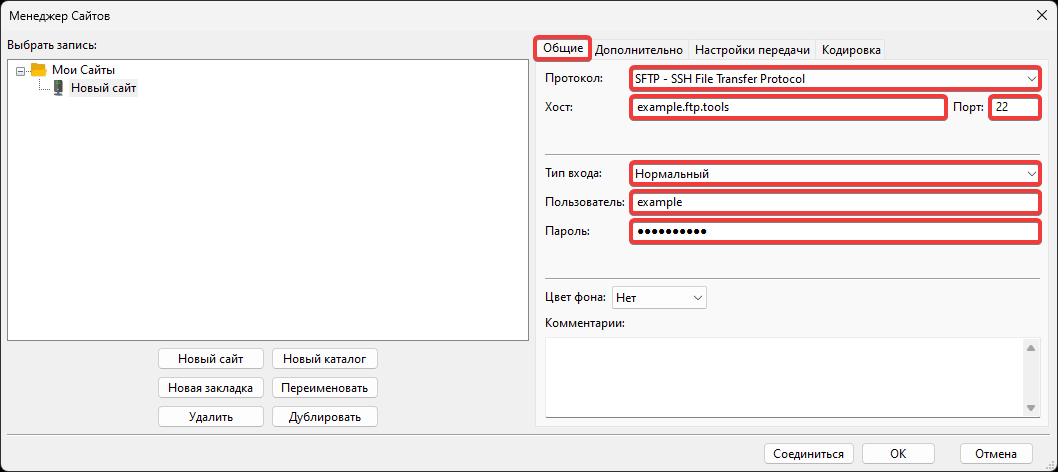
- "Protocol" — "SFTP - SSH File Transfer Protocol".
- "Host" — SSH host.
- "Port" —
22. - "Logon Type" — "Normal".
- "User" — SSH login.
- "Password" — SSH password.
For more details on keys, see SSH keys and SSH key-based authentication.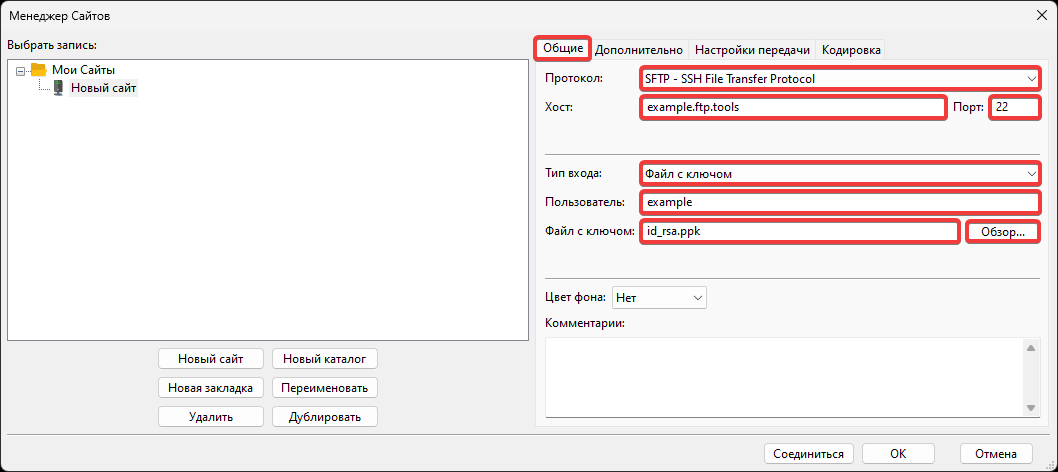
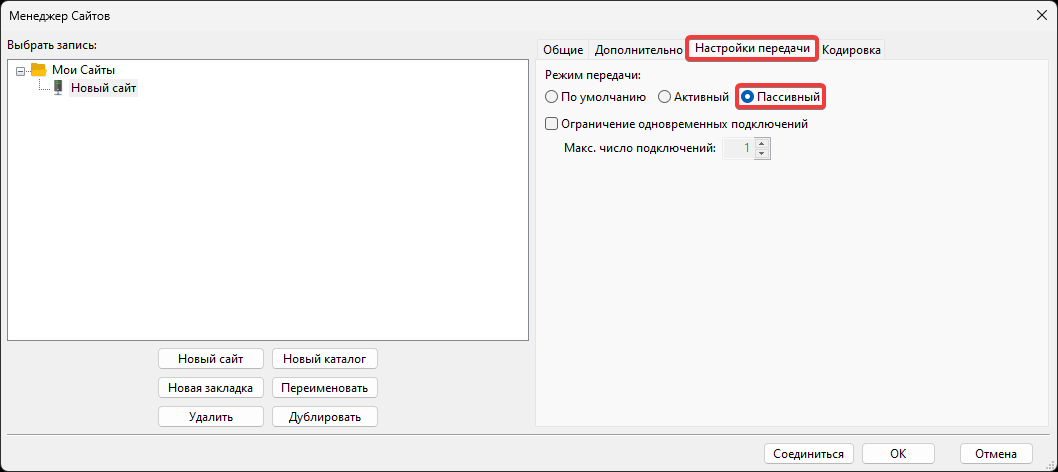
- (For FTP) On the "Transfer Settings" tab, select "Passive":
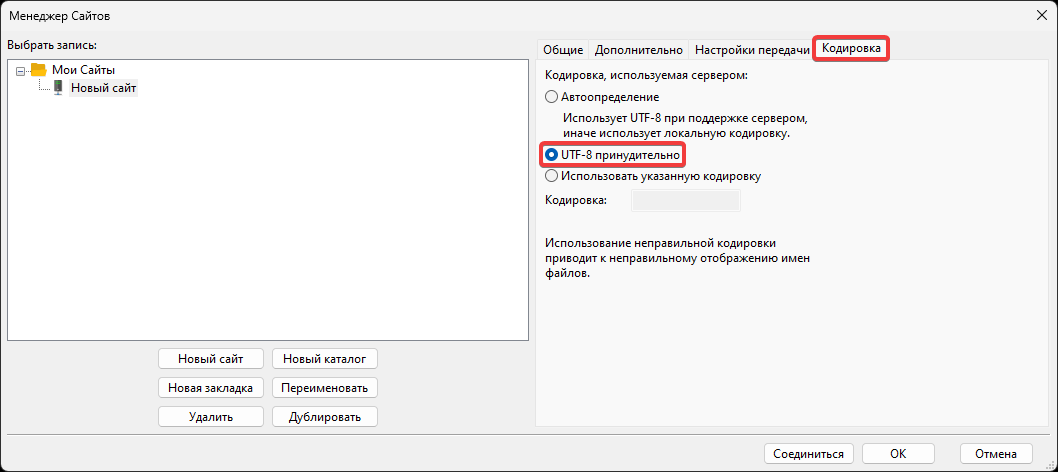
- On the "Charset" tab, select "Force UTF-8":
- Click "Connect" or "OK"
- When connecting, a warning may appear:
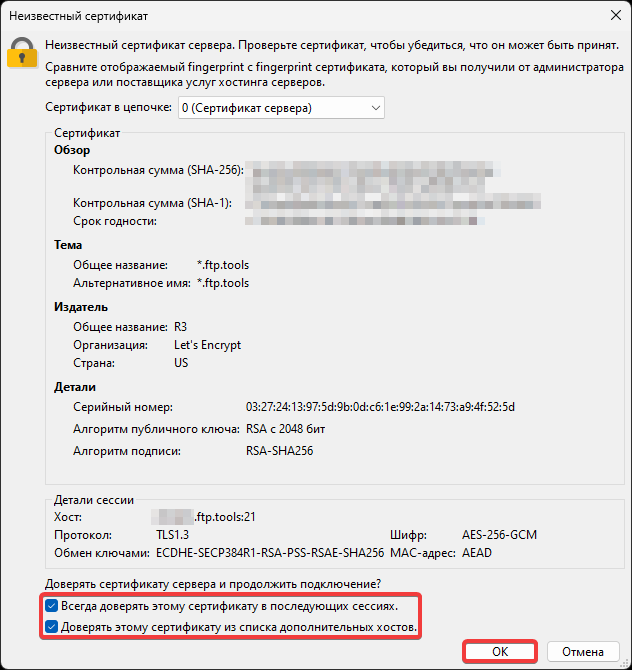
This means that the connection is being made with encryption and the certificate is not present in the FileZilla cache (this is normal for the first connection) or has changed (for example, due to the transfer of the hosting account to another server). To prevent the warning from appearing with each connection, enable "Always trust certificate in future sessions" and "Trust this certificate on the listed alternative hostnames". To connect, click "OK".
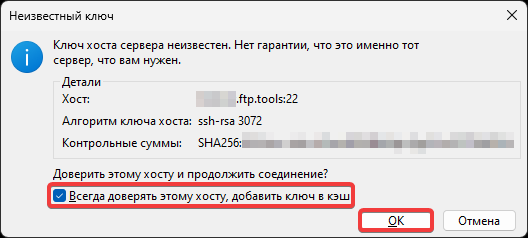
This means that the server key is missing from the FileZilla cache (this is normal for the first connection) or does not match the key in the cache (for example, due to the transfer of the hosting account to another server). To prevent the warning from appearing with each connection, enable "Always trust this host, add this key to the cache". To connect, click "OK".
- (For FTP) Enable binary mode for FTP.