Manage cookies that are used for advertising, such as ad personalization, remarketing, and ad effectiveness analysis.
2.5.1.12. Import database using file manager
Important points:
- The file must be in SQL format and not in an archive.
- Maximum file size — 5 GB.
- There should be no
CREATE DATABASEqueries in the dump file, since databases can only be created via the control panel. If there are such queries, the lines with them should be deleted using any text editor (e.g. Notepad++). - The database user password must not contain the
#character. If there is such a character, change the password to another one without this character.
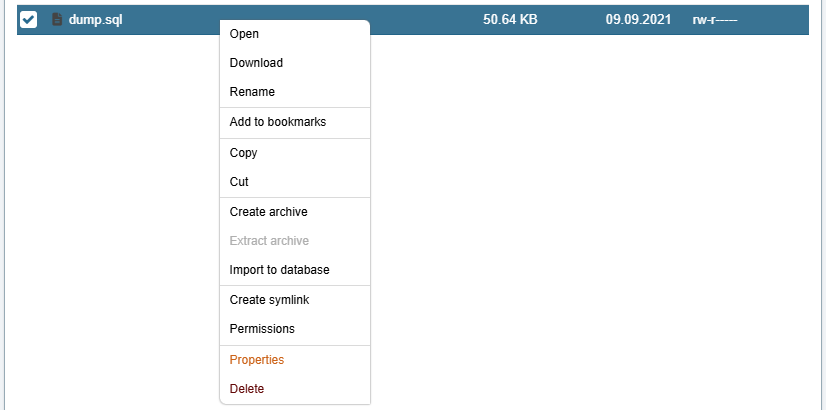
- Select the SQL file you want to import, right-click on it and select "Import to DB" from the context menu:
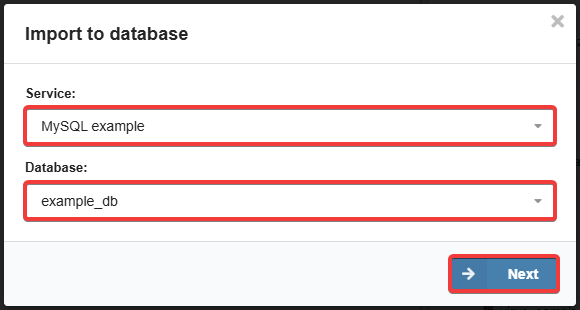
- Select the service (hosting account or MySQL instance) and the database into which you want to import the data, then click "Next":
- Fill in the form and click "Import":
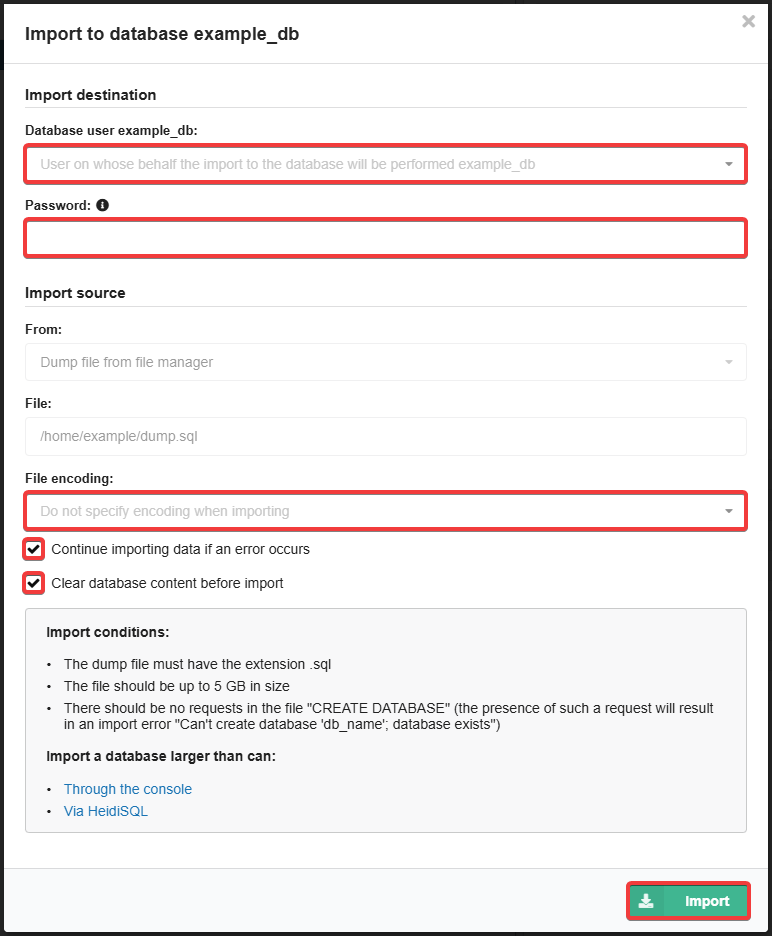
- "Database user" — user on whose behalf the import will be performed.
- "Password" (only when importing to MySQL instance) — database user password.
- "File encoding" — use "Do not specify encoding when importing" or select the desired encoding from the list.
- "Continue importing data if an error occurs" — enable if you want the import to continue if any errors occur.
- "Clear database contents before import" — enable if the import is to be performed to an empty database (the destination database will be cleared before import).
- Wait for the operation to complete.