Manage cookies that are used for advertising, such as ad personalization, remarketing, and ad effectiveness analysis.
2.5.1.6. Create, view and extract archive
Attention!
When connecting to a VPS or Dedicated server, the necessary utilities must be installed on them: zip for creating archives and unar for viewing and extracting (for example, in Ubuntu, they are installed with the commandssudo apt install zip and sudo apt install unar).
In the console, only the last 200 lines of output are displayed when operations are performed.
Create
Important points:
- The hosting account must have enough free disk space to accommodate the archive file. It is recommended to have free space approximately equal to or exceeding the size of the data to be archived. If there is not enough space, the archive will not be created.
- Archives are created in
zipformat. - To get an archive with the contents of root directory of a site or subdomain, it is more convenient to use backup: create a backup and download the archive to your PC. This method does not require free space in your hosting account.
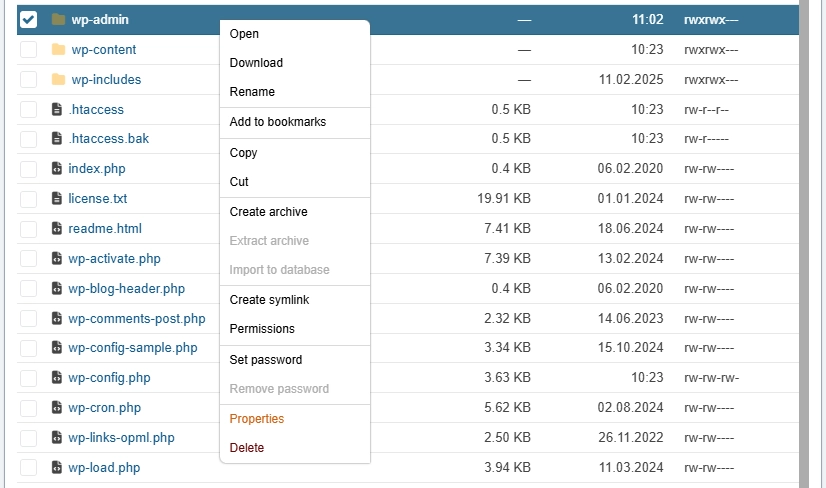
- Select the files and directories you want to archive, right-click on them and select "Create archive" in the context menu:
- Enter a name for the archive to be created and click ✅.
View
To view the contents of the archive, go to the directory with the archive and click once on the name of the archive file or twice on the row with it — a window will open where you can see what files and directories are in the archive: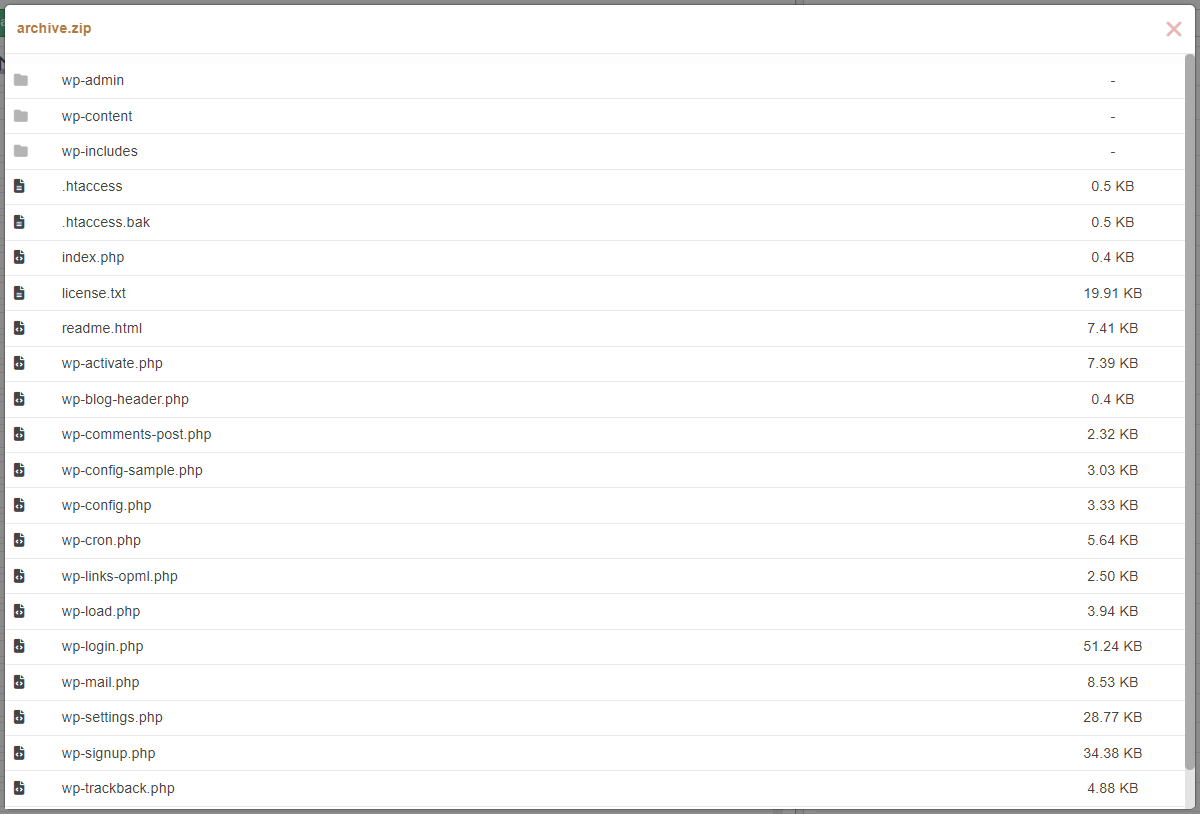
Extract
Important points:
- The hosting account must have enough free disk space (capacity and inodes) to accommodate the contents of the archive.
- The integrity of the archive must not be broken. A damaged archive may not unpack.
- Due to differences in the versions of the archiver/extractor used, archives in the
raror7zformat may not be extracted. In this case, repack the archive on your PC into thezipformat. - When extracting the files from the archive, they replace existing files with the same names, other files are not affected.
- The file manager does not extract so-called rsrc files, which are macOS system files. Such files are skipped during extracting and the window with the extracting process will show lines like
file(size, rsrc)... Failed! (Opening file failed). Other files will be extracted normally. - The permissions on extracted files and directories are kept the same as they were in the archive.
The unar utility is used for extracting. Supported archive formats:
zip, 7z, rar, tar, gz, bz2, tar.gz, tgz, tar.bz2, tbz2 and others. The full list can be found on the official site of the utility in the "Supported archive formats" section.
- Navigate to the directory with the archive you want to extract.
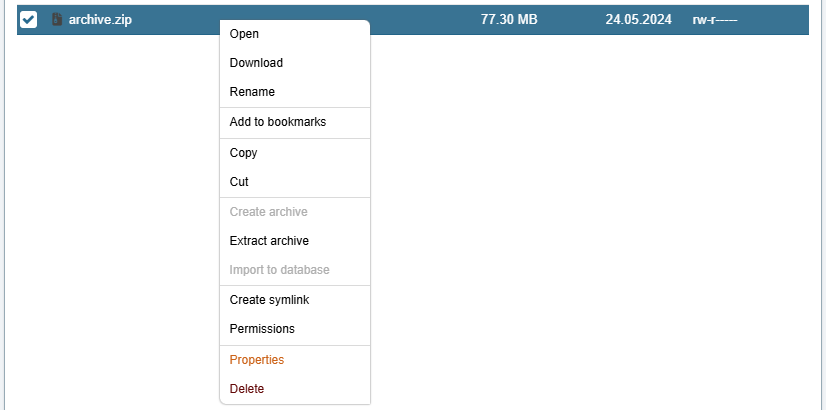
- Select the archive, right-click on it and select "Extract archive" in the context menu:
- Specify the path to the directory where you want to extract the contents of the archive and click ✅:
- Empty path — to the current directory.
archive— to the subdirectory of the current directory./— to the root of the hosting account regardless of the current location./example.com/www— to the directory of the specified site regardless of the current location.