Manage cookies that are used for advertising, such as ad personalization, remarketing, and ad effectiveness analysis.
2.5.1.1. Description of file manager
The file manager window consists of two independent panels. You can work in either of them.
Panel
Current location
The top of the panel displays information about the current location: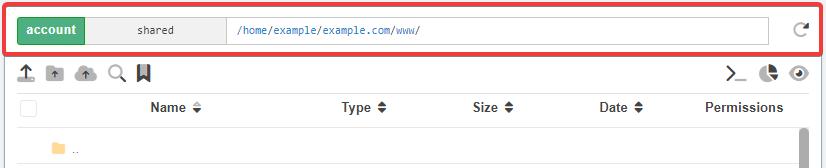
- Connection source and connection name — shows the current source of connection and allows you to change it.
- Path — current directory, the contents of which are displayed in the file list. The required path can be specified manually.
- Refresh Button — updates the list of files for the current directory.
Toolbar
Below the top panel, a toolbar with the following buttons is displayed: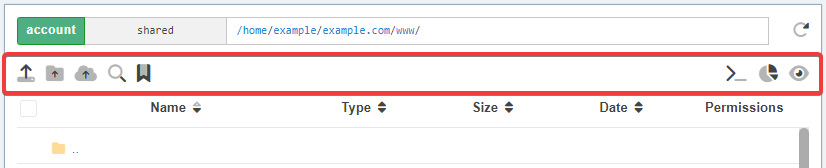
- Upload files — allows you to upload selected files from your PC to the current directory. If you need to upload not single files, but the whole directory, use either the directory upload button, or archive — archive on PC (preferably in zip format), upload the archive to the hosting and extract it via the context menu.
- Upload directory — allows to upload the selected directory (only non-empty directories are uploaded).
- Upload files via link — allows you to upload files from a third-party server via a direct link.
- File search — allows you to search for files by name, content and last modification date.
- Open SSH — opens WebSSH in a separate browser window. The working directory in the web client will be the current directory that was selected in the file manager.
- Show directory sizes and number of inodes — enables/disables counting and displaying of directory sizes and number of inodes in the file list. Inodes are displayed instead of the date column. Size calculation takes time, so it is recommended to enable it only when it is necessary. When disabled, the file list will be displayed faster.
- Show system files — enables/disables display of hidden system files and directories in the file list. These include directories
.cache,.cagefs,.cl.selector,.config,.local,.ssh,.system,.wp-cli, files.bash*,.viminfo,.gitconfig. - Bookmarks — opens the list of added bookmarks.
File list
The list of files consists of several columns: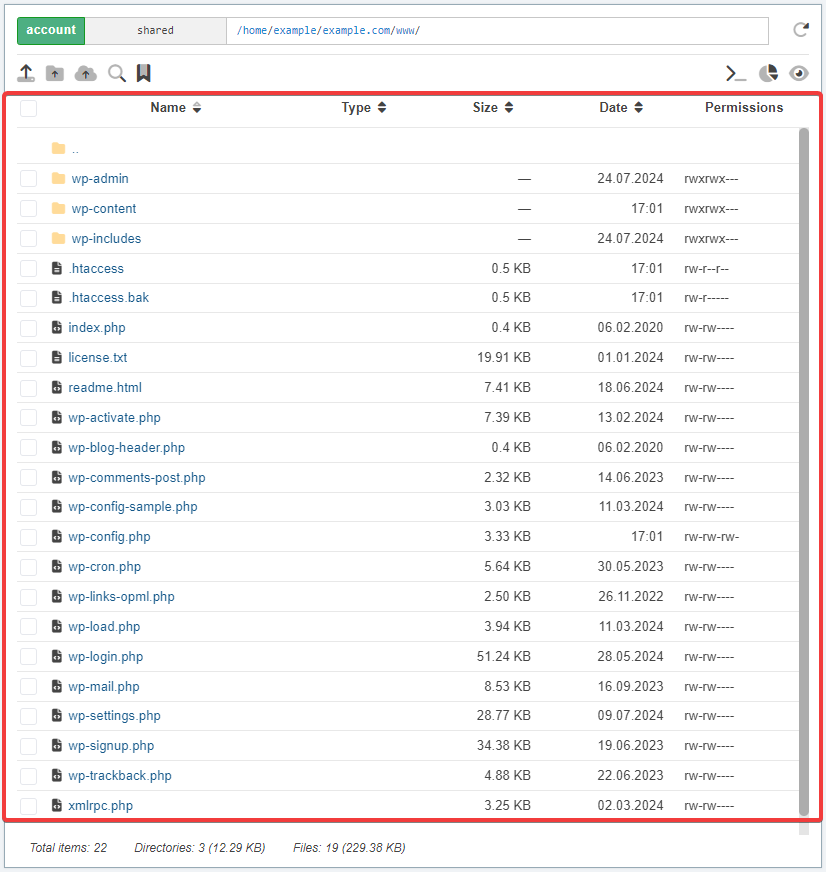
- Checkbox — allows you to select or deselect files and directories.
- Name — names of all files and directories in the current directory.
- Type — file extension is displayed immediately after file name.
- Size — size of each item. By default, sizes are displayed only for files. Directory size is calculated and displayed by clicking on the dash, repeated clicking updates the information. You can enable permanent display of directory sizes by using the button in the toolbar. ⚠️ To reduce delays when navigating through directories, their sizes are cached and can be updated in the file list with a delay of up to 5 minutes.
- Date — date and time of the last modification of the file or directory contents.
- Permissions — permissions to each of the files and directories.
File and directory names must be in UTF-8 encoding
The file manager works correctly only with files and directories whose names are UTF-8 encoded. List items with names in unsupported encodings are displayed with an exclamation mark icon, grayed out and unclickable. Such situations can occur when UTF-8 was not enabled when uploading via FTP client. A possible solution is to re-upload the files by configuring UTF-8 in the FTP client (instructions: FileZilla, Total Commander, WinSCP).
You can open any directory or file by clicking directly on the name or by double-clicking. You can return to the upper level by single-clicking on the .. directory (two dots).
For files, the action on opening depends on their type and size:
- A file with text content up to 5 MB in size — will open in the built-in file editor.
- Image file — opens in the built-in viewer.
- Archive file in
zipformat — opens view archive contents. - Other files — will be downloaded.
Selecting items in a list:
- Left mouse button click — selects or deselects single elements. The previous selection is reset.
- Click with Shift key pressed — selects group of elements.
- Click with Ctrl key pressed — selects or deselects single elements without resetting selection from other elements.
Context menu
Context menu when clicking on an area without selected items: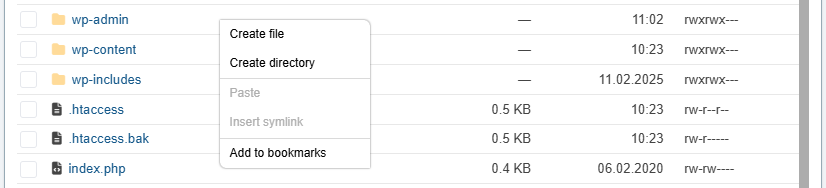
- Create file — create an empty file in the current directory.
- Create directory — create a directory in the current directory.
- Paste — paste copied or cut files or directories from the clipboard into the current directory.
- Insert symlink — create symlink to a file or directory.
- Add to bookmarks — add the current directory to bookmarks.
Context menu when clicking on selected items: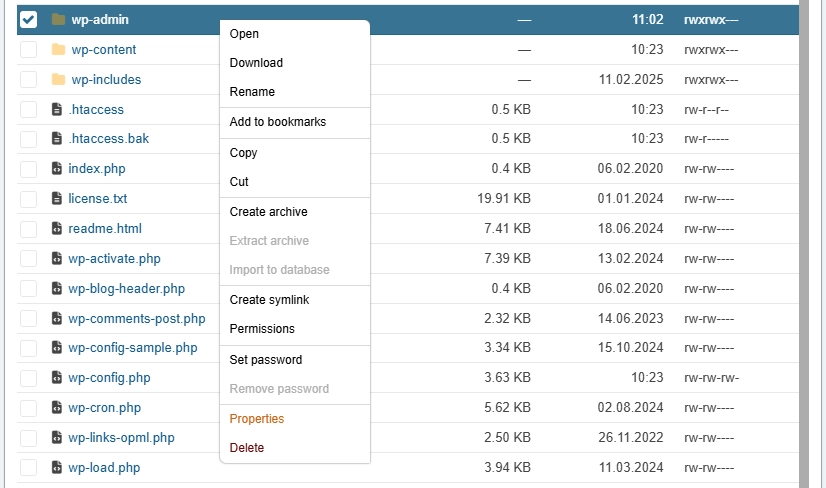
- Open — opens the selected file in the editor or navigates to the selected directory.
- Download — download selected files and directories as a zip archive.
- Rename — renames the selected file or directory.
- Add to bookmarks — add the selected item to bookmarks. The item is active only when one item is selected.
- Copy — copy selected files and directories to the clipboard for further pasting.
- Cut — cut selected files and directories to clipboard for further pasting.
- Create archive — create archive with selected files and directories.
- Extract archive — extract the selected archive.
- Import to database — import selected database dump.
- Create symlink — copy the path to the selected file or directory for further creation of symlink.
- Permissions — change permissions for the selected file or directory.
- Set password — passwording the directory on the site.
- Remove password — remove set password.
- Properties — view properties of the selected file or directory.
- Delete — deletes selected files and directories.
Context menu items are also duplicated as buttons in the Actions block.
Status bar
The status bar is displayed at the bottom of the panel and contains the following information:
- Total items — total number of files and directories in the current directory.
- Directories — number of directories in the current directory. If the toolbar has enabled displaying the size of directories, their total size will be displayed in brackets.
- Files — number of files in the current directory. Their total size is displayed in brackets.
When the file list is not fully loaded, a + symbol is displayed after all values. Items are loaded automatically as you scroll through the list.
Actions
The block contains buttons that duplicate actions from the context menu:
Operations
The block displays the status of various operations:
The start time, end time and execution time are displayed for each operation. Some operations can be interrupted using the gray cross button. Canceled or unsuccessful operations are displayed in red with an exclamation mark icon.
Shortcuts
- ↑ and ↓ — navigate through the file list.
- ← and → — switch to the left/right panel.
- Enter — open the selected file or directory.
- Backspace (on Mac devices — the Delete key) — back to the parent directory.
- F2 — rename the selected file or directory.
- Shift+↑ and Shift+↓ — select items above/below.
- Ctrl+A — select all items in the file list.
- Escape — deselect.
- Ctrl+C — copy the selected items to the clipboard.
- Ctrl+X — cut selected items to the clipboard.
- Ctrl+V — paste copied/cut elements into the current directory.
- Delete (on Mac devices — the Fn+Delete shortcut) — delete the selected items.
(4)