Manage cookies that are used for advertising, such as ad personalization, remarketing, and ad effectiveness analysis.
2.5.1.4. File search
Important points:
- Only file search is supported, not directory search.
- Search time is limited to 10 seconds. Only what is found in that time will appear in the results. For longer searches, use console.
- Only the first 150 files found are displayed in the results.
- Navigate to the directory whose contents you want to search.
- In the toolbar, click 🔍:
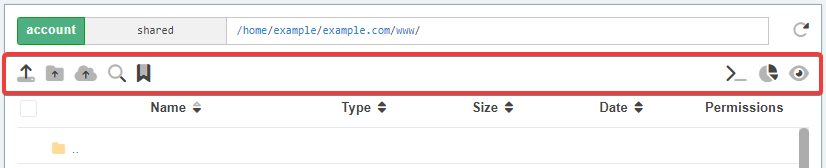
- Specify your search criteria and click "Search":
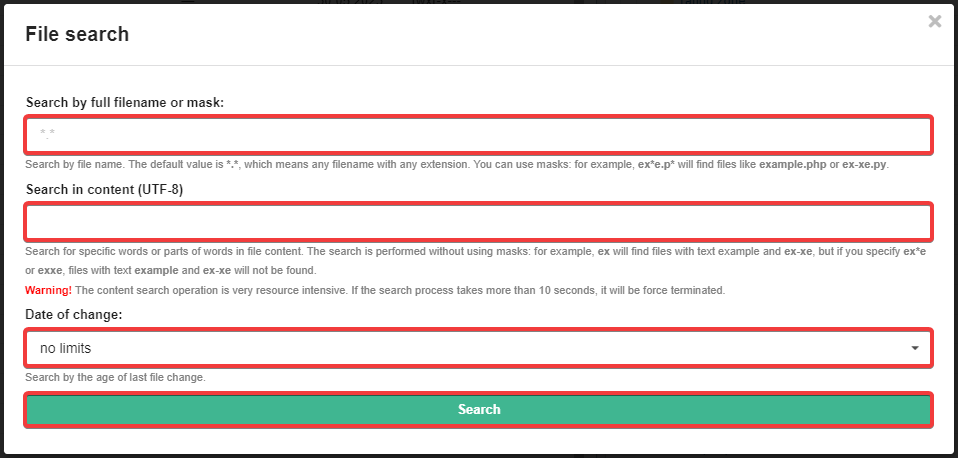
- "Search by full filename or mask" — search by filename. The default value is
*.*, which means any file name with any extension. You can use masks: for example,ex*e.p*will find files likeexample.phporex-xe.py. - "Search in content (UTF-8)" — search for certain words or parts of them in file content. The search is performed without using masks: for example,
exwill find files with textexampleandex-xe, but if you specifyex*eorexxe, files with textexampleandex-xewill not be found. - "Date of change" — search by the date of the last modification of the file. Available options:
- "no limits" — last modification time of a file does not matter.
- "for day" — file was modified no more than 24 hours ago.
- "for two days" — file was modified no more than two days ago.
- "for week" — file was modified no more than a week ago.
- "for month" — file was modified no more than one month ago.
As a result of the search, the list of found files matching the specified criteria will be displayed in the form. Clicking on the path will open the file in the built-in editor, clicking on the folder icon will navigate to the directory with the file in the file manager panel.