Manage cookies that are used for advertising, such as ad personalization, remarketing, and ad effectiveness analysis.
5.3.15. Change root password on VPS
Control panel
Important points:
- For Linux servers only.
- The server must be accessible for connection from our control panel using WebSSH.
Open the "VPS" section and on the "SSH / VNC" tab, click "Change password":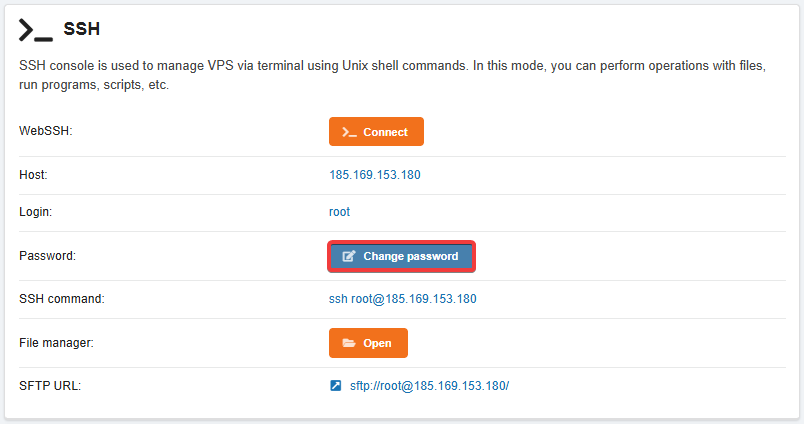
SystemRescue
Important points:
- For Linux servers only.
- On Dedicated, manual password reset is performed similarly to this instruction, except that boot in Rescue Mode is used instead of connecting an image and KVM is used instead of VNC.
- Connect to the server the SystemRescue image (always available by default in the image list).
- Reboot server.
- Connect to the server via VNC.
- In the SystemRescue main menu, select "Boot SystemRescueCd using default options":
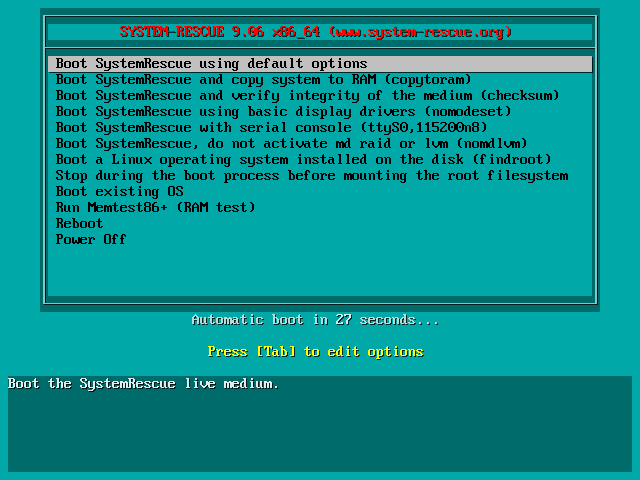
- Identify the disk on which the OS is located (usually the largest disk):
fdisk -l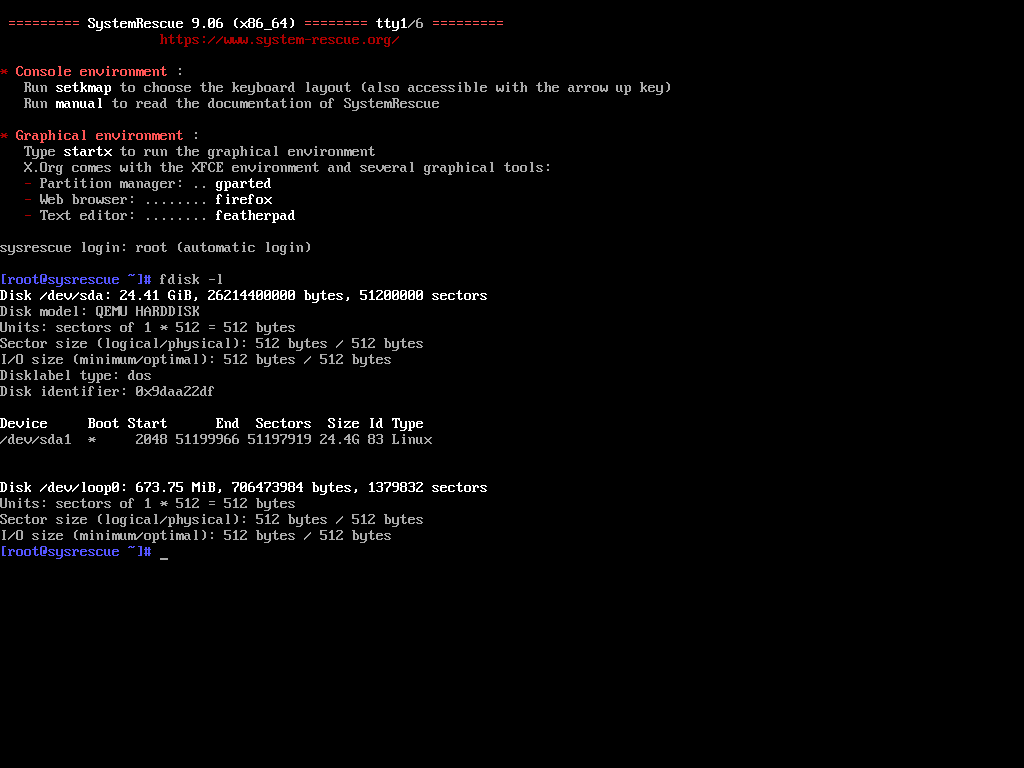
- Create a directory to mount the OS disk:
mkdir /mnt/root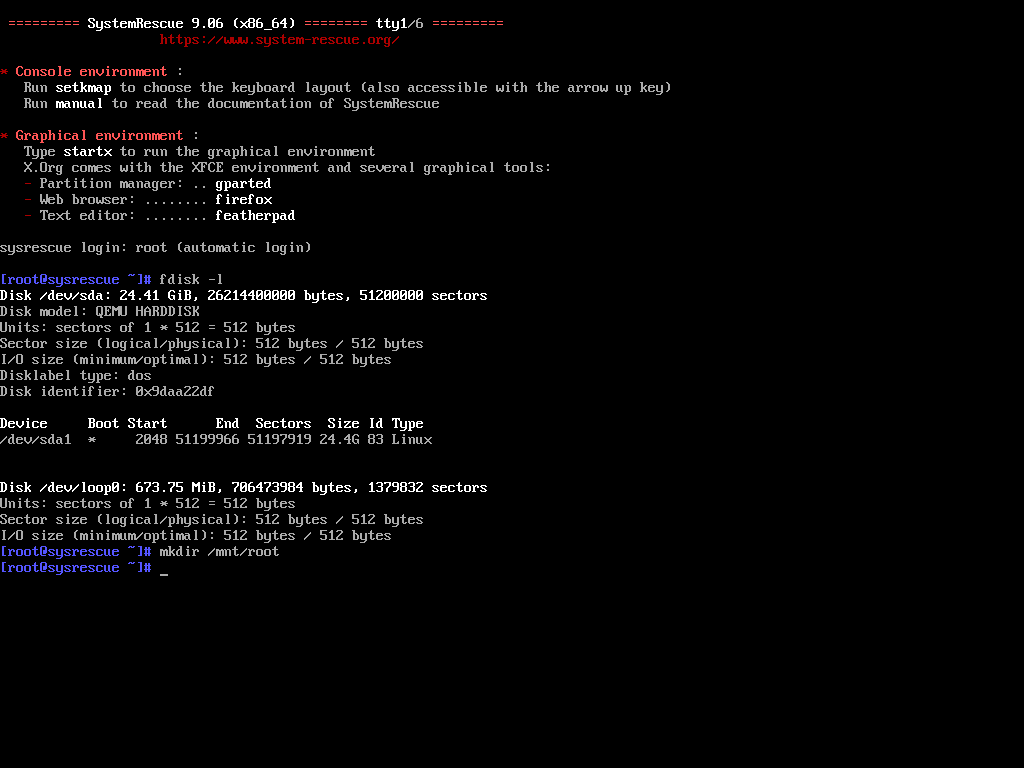
- Mount the OS disk (instead of
/dev/sda1, specify your disk from the "Device" column in thefdiskoutput):mount /dev/sda1 /mnt/root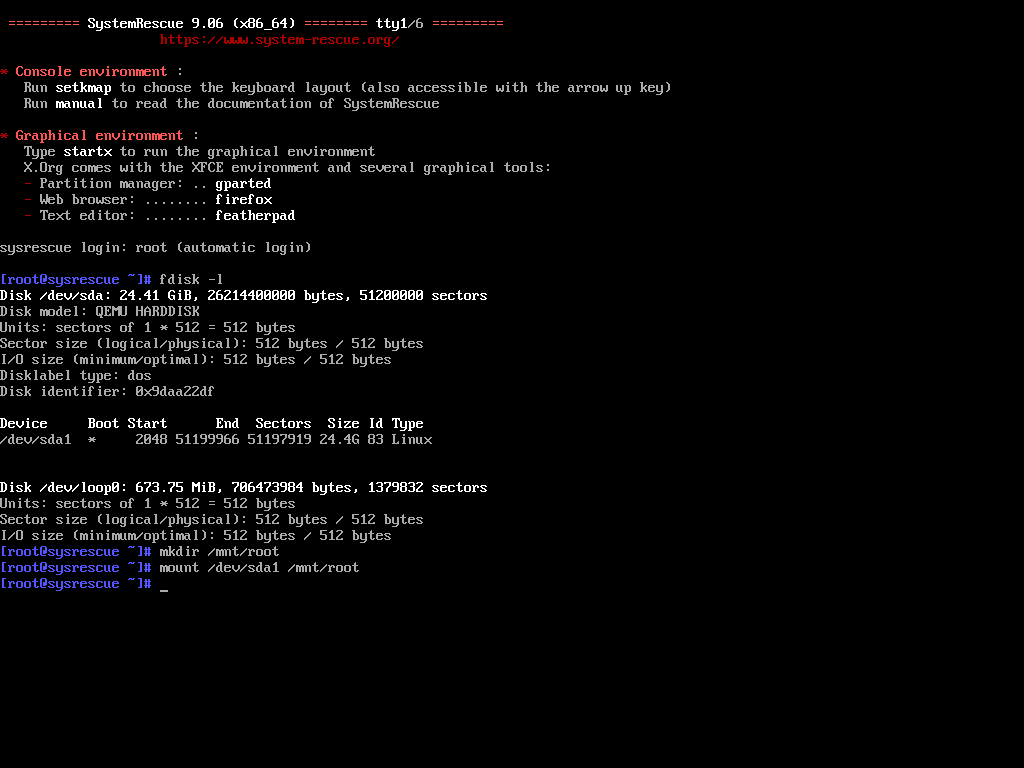
- Change the root directory from SystemRescue to the directory of the mounted disk with the OS.:
chroot /mnt/root /bin/bash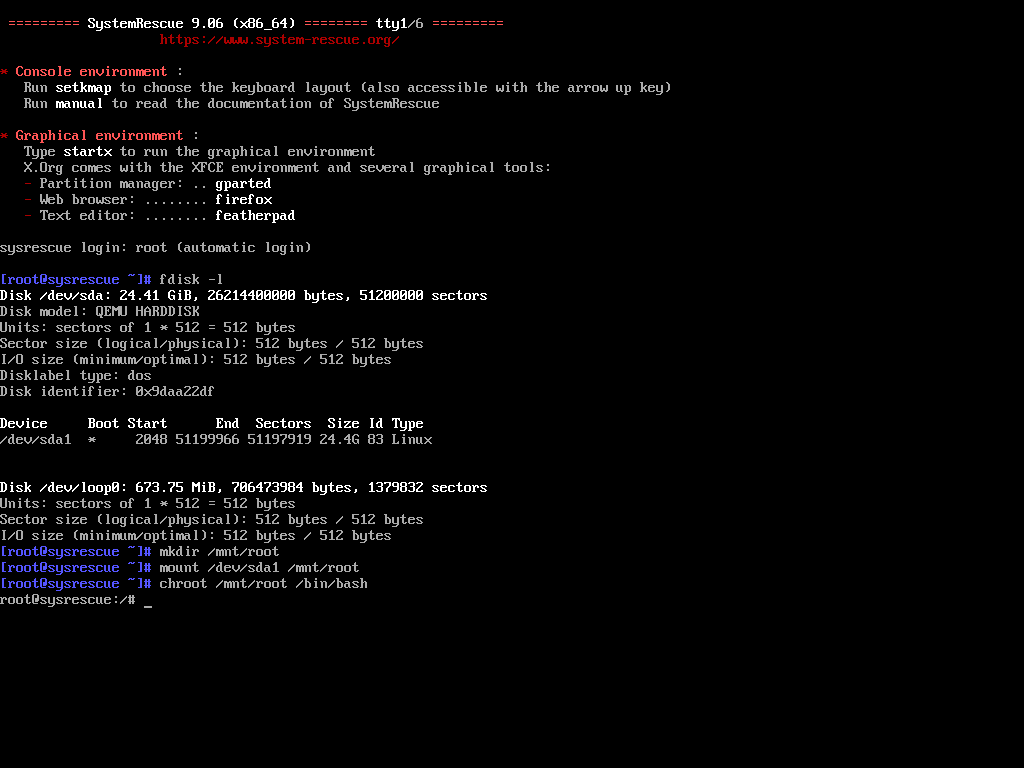
- Set a new password (must be entered twice, characters are not displayed on the screen):
passwd root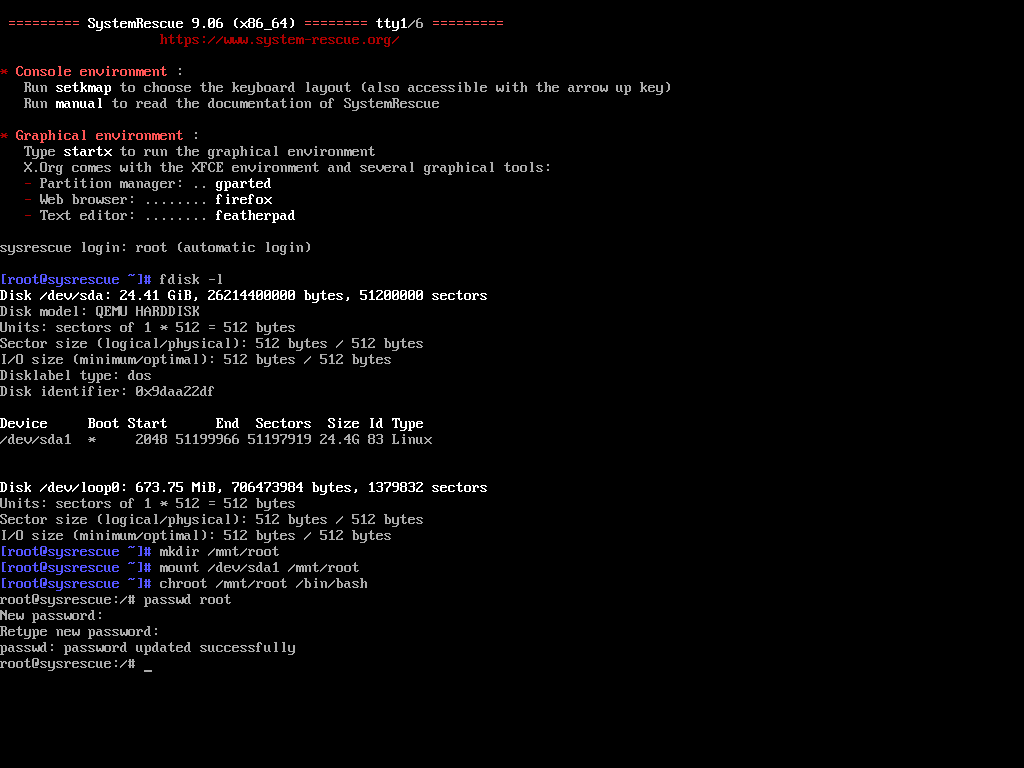
- Disconnect the SystemRescue image.
- Reboot server.