Manage cookies that are used for advertising, such as ad personalization, remarketing, and ad effectiveness analysis.
1.2.2. Two-step authentication (2FA)
General information
Logging in by phone disables 2FA
When two-step authentication is configured in the account and a phone number is added, you can use your phone as a fallback method for two-step authentication (receive a login code via call or SMS). However, after logging in with your phone, two-step authentication will be disabled in the account and all previously linked bank cards will be unlinked. Use this method only if absolutely necessary, when other methods of two-step authentication are unavailable.
flowchart LR
2fa@{ shape: stadium, label: "🛡 2FA" }
subgraph "Passing 2FA"
email@{ shape: rounded, label: "✉️ Email
(default)" } email_code@{ shape: lean-r, label: "🔢 Code from email"} email-->email_code telegram@{ shape: rounded, label: "🤖 Telegram" } button@{ shape: rect, label: "🔟 Clicking in the bot
on a button with a number" } telegram-->button gauth@{ shape: rounded, label: "📱 GAuth" } otp_code@{ shape: lean-r, label: "🔢 Code from app"} gauth-->otp_code webauthn@{ shape: rounded, label: "🔑 WebAuthn" } passkey@{ shape: rect, label: "🔐 Confirm login
with passkey" } webauthn-->passkey phone@{ shape: rounded, label: "📞 Phone
(reserve
method)" } robot@{ shape: lean-r, label: "🔢 Dictated by a robot
4 digits" } phone-->|"Call
to a Ukrainian number"|robot last_digits@{ shape: lean-r, label: "🔢 Last 4 digits of the number that called" } phone-->|"Call
to a foreign number"|last_digits sms_code@{ shape: lean-r, label: "🔢 Code from SMS" } phone-->|SMS|sms_code end disable@{ shape: rect, label: "❌ Disable 2FA
and remove bank cards" } finish@{ shape: stadium, label: "✔️ Done" } 2fa-->email 2fa-->telegram 2fa-->gauth 2fa-->webauthn 2fa-->phone email_code-->finish button-->finish otp_code-->finish passkey-->finish robot-->disable last_digits-->disable sms_code-->disable disable-->finish
(default)" } email_code@{ shape: lean-r, label: "🔢 Code from email"} email-->email_code telegram@{ shape: rounded, label: "🤖 Telegram" } button@{ shape: rect, label: "🔟 Clicking in the bot
on a button with a number" } telegram-->button gauth@{ shape: rounded, label: "📱 GAuth" } otp_code@{ shape: lean-r, label: "🔢 Code from app"} gauth-->otp_code webauthn@{ shape: rounded, label: "🔑 WebAuthn" } passkey@{ shape: rect, label: "🔐 Confirm login
with passkey" } webauthn-->passkey phone@{ shape: rounded, label: "📞 Phone
(reserve
method)" } robot@{ shape: lean-r, label: "🔢 Dictated by a robot
4 digits" } phone-->|"Call
to a Ukrainian number"|robot last_digits@{ shape: lean-r, label: "🔢 Last 4 digits of the number that called" } phone-->|"Call
to a foreign number"|last_digits sms_code@{ shape: lean-r, label: "🔢 Code from SMS" } phone-->|SMS|sms_code end disable@{ shape: rect, label: "❌ Disable 2FA
and remove bank cards" } finish@{ shape: stadium, label: "✔️ Done" } 2fa-->email 2fa-->telegram 2fa-->gauth 2fa-->webauthn 2fa-->phone email_code-->finish button-->finish otp_code-->finish passkey-->finish robot-->disable last_digits-->disable sms_code-->disable disable-->finish
Two-step authentication (Two-Factor Authentication or 2FA for short) is an additional security measure, after configuring which, when logging into the control panel, you will not only have to enter your account email and password, but also confirm your login in one of the ways:
- Enter the one-time code that will be sent to account email.
- Click on a button with a number in a message from our Telegram bot.
- Enter a one-time code that will be generated by the authenticator app on your mobile device.
- Use a passkey (such as a smartphone or hardware key).
Configure
Attention!
Enabling two-step authentication for an account will reset all active sessions except the current one.
Two-step authentication is managed in the "Personal data" section on the "Security" tab: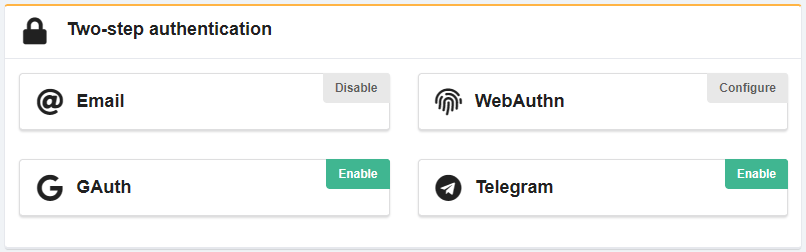
The Email method is enabled by default for all accounts. It can be disabled if necessary.
To log in to your account without a code sent to your email, simply set up and use any of the available 2FA methods (or a combination of methods).
Telegram
Notes:
- Two-step authentication via Telegram is automatically enabled when you connect your Telegram account and can be disabled if you wish.
- If multiple Telegram accounts are added to the account, a login confirmation message is sent to all of them.
- Add Telegram account (if not added).
- Open the "Personal data" section and switch to the "Security" tab.
- In the "Two-step authentication" block next to the Telegram method, click "Enable".
GAuth
Attention!
For two-step authentication via an authenticator app to work correctly, the time on the mobile device with the app must exactly match the current server time. If it does not match, you need to go to "More → Settings → Time correction for codes" in the app and click "Synchronize".- Open the "Personal data" section and switch to the "Security" tab.
- In the "Two- step authentication" block next to the GAuth method, click "Enable".
- Install an authenticator app on your mobile device:
- In the app, scan the QR code or enter the secret key below it manually.
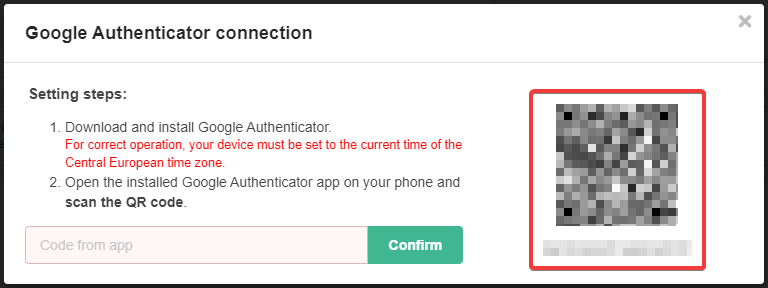
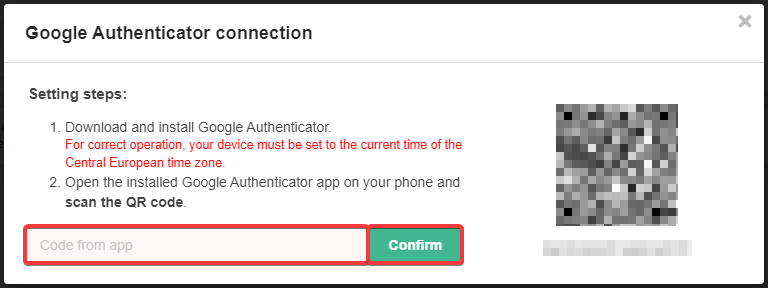
- Enter the two-step authentication code generated by the app and click "Confirm":
WebAuthn
Important points:
- WebAuthn can be used for both two-step authentication and passwordless login.
- Some devices may not support WebAuthn, such as devices with outdated operating system versions, certain models of Xiaomi smartphones, OnePlus, etc.
- Only one passkey can be stored on one device (or in one storage) for each account.
- In Windows, a PIN code (only a password is not sufficient) must be configured to locally store the passkeys for the account on the device, and a fingerprint scanner or facial recognition can also be used if the appropriate hardware is available.
- On Android, passkeys are stored in Google Password Manager and synchronized between devices. You can view, edit, or delete a list of stored passkeys in the password manager: on Android — "Settings → Google → Autofill → Google Autofill → Passwords", in a browser — "Google Account → Security → Saved passwords → Password manager".
- On iPhone, passkeys are stored in iCloud Keychain and synchronized between devices. You can view, edit, or delete a list of stored passkeys in "Settings → Passwords".
- Android and iPhone devices can be used as intermediaries — store and read passkeys from connected USB or NFC hardware dongles.
- In the Bitwarden password manager, saving and using passkeys is possible only via browser extension.
- Open the "Personal data" section and switch to the "Security" tab.
- In the "Two- step authentication" block next to the WebAuthn method, click "Configure".
- Enter any name for the device where you will store the passkey and click "Add".
- ⚠️ The device name is set only when you add the device and cannot be changed afterward. The only way to change it is to delete the device and set it up again.
- Register a new passkey:PIN code (must be pre-configured in the system):
- In the "Making sure it's you" window, select "PIN" (or "This is a Windows device → PIN").
- Enter the PIN code set in the system and press Enter
- If successful, the "Passkey saved" window will appear.
Security key (a hardware USB key, such as YubiKey):
- In the "Make sure it's you" window, select "Use another device → Security key".
- In the "Security key setup" window, click "OK".
- In the "Continue setup" window, click "OK".
- Insert the hardware key and press the button on it.
- If successful, the "Passkey saved" window will appear.
iPhone, iPad, or Android device:
- In the "Making sure it's you" window, select "Use another device → iPhone, iPad or Android device".
- Scan the QR code with your device.
- Your device will display a suggestion to remember it so you don't have to scan the QR code every time — choose the option you want.
- Once the device is connected, it will display information about which site and account the passkey will be saved for — click "Continue".
- Use the screen lock on the device to confirm that the key has been saved.
- If successful, the "Passkey saved" window will appear.
- The device will display information about which site and account the passkey will be saved for — press "Continue".
- Use the screen lock on the device to confirm that the key has been saved.
- If successful, the "Passkey saved" window will appear.
- In the extension window "Select the login for which the passkey will be saved", select the entry for which you want to save the passkey and click "Save passkey" (or create a new entry if there is no match in the repository).
- If a passkey already exists for the selected entry, confirm overwriting it (make sure you do not overwrite the desired passkey).
- (Optional) If you want to log in by passkey without entering a password, in the "Two-step authentication" block next to the WebAuthn method, click "Configure" and in the row with the desired device, enable the "Log in without password" option.
Disable
- Open the "Personal data" section and switch to the "Security" tab.
- In the "Two- step authentication" block:
- For Email, Telegram, or GAuth — just click "Disable".
- For WebAuthn — click "Configure" and delete devices from the list.
Using multiple devices
Attention!
For security reasons, we recommend that you configure two-step authentication on only one device that you have full control over and that is not accessible to unauthorized persons. Remember that you are solely responsible for all actions that may be performed on your account by anyone who has access to it.Methods of organization
When logging into an account, it is possible to use several different devices for two-step authentication. This can be organized in the following ways:
- Connect to one account several Telegram accounts. When you log in, our Telegram bot sends a confirmation to each of them.
- Configure GAuth on multiple devices simultaneously:If an already configured app supports import/export, you can export the data and import it on another device. This feature is available in Google Authenticator and alternative apps like Aegis and andOTP. You can use it to transfer settings between devices and back them up to keep them in a safe place for emergencies.You can scan a QR code with multiple devices — to do this, you need to disable two-step authentication via the app (if it was enabled) and enable again. In this case, at the stage of scanning the QR code you need to:
- Either scan the QR code or enter the secret key on not one, but on all required devices at once.
- Either take a screenshot with a QR code or copy the secret key so that you can use it later to configure the app on another device. When using this method, it is extremely important that no unauthorized persons have access to the screenshot or key. It is better to securely delete them immediately after configuring the necessary devices or store them where it is guaranteed that no one but you will have access to them.
- Configure WebAuthn for the desired devices.
Disable
- Delete unnecessary Telegram accounts.
- Remove unnecessary devices in the WebAuthn settings.
- Delete unnecessary phone numbers.
- To be safe, also reset unnecessary sessions and change the password of the account.
(2)