Manage cookies that are used for advertising, such as ad personalization, remarketing, and ad effectiveness analysis.
2.4.1.17. WordPress administration
The section becomes available after the system determines that WordPress is used on the site. With automatic installation, this happens immediately, with manual installation or after site transfer — within 24 hours.
For sites on CMS WordPress, the "WordPress administration" section is available in the site menu.
Basic operations and core

"SMTP" — configure sending mail via SMTP (see below).
"Reset password" — set a new password for any existing WordPress user.
"Change address" — change the site address to a new one (for example, when changing the domain).
"Restore" — forced update of WordPress files to the latest version if they are damaged or infected.
The "CMS version" block displays the number of the installed WordPress version. If a new version is available, a corresponding notification will be displayed in this section.
Plugins
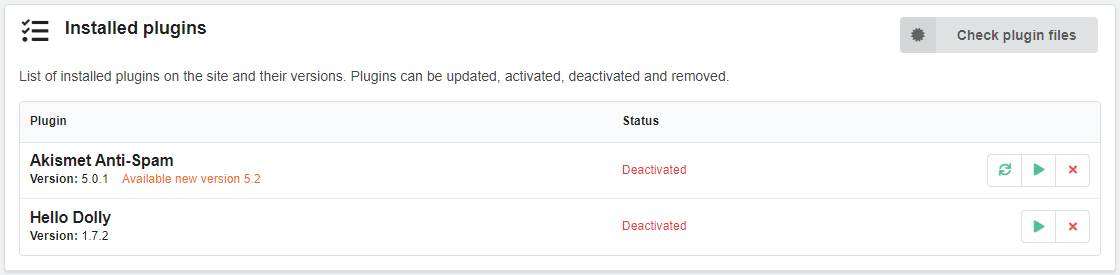
The block displays a list of installed plugins and their versions. If a new version of a plugin is available, a corresponding notification is displayed in the row with that plugin.
You can do the following with each plugin in the list:
- Update (if a new version is available).
- Activate or deactivate.
- Delete.
"Check plugin files" — verifies the checksums of each plugin file against the data in the WordPress.org directory. This is used to verify the authenticity of plugin files, which is important in case of plugin file infection by viruses or other tampering. If any discrepancies are found, a list of changed files will be displayed with the option to open each of them in the built-in file editor of the file manager.
SMTP
For manual SMTP configuration using other plugins, see Configure mail in WordPress.
Using the "SMTP" button, you can quickly configure the site to send messages via SMTP from one of the existing mailboxes. WordPress does not have built-in SMTP support, so when you use the button, the simplest possible plugin, Simple SMTP, is installed on the site to add this feature.
After clicking the button, you need to select the mail domain and mailbox. If two-step authentication and application passwords are disabled for the selected mailbox, you must also specify mailbox password; if 2FA or app passwords are enabled, the system will automatically generate an app password and you will not need to specify the mailbox password (the app password is valid for 1 year, is updated when you reconfigure it, and will appear in the list of app passwords with a name like "WordPress SMTP www.example.com").
After successful configuration, an icon ✅ appears next to the "SMTP" button. Pressing the button again allows you to change the settings for connecting to your mailbox or disable sending via SMTP.
Profiling
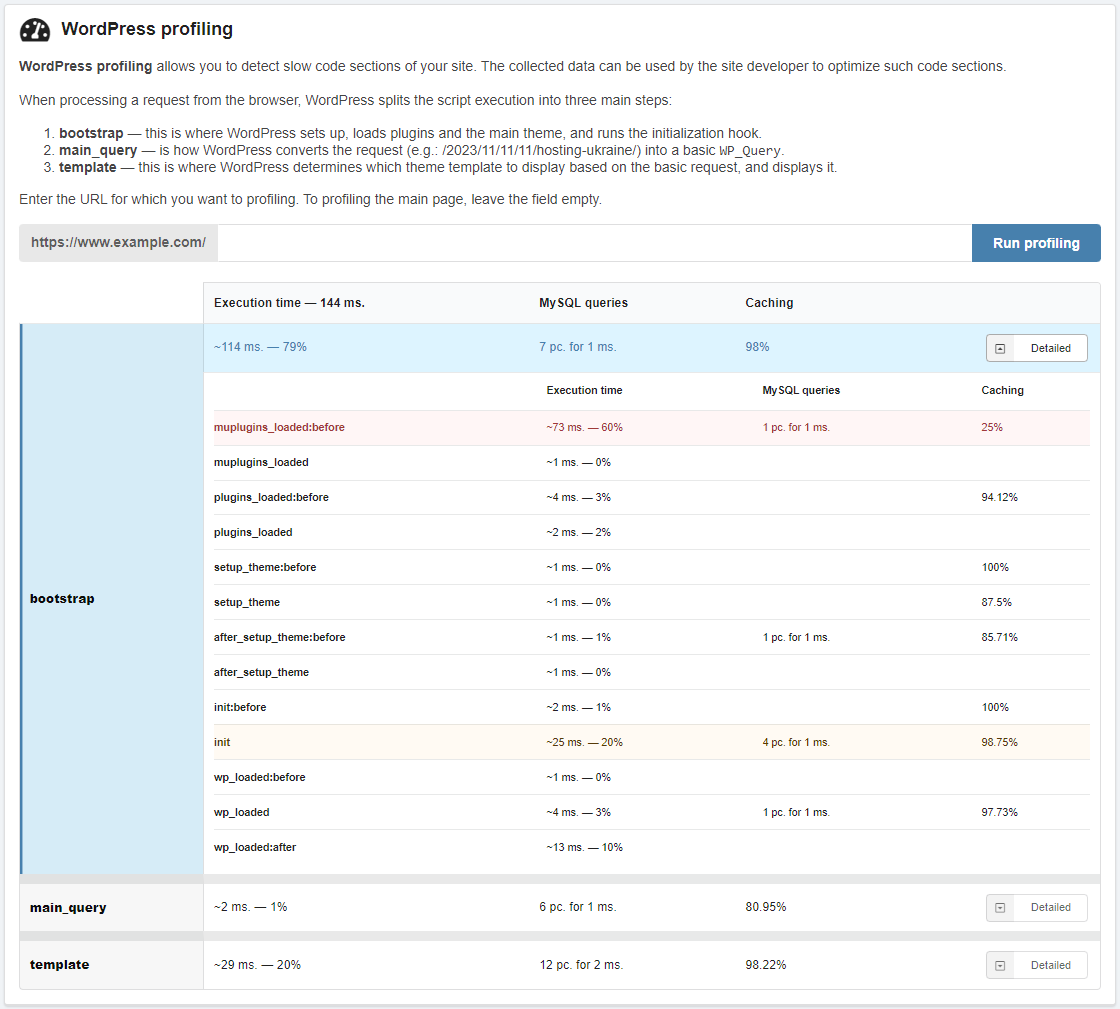
Profiling allows you to analyze in detail the order and time of execution of a request to a specific page. This information can be useful for finding bottlenecks and optimizing the site.
When profiling, request processing is divided into three stages:
- bootstrap — here WordPress configures itself, loads plugins and the main theme, and runs the initialization hook.
- main_query — this is how WordPress converts a request (for example,
/2023/11/11/hosting-ukraine/) into the main WP_Query. - template — here WordPress determines which theme template to display based on the main request and displays it.
The report displays the total execution time and information about each stage:
- Execution time and what percentage it represents of the total time.
- Number of MySQL queries and their processing time.
- Cache ratio in percent (higher is better).
"More details" — view information about individual hooks for a specific stage.
(4)