Manage cookies that are used for advertising, such as ad personalization, remarketing, and ad effectiveness analysis.
3.3.1.1. Change contacts of international domains .COM, .NET, .ORG, .BIZ, .INFO, .XYZ, .CLUB, .LIFE, .AUDIO, etc.
Important points:
- It is allowed to specify contacts that may not match the data in your account. The main thing is that the contacts must be real (not fake).
- Contact type always corresponds to type of account of the current domain owner: for individuals and FOP — physical person, for legal entities — organization.
- Contacts can be published in WHOIS if necessary.
- You can cancel the operation manually while the contacts are being changed. If the contact change is not confirmed within 30 days, the operation is canceled automatically.
flowchart LR
form[/🪪 Form
filling/] important{Full name,
organization, or email
changed?} subgraph Confirmation email{Email
has changed?} current[🔗 Follow link
from current email] old[🔗 Follow link
from old email] new[🔗 Follow link
from new email] end done([✔️ Done]) transfer["🔒 Transfer blocking
for 60 days"] form-->important-->|Yes|email email-->|No|current--->done email-->|Yes|old-->new-->done important-->|No|done done-.->|If not
disabled|transfer
filling/] important{Full name,
organization, or email
changed?} subgraph Confirmation email{Email
has changed?} current[🔗 Follow link
from current email] old[🔗 Follow link
from old email] new[🔗 Follow link
from new email] end done([✔️ Done]) transfer["🔒 Transfer blocking
for 60 days"] form-->important-->|Yes|email email-->|No|current--->done email-->|Yes|old-->new-->done important-->|No|done done-.->|If not
disabled|transfer
- Open the "Change domain contacts" section.
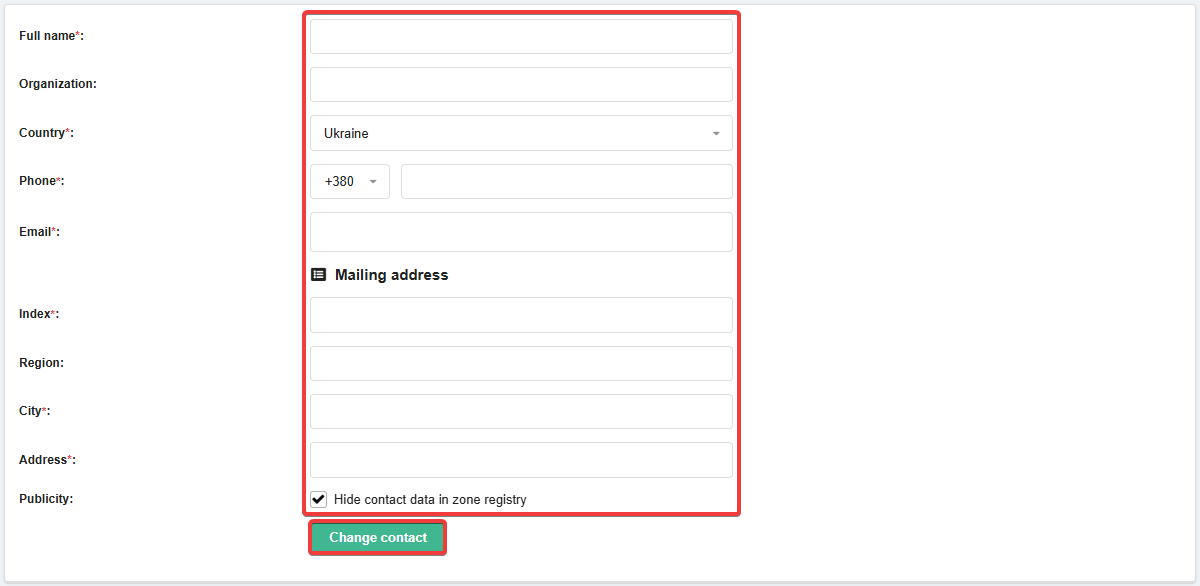
- Fill out the form and click "Change contacts":
- If you change full name, organization, or email, additional steps are required:
- Read the ICANN rules and at the bottom of the form enable "I want to transfer my domain to another registrar after changing contacts. Do not set a transfer block":
Disabled option blocks transfer!
If the option is not enabled, after a contact change transfer of the domain to another registrar will be blocked for 60 days with no possibility to unblock.
- Confirm the operation:
Notes:
- Messages with a confirmation link can be requested again from the control panel.
- Following links requires login to the domain owner's account.
- If email remains the same — follow the link from the message that was sent to your current email from your domain contacts and click ✅.
- If email is changed to a different one — follow the links from the two messages that were sent to the old email from the domain contacts and the new one, and click ✅.