Manage cookies that are used for advertising, such as ad personalization, remarketing, and ad effectiveness analysis.
2.4.1.2.12. Automatic IP blocking on Cloudflare side
Notes:
- The last 10 blocked IP addresses will be visible in the "Site protection" section on the "Cloudflare" tab.
- The blocking for each IP address is active for 1 day, after which it is automatically removed from the list of blocked addresses in Cloudflare.
For sites that use Cloudflare traffic proxying, you can configure automatic blocking of suspicious IP addresses on the Cloudflare side. As a result, requests from such addresses will not reach our servers and create unnecessary load on the site.
Configure
Attention!
The "Cloudflare" tab in our control panel is only available if the site uses traffic proxying via Cloudflare and our system has successfully detected it.- Get the necessary data in the Cloudflare panel:
- Get a Zone ID — you can copy it in several places:
- On the page with the list of domains, via the domain menu ("Copy zone ID" item).
- On the domain page, in the "Overview" section in the lower right corner ("Zone ID" field).
- Create an API token (Cloudflare instructions):
- Open the "API Tokens" section and click "Create Token".
- At the bottom of the page, in the "Custom token" section, click "Get started".
- Enter the token details and click "Continue to summary":
- Token name — arbitrary token name (e.g., "adm.tools").
- Permissions — Zone, Firewall Services, Edit.
- Zone Resources — Include, Specific zone, your domain.
- Click "Create Token" and copy the token you got.
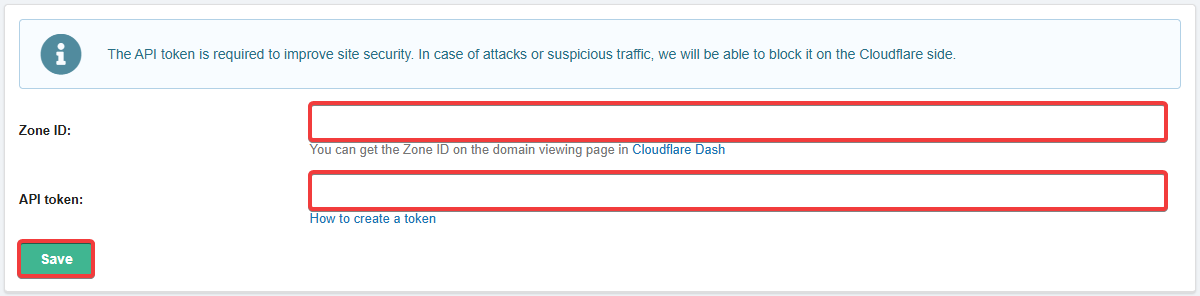
- Enter the data you got in the "Site protection" section on the "Cloudflare" tab and save the changes:
(9)