Manage cookies that are used for advertising, such as ad personalization, remarketing, and ad effectiveness analysis.
2.4.1.2.4. Bot protection
Notes:
- Checking is not performed for IP addresses that are added to the Firewall whitelist.
- If the bot you're looking for isn't on the list, use the "Suggest bot" button.
Principle of operation
Some bots can create senseless load on the site or scan it for vulnerabilities. For such bots, access to the site is blocked by default. Blocking is performed by User-Agent, blocked bots get response 403 for all requests.
flowchart LR
request@{ shape: stadium, label: "➡️ Request" }
whitelist@{ shape: rounded, label: "🧱 Restricted
access mode" } blacklist@{ shape: rounded, label: "📋 IP blacklist" } firewall@{ shape: rounded, label: "🔥 Firewall" } subgraph bots [🤖 Bots] list@{ shape: diamond, label: "📋 Bot
in list?" } E[ ]:::empty classDef empty height: 0, width: 0 subgraph rules [Rules] allow@{ shape: rounded, label: "✔️ Always allow" } ddos@{ shape: rounded, label: "🛡 Allow,
but restrict during times of high load on site" } deny@{ shape: rounded, label: "❌ Deny" } end end countries@{ shape: rounded, label: "🌎 Countries" } suspicious@{ shape: rounded, label: "🔍 Suspicious IPs" } iam@{ shape: rounded, label: "🛡️ I'm Under Attack" } site@{ shape: stadium, label: "✅ Site" } error_403@{ shape: stadium, label: "🚫 Error 403" } request-->whitelist request-->blacklist blacklist-->firewall whitelist-->firewall firewall-->list list---E-->|✅|rules allow-->site ddos-->countries deny-....->error_403 list-->|❌ or request not from bot|countries countries-->suspicious suspicious-->iam iam-->site firewall-.->site
access mode" } blacklist@{ shape: rounded, label: "📋 IP blacklist" } firewall@{ shape: rounded, label: "🔥 Firewall" } subgraph bots [🤖 Bots] list@{ shape: diamond, label: "📋 Bot
in list?" } E[ ]:::empty classDef empty height: 0, width: 0 subgraph rules [Rules] allow@{ shape: rounded, label: "✔️ Always allow" } ddos@{ shape: rounded, label: "🛡 Allow,
but restrict during times of high load on site" } deny@{ shape: rounded, label: "❌ Deny" } end end countries@{ shape: rounded, label: "🌎 Countries" } suspicious@{ shape: rounded, label: "🔍 Suspicious IPs" } iam@{ shape: rounded, label: "🛡️ I'm Under Attack" } site@{ shape: stadium, label: "✅ Site" } error_403@{ shape: stadium, label: "🚫 Error 403" } request-->whitelist request-->blacklist blacklist-->firewall whitelist-->firewall firewall-->list list---E-->|✅|rules allow-->site ddos-->countries deny-....->error_403 list-->|❌ or request not from bot|countries countries-->suspicious suspicious-->iam iam-->site firewall-.->site
In the chain of all site protection stages, bot protection comes after restricted access mode, IP blacklist and Firewall before country access restriction, checking suspicious IPs and I'm Under Attack.
Configure
Configuration is performed in the "Hosting → My sites → your site → Site protection" section on the "Bots" tab: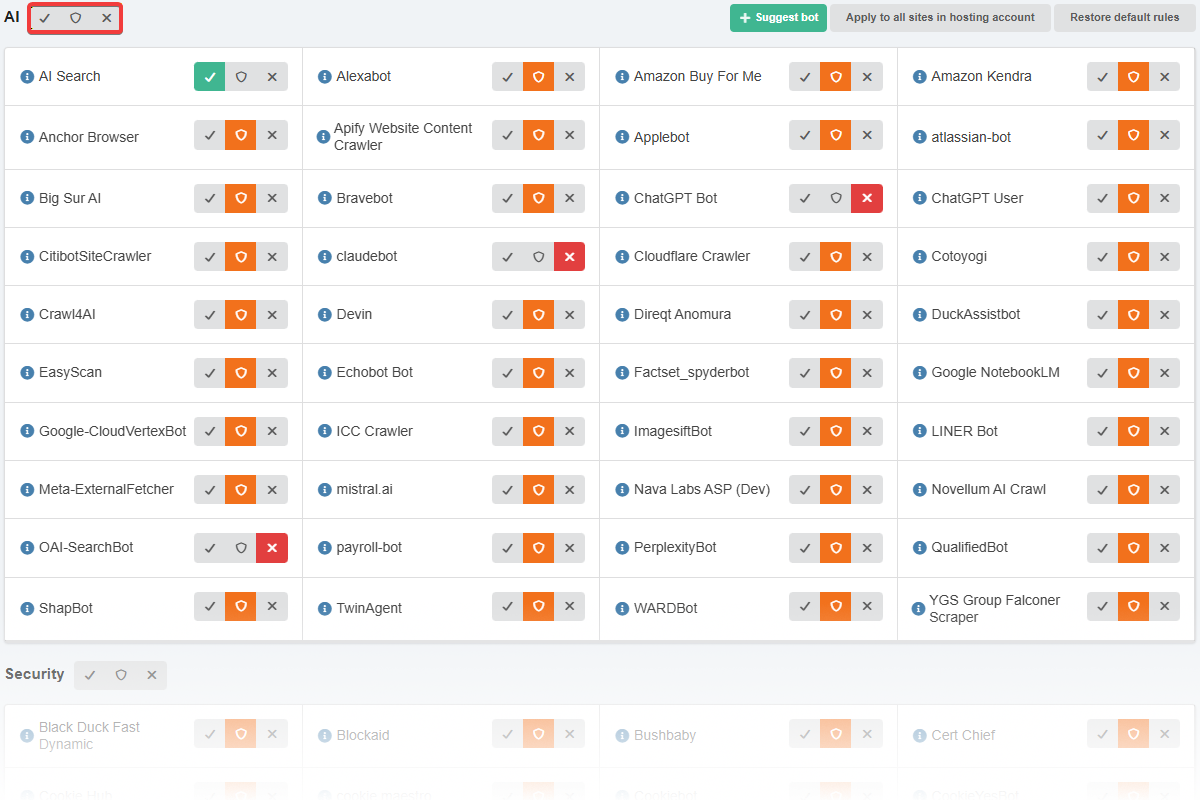
To configure access, use the buttons in the "Rule" column:
- ✅ ("Always allow") — the bot is allowed access to the site. Exception: IP addresses that are restricted via the IP blacklist or restricted access mode.
- 🛡 ("Block during periods of high traffic on the site") — if a bot triggers any rule that restricts access (for example, country-based access restrictions, I'm Under Attack), access will be denied. This is useful when you want the bot to operate, but if the load exceeds the limit and protection is triggered, access should be denied and the bot should receive a 429 error.
- ❌ ("Block") — the bot will receive a 403 error.
For each bot, statistics on the number of requests over the past 3 days are displayed:
- Allowed — requests with any response code except 403, 405, and 429.
- Blocked — requests with 403, 405, or 429 responses. For example, requests from bots with explicitly blocked access or from bots that failed to pass protection. This also includes requests that successfully passed the bot protection but for which such a response was returned by other security measures or by the site itself (for example, by the rules in
.htaccess).
The list of bots is sorted in descending order by total number of requests (the sum of allowed and blocked requests) — bots with the highest number of requests appear at the top of the list, and those with the lowest number — at the bottom. This allows you to quickly assess which bots are generating the most requests and which ones may need to have their access restricted.
By default, the list shows only active bots that have received requests in recent months. To view the full list of bots, including inactive ones, disable the "Hide inactive" option.
The "Apply rules to all sites" button applies the current site’s settings to all sites in this hosting account. Use this option when you have multiple sites and need to apply the same bot protection settings to all of them.
To reset the settings in the "Rule" column header, click ↩️ ("Restore default rules for all bots").
robots.txt
Using the "Substitute rules to robots.txt" button, you can automatically add rules to your site’s robots.txt file that will deny access to blocked bots (❌). This helps reduce the overall number of requests from unwanted bots, rather than just blocking them.
When rule substitution is enabled, the following happens:
- When accessing the robots.txt file, rules are added at the beginning to block access to the site for User-Agents of blocked bots (see the example below).
- Changes are made on the fly; the contents of the source file remain unchanged.
- If the robots.txt file does not exist, only the automatically generated rules will be returned when the file is accessed.
Any changes take effect within a few minutes.
Example of a robots.txt file with added directives:
# BEGIN adm.tools Managed content
User-agent: *
Allow: /
User-Agent: AhrefsBot
User-Agent: MJ12bot
User-Agent: DataForSeoBot
User-Agent: barkrowler
User-Agent: Bytespider
User-Agent: GPTBot
User-Agent: meta-externalagent
User-Agent: Baiduspider
User-Agent: meta-webindexer
User-Agent: AhrefsSiteAudit
Disallow: /
# END adm.tools Managed content
<content of your robots.txt file>
(5)