Manage cookies that are used for advertising, such as ad personalization, remarketing, and ad effectiveness analysis.
2.4.1.2.2. IP blacklist
Attention!
The IP blacklist is always active when restricted access mode is not enabled.Principle of operation
The IP blacklist works as follows — when restricted access mode is not enabled, the site will be accessible to everyone except addresses from the blacklist — they will get error 403.
flowchart LR
request@{ shape: stadium, label: "➡️ Request" }
subgraph blacklist [📋 IP blacklist]
mode@{ shape: diamond, label: "Is restricted
access mode
enabled?" } list@{ shape: diamond, label: "📋 IP
in blacklist?" } end whitelist@{ shape: rounded, label: "🧱 Restricted
access mode" } firewall@{ shape: rounded, label: "🔥 Firewall" } bots@{ shape: rounded, label: "🤖 Bots" } countries@{ shape: rounded, label: "🌎 Countries" } suspicious@{ shape: rounded, label: "🔍 Suspicious IPs" } iam@{ shape: rounded, label: "🛡️ I'm Under Attack" } site@{ shape: stadium, label: "✅ Site" } error_403@{ shape: stadium, label: "🚫 Error 403" } request-->mode mode-..->|✅|whitelist mode-->|❌|list list-->|❌|firewall list-.......->|✅|error_403 whitelist-.->firewall firewall-.->site firewall-->bots bots-->countries countries-->suspicious suspicious-->iam iam-->site
access mode
enabled?" } list@{ shape: diamond, label: "📋 IP
in blacklist?" } end whitelist@{ shape: rounded, label: "🧱 Restricted
access mode" } firewall@{ shape: rounded, label: "🔥 Firewall" } bots@{ shape: rounded, label: "🤖 Bots" } countries@{ shape: rounded, label: "🌎 Countries" } suspicious@{ shape: rounded, label: "🔍 Suspicious IPs" } iam@{ shape: rounded, label: "🛡️ I'm Under Attack" } site@{ shape: stadium, label: "✅ Site" } error_403@{ shape: stadium, label: "🚫 Error 403" } request-->mode mode-..->|✅|whitelist mode-->|❌|list list-->|❌|firewall list-.......->|✅|error_403 whitelist-.->firewall firewall-.->site firewall-->bots bots-->countries countries-->suspicious suspicious-->iam iam-->site
In the chain of all site protection stages, the IP blacklist comes instead of restricted access mode before Firewall, bot protection, country access restriction, checking suspicious IPs and I'm Under Attack.
Manage
Management is performed in the "Site protection" section on the "IP blacklist" tab: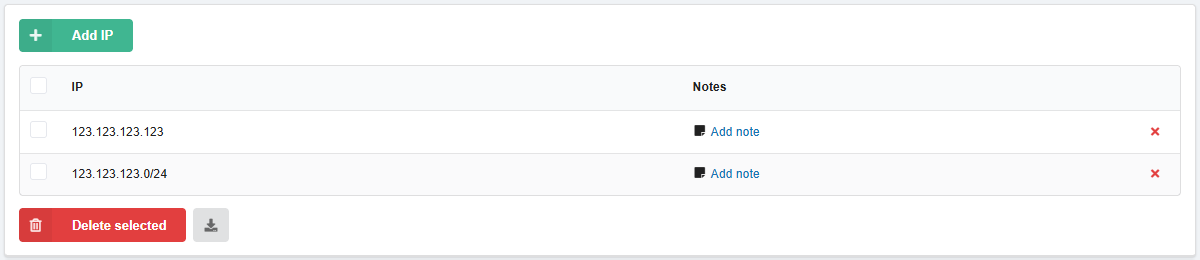
Add IP
Notes:
- Only valid IPv4 and IPv6 IP addresses are added to the list. Invalid ones are ignored.
- IPv6 addresses are automatically truncated and converted to /64 networks when added automatically. The reason is that according to IPv6 allocation rules each device is allocated a /64 subnet rather than a single address. It is the subnets of devices that are blocked, since blocking individual addresses makes no sense (a device owner can allocate a huge number of individual addresses within his subnet).
- Subnets in CIDR format can be added with a mask of any length.
- You can use online calculator for easy calculation of subnets.
- Maximum number of addresses in the list — 1000.
- Click "Add IP".
- Add the addresses to the list and save the changes:
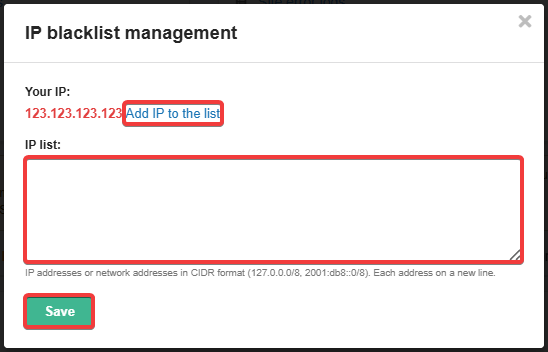
- Add IP to list — adds your current IP address to the list.
- IP list — here you can manually specify single addresses and subnets in CIDR format. Each address from a new line.
- To addresses in the list, you can instantly add notes by separating them with a space.
- Wait 5 minutes for the changes to take effect.
(1)